The User Task Manager, in the Content Management System, is a personalized interface for users to manage their own User Tasks, including setting them to Complete.
User Task Manager
Accessing the User Task Manager
 Click the Tasks icon to open the User Task Manager.
Tip: You may need to click the Ellipsis icon (three vertical dots) in the content toolbox, then select Tasks from the hidden items.
User Task Manager Pages
The User Task Manager includes a tab for each of the User Task types (purple highlight below):
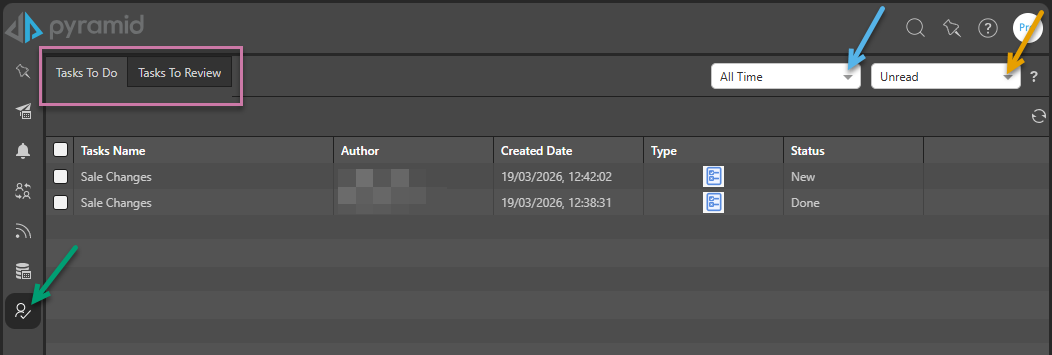
Tabs
The User Task Manager is split across two tabs:
- Tasks To Do: All User Tasks where you are an Assignee, and therefore responsible for completion.
- Tasks To Review: All User Tasks where you are a Manager, and therefore responsible for work management.
Task Table
Each row in each of the tables represents a User Task. For each of the Tasks:
- If the Task is not in the Done state, selecting it opens the User Task panel. If you are an assignee, you can supply details and save your changes or set the task to Complete.
- Once the Task has been set to Complete, it is shown in the Done state.
Filters
Date-time Filtering
Include only those User Tasks that were created within a selected time period (blue arrow, above):
- Select a <time period> to include User Tasks created between now and that selected time (between 1 minute and 12 months ago).
- Select All Time to include User Tasks created at any time.
- Select Custom to include User Tasks created within a custom period. From Date and To Date fields appear, letting you supply the details of your custom time period.
User Task Status
Filter the list to see all User Tasks, or only those that were Read, Unread, Flagged, or Unflagged.
Refresh
Click Refresh to update the page. Note: This main table is refreshed either when this button is clicked or when the page opens.