Create a dynamic illustration that includes one or more "placeholders," each of which can be replaced either by a value selected from a slicer or a derivation of that slice. It is important to note that dynamic illustrations containing placeholders are added to presentations and publications and "fed" with values from the slicers at runtime or build time respectively.
For example, you can create an illustration that contains a placeholder and use PQL to make that value italic. Then, you can add the illustration to a publication and create an interaction between a Country slicer and the placeholder, so that the variable is replaced with the selected country name when the publication is built. In this case, the PQL markup ensures that the placeholder replacement is always italicized.
Tip: If you want to add variables to your text boxes that are replaced with data from your model, you need to add Dynamic Text fields instead.
Creating dynamic placeholders
The first process you need to complete is to build your re-usable illustration in Illustrate. You need to create an illustration, add a text box with a placeholder, and, optionally, use PQL Dynamic or Common expressions to transform the placeholder values into other values or format them by applying markup.
Step 1: Add a Text Box
Add a basic text box to your canvas, creating the basic text field that will include or be replaced by your placeholder or placeholders.
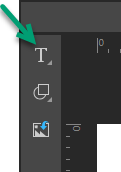
From the Toolbox:
- Click Text.
- Do one of the following:
- Click anywhere on the canvas to drop your field at that location.
- Drag your cursor to draw your field on the canvas. (Use this option to customize the size of your field.)
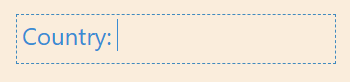
- Type or paste your required text into the text box.
A text box is added to the page at the selected point. Note: You will be able to move and resize it at any time, so don't worry about this being the final location.
Your text box is created. You should re-size, format, or move your text as per your requirements.
Step 2: Add placeholders to your text
These placeholders are the variables that you want to replace with the values from slicer elements when the presentation or publication runs.
To add placeholders:
- Click inside the text box to place your cursor where you'd like to add the variable.
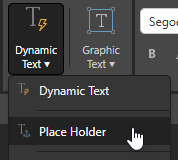
- Click Dynamic Text > Place Holder from the Text ribbon.
- Repeat as required.
It is important to note that you can add multiple placeholders either to one text box or across multiple text boxes as needed.
Step 3: Configure the placeholder (optional)
By default, the placeholder is named PlaceHolderX. If you would like to format the replacement value (make it Italic or Bold), or return a "manipulated" value (return a three character code instead of the Country name, or return some information about the selected country from the internet, for example), then you need to open the Dynamic Place Holder editor and update the formula there.
To open the editor, click the placeholder on the canvas:
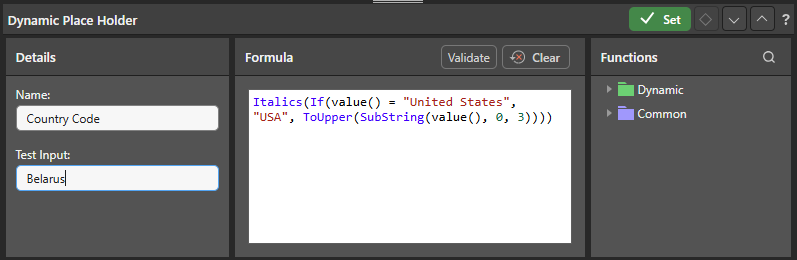
Note: The preceding example shows the use of the If() statement to either replace the value "United States" with "USA" or to replace any other selection with an upper case, three-character sub-string of the value selected from the slicer: If(value() = "United States", "USA", ToUpper(SubString(value(), 0, 3)))
- Click here for more information about this panel and its available functions
Adding illustrations to presentations or publications
The second process you need to complete makes use of the illustration in Present or Publish. Remember, the illustration (and therefore its placeholder) is reusable in many presentations or publications, you just need to save it to an appropriate location in the content manager.
In Present or Publish, drag the illustration onto the canvas from the Content panel, and then use the Integration Manager to create an interaction between the slicer and the placeholder that provides its replacement value:
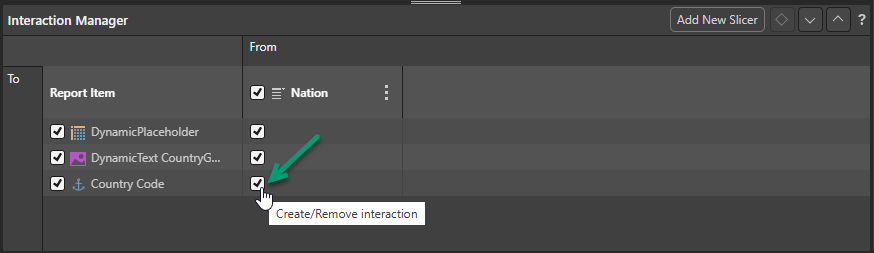
The preceding example shows an interaction that causes the placeholder variable to be replaced by the value selected from the Nation slicer (green arrow above). If the placeholder is configured as shown above, selecting Canada from the Nation dropdown list will cause the placeholder to be replaced with CAN and italicized.
Note: The two additional interactions indicate that the Nation slicer also filters a discovery and a Dynamic Image.
For details describing how to use your dynamic illustration in a presentation or publication, see:
Related information
Show and Hide Highlights
By default, dynamic text and placeholders are highlighted when they are shown on the canvas in Illustrate (the highlights are green and yellow, respectively). You can show or hide these highlights by toggling the Highlights button on the Illustrate ribbon.
- Click here for more information