Direct models allow Pyramid to connect directly to the data source. This means that, unlike other models, reprocessing isn't necessary to keep the data in the model up to date. However, changes made to metadata in the semantic data model do require you to reprocess the model.
For instance, if you make changes to the measures, or rename a table, you'll need to reprocess the model for these changes to be reflected in the materialized model.
- Click here to learn about data the concept of direct querying vs data ingestion.
Reprocess from the Definition File
Open the direct model's definition file from the content explorer (by default, it's saved to your My Content folder).
Tip: Click the file to open it in Model Pro.
- To reprocess the model, click Execute in the top left corner of the interface (blue arrow below).
- Select the Reporting Action you require:
- Select the processing options to apply:
- Override Security: Override the metadata security set from the Admin Console or the Materialized Manager. Disable if metadata security should not be affected by processing the data model. Click here to learn more.
- Process Models Only: Only process the models. Do not process the Data Flow or Master Flow.
- Auto Sync Models: Synchronize the columns in the Data Model with the columns in the Data Flow; this is important where changes were made from the Data Flow.
- Validate Model Relationships: Check that the join definitions between tables are valid. The validation process may impact model processing time, so, although the validation is enabled by default, it can be turned off if needed.
- After setting the processing options, click the large Master Flow button (green arrow above) to process the model. The model will begin reprocessing, and you can view its progress in both the Progress panel and in the Job Spooler.
The Processing Options dialog opens.
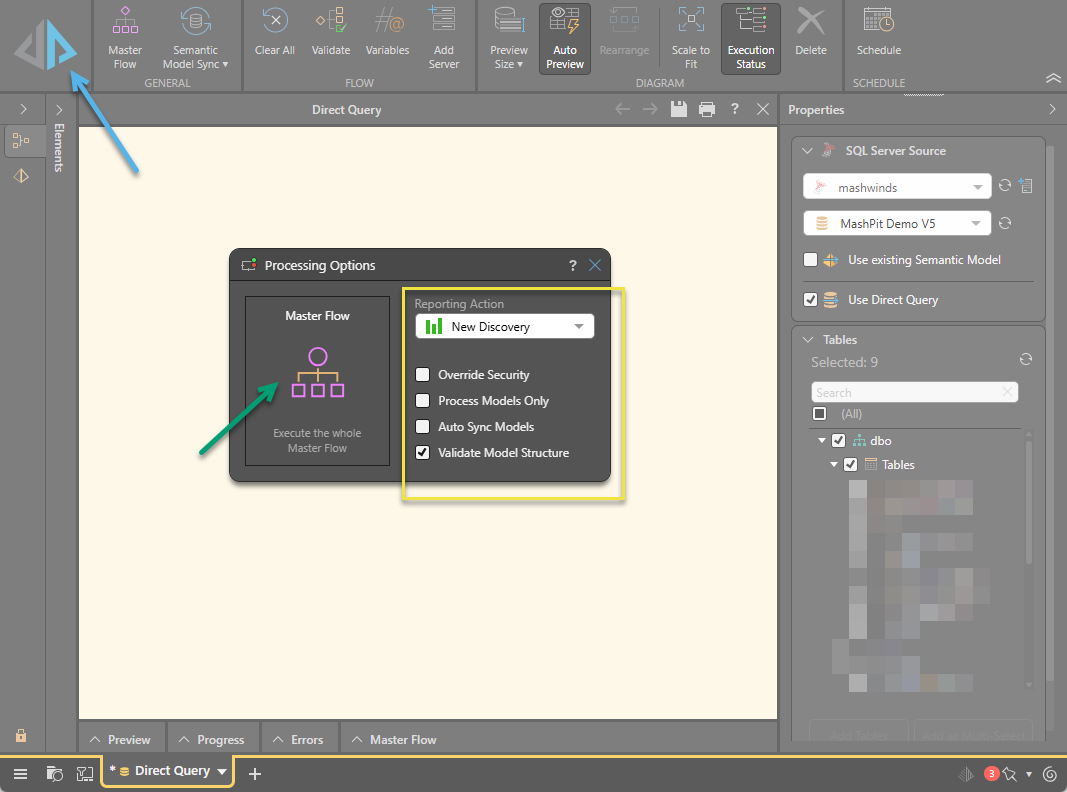
Choose which module the new data model should be opened in: Discover, Smart Discover, Smart Publish, or Smart Present. The data model opens in the given reporting tool as soon as processing is complete. If you don't want any reporting tool to open automatically, select None.