For each column in your table, you need to decide which column should control the sort order. By default, each column is ordered by itself, meaning that, if it's a text column, its values are sorted in alphabetical order. However, if the default sorting is not appropriate (for example, if the column contains month names which should be ordered chronologically and not alphabetically) you need to select a different sort order column that assures the chronological sort order.
Sorting applied from the Columns panel is executed at runtime.
Tip: Alternatively, Sorting can be applied in the Data Flow. Data Flow sorting is stored in the database schema.
Sorting Columns
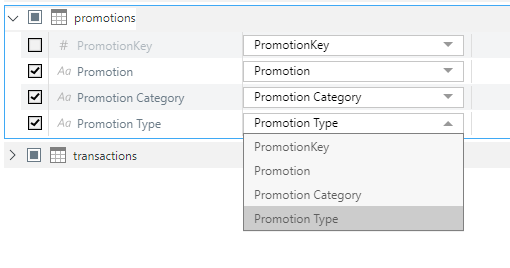
Each column's sorting is controlled using the Sort column. By default, each column is sorted by itself. You can change the sorting for a given column from the Sort dropdown list. The dropdown list includes all columns in the current table; each column may be sorted by any other column from the same table.
Sorting Effect
Sort by Itself
This is the default configuration, where the same value is present in the column and the Sort column. In this case, only the column type affects the sorting behavior:
- For text-based fields, the column will be sorted in alphabetical order.
- For numeric fields, the column will be sorted in ascending numeric order.
- For dates, the column will be sorted in chronological order.
- For Booleans, the column will be sorted with false values first.
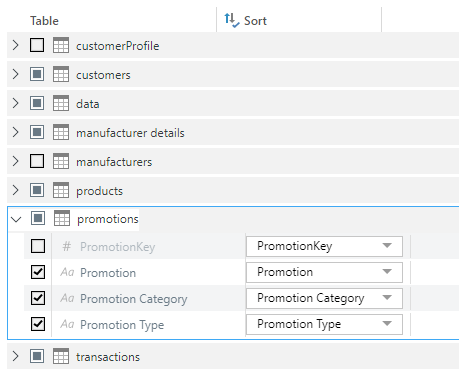
As an example, the PromotionKey is an integer (as indicated by the # icon) and is sorted by itself, so its values will be sorted in ascending numeric order.
Sort by a Different Column
There are many scenarios where it's preferable to sort by a different column. For example, the expected order of month names is typically not alphabetical but chronological (January, February, ... and not April, August, ...). In this case, you need to select a sort column that provides the chronological sort order, such as a month number indicating that January is month 1, February is month 2, and so on (see the Time Intelligence Examples below).
Other examples may sort details in ways that are relevant to your business domain. For example, you might sort customers by purchase to produce a list that ranks customers from those with the most purchases to those with the fewest.
Time Intelligence Examples
Certain time intelligence columns are not sorted by themselves. Columns like Full Quarter, Full Month Name, and Full Week are sorted by numeric columns that contain the start dates for the period and Columns like Month Name and Weekday Name are sorted by number columns:
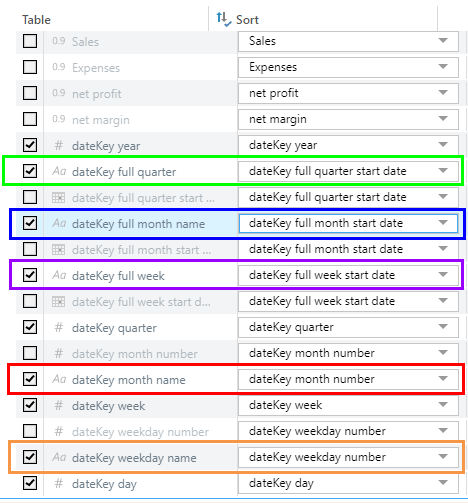
Note: In the preceding example, the Sort columns are all hidden columns that have been defined for this purpose.
 Example: Month Name by Month Number
Let's take a look at the Month Name column in time intelligence, which is sorted by the Month Number column. If this column were sorted by itself, we would end up with month names sorted alphabetically:
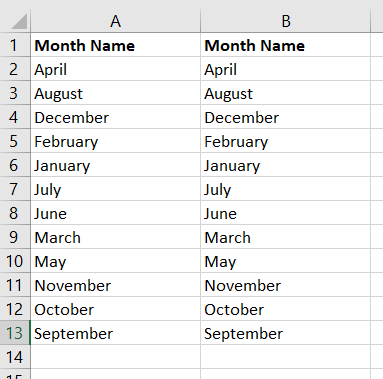
However, since we sort by Month Number, we get a list of month names in their correct (chronological) order:
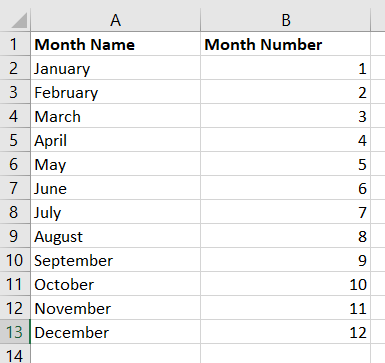
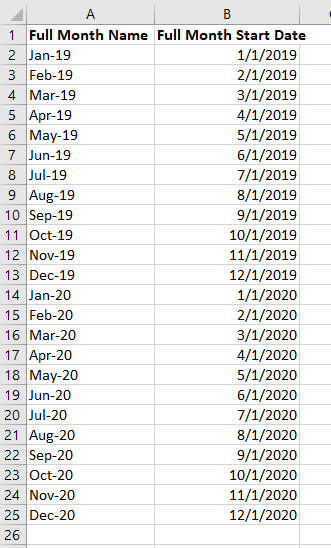
Example: Full Month Name (Month-Year) by Full Month Start Date
The Full Month Name column in time intelligence lists month name and year, and is sorted by the Full Month Start Date column. If this column were sorted by itself, it would be sorted alphabetically:
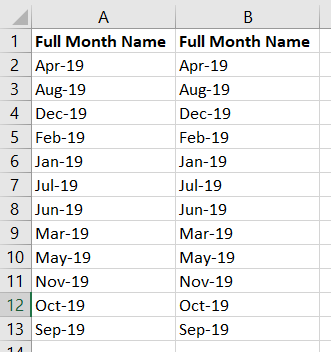
However, we want the column to be sorted in chronological order. To achieve this, we need to sort the month names by a numeric column. If we try sorting by Month Number, we end up with multiple rows for each month-year value:
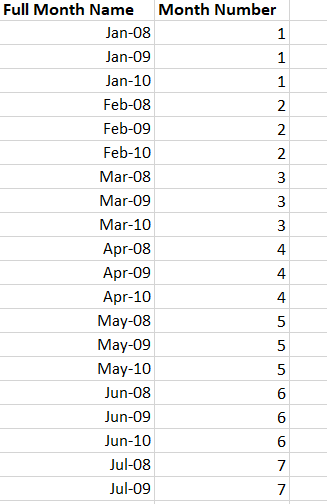
Note: The preceding mapping is not valid. It does not provide a one-to-one mapping between the column and sort column values. See below for more information.
Instead, we sort by the Full Month Start Date Column and end up with a list of months in the correct chronological order:
One-to-one Mappings
You must ensure a one‑to‑one mapping between the values in the Column and the values in its Sort Column to avoid unexpected or unpredictable behavior. This is particularly important when you go on to perform calculations on your data. Put simply, if your Column values map to multiple Sort Column values or if your Sort Column values map to multiple Column values, then Pyramid will not know how to apply the order between the duplicate entries.
Example: Invalid Mappings
A good way to identify whether a column could be used to supply the sort order for another column without producing duplicates is to add the two columns to a grid side-by-side. This allows you to see any issues:
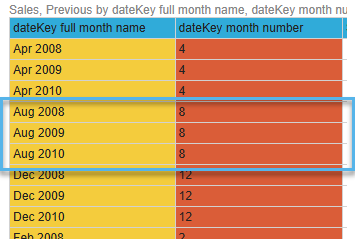
- You cannot use Month Number to provide the Sort order for your Full Month Name column, since multiple "full months" match each month number (Aug of each year matches month number 8), leaving Pyramid unable to distinguish between August in 2008, 2009, or 2010 in your data:
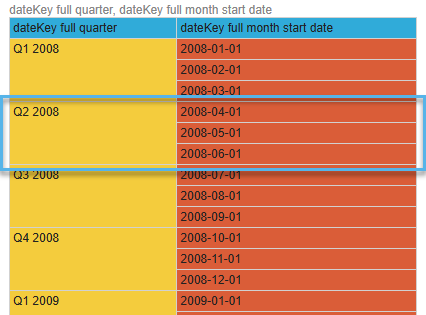
- You also cannot use Full Month Start Date to provide the Sort order for your Full Quarter column, since Pyramid will be unable to tell which of the possible dates is the correct start date for the quarter (in the blue box below, you can see that the start date identified for Q2 2008 could be one of 1st April, 1st May, or 1st June):
Example: Breaking the 1:1 Requirement
It is worth considering the impact of an inappropriate sort order on calculated measures. The following grid shows the two columns that are in use, the Month Name and the Quarter columns:
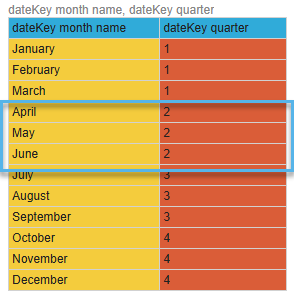
Quarter is selected as the Sort column for Month Name:

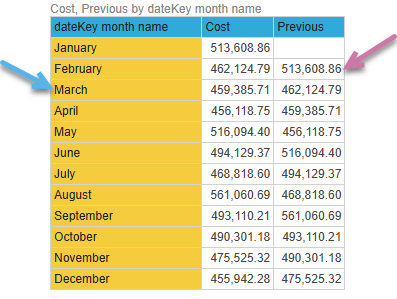
When I add Month Name, Cost, and Previous to my grid, I see the following:
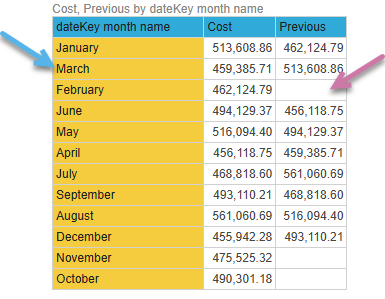
- The months are sorted by quarter, meaning that Jan, Feb, and Mar (blue arrow above) are together, just not necessarily in chronological order.
- The months are not guaranteed to be in the preceding order every time the visual is launched. The quarters will be in the correct order, but within each quarter the months may be in any order.
- The Cost column shows costs for each of the months.
- The Previous column is calculated as follows:
(([measures].[data Cost],[data].[dateKey month name].PrevMember)). You can see that the selection of the previous value is not predictable. For example, the Previous value for February is empty (purple arrow) but should match the previous value from January (513,608.86).
Changing the Sort column for Month Name to Month Number, affects the grid as follows (note the arrows):