This log page tracks the static shares that have been created using the Send Export facility in Governed Sharing. The list represents a log of all the emails sent using Send Export and includes details such as the target email address, item name and location, and so on. You might want to view this list to understand recent communications.
Static Share logging is enabled by default. To change the log settings, go to Logs > Log Settings.
- For more information about Governed Sharing including Share Export, see Share Content.
Static Share Details
Unlike some other logging pages, the Static Share log page is not broken down into panels.
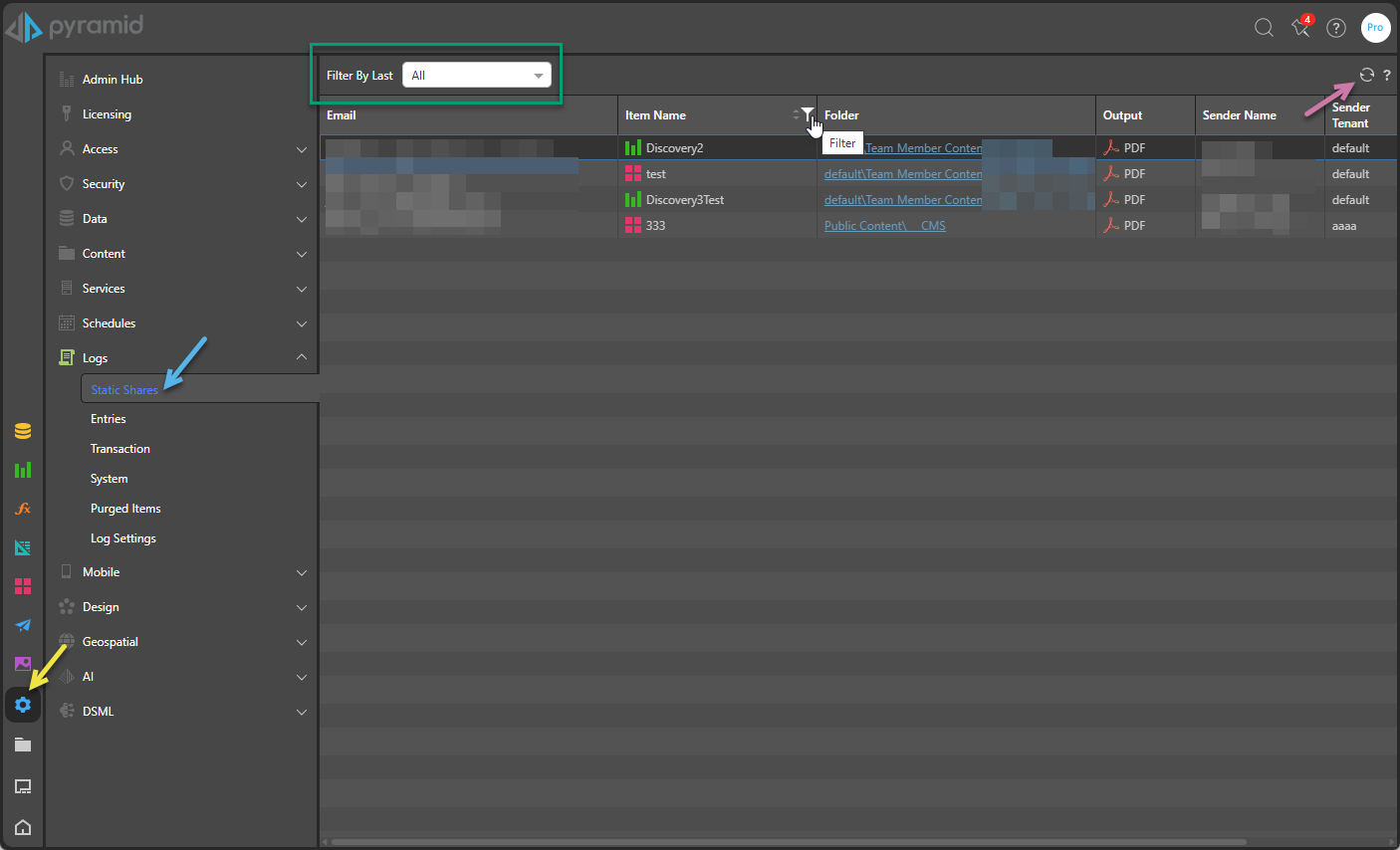
Filter by Last
Include only those static shares that were logged within a selected time period (green box, above):
- Select a <time period> to include events logged between now and that selected time (between 1 minute and 12 months ago).
- Select All to include events logged at any time.
- Select Custom to include events logged within a custom period. From Date and To Date fields appear, letting you supply the details of your custom time period.

Refresh
Click Refresh (purple arrow above) to update the shares displayed on the page. Note: This main table is refreshed either when this button is clicked or when the page opens, but not automatically.
Displayed Columns
The main table shows the filtered list of "results" (static shares). Details include:
- Email: The recipient's email address.
- Item Name: The name of the artifact that was originally shared by email. Note: This column includes the icon that identifies the artifact as a discovery or presentation.
- Folder: The folder location, where the artifact is stored in Pyramid. Note that this is a link.
- Output: The format of the output artifact that was shared (for example, PDF).
- Sender Name: The name of the person who shared the artifact by email.
- Sender Tenant: The tenant or organization associated with the sender.
- Created Date: The date and time the log entry was created.
Sort and Filter
Most column headers include options to sort and filter the results:
- Hover over a column header to Sort the results by ascending or descending order.
- Hover over a column heading to open the Filter options. Filtering allows you to limit the results shown in the column by value. Click the filter icon associated with your column, specify the details of your filter, and click Apply. Which details you see depends on the data type of the value in the selected column:
- If the column contains a Date / time you can select from the options:
- Equals - Return logs with the selected date and time.
- Before - Return logs up to the selected date and time.
- After - Return logs after the selected date and time.
- Between - Return logs within a particular date and time window. In this case, you need to specify the start and end date for your filter.
- If the column contains a String you can select from the options: Equals, Does Not Equal, Start with, End with, Contain, Does not contain, and specify a comparison value.
Pagination

Where there are more results than fit on a single page, a set of pagination controls opens underneath the table of results. You can use these controls to:
- See how many pages of results there are.
- Move between the pages of results.
- Go directly to a specific page of results.