The delete functionality in the Content Manager operates like other delete functions in other applications and tools, such as Windows Explorer. Since its main function is to delete content, it is mainly used within the Content Explorer view, however, it can operate from any view in the Content Manager.
Note: Only Admin users (Pros with administrator access) are able to Purge (or "hard delete") and Restore deleted items outside of their My Content folder. For more information, see Delete, Purge, and Restore for Pros.
Understanding the Delete Lifecycle
The delete lifecycle may include three stages:
- Delete: Removes an item from the system without permanently deleting it. Items are deleted instantly via the context menu, without a confirmation prompt. Only users with write access can delete content. Deleted items are "soft-deleted;" that is, hidden from view but still recoverable.
- Restore: Recovers deleted items and returns them to the content listing. This action is typically restricted to administrators, although non-admin users can also restore deleted items from their My Content folder.
- Purge: Admin only. Permanently deletes items from the system. Purged items are "hard-deleted" and cannot be restored by any user or admin without a repository backup. This action is entirely restricted to administrators.
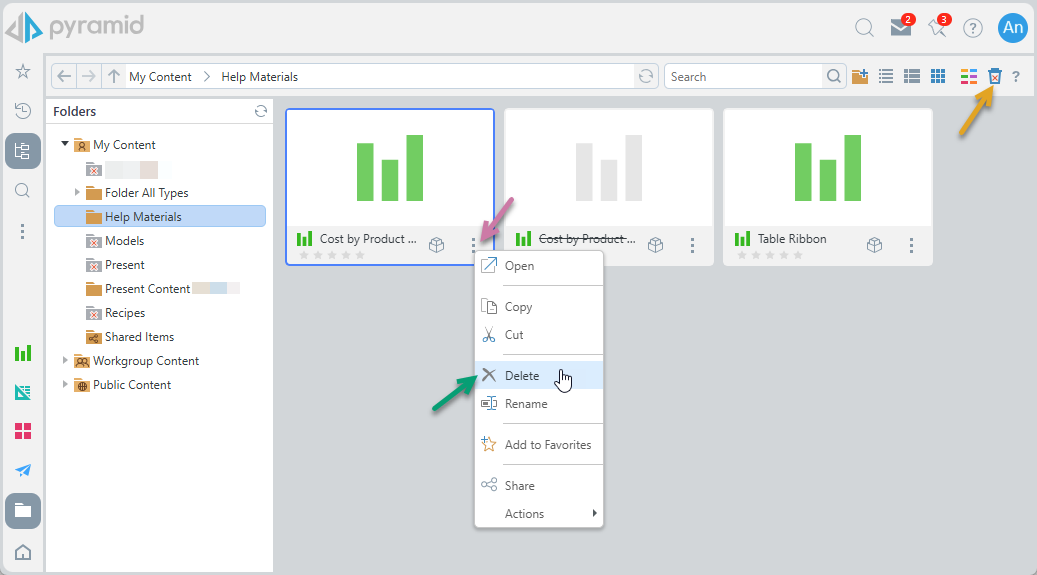
 Deleted items (folders and content items) are not visible unless the View Deletes option is selected from the navigation bar.
Deleting and Restoring
Delete Content
The user accesses the Delete function using the context menu for either the content item or folder in the Content Manager or in the folder tree (purple arrows below). Selecting Delete will immediately delete the item WITHOUT prompt. However, these deletes are "soft" deletes and the selected items can be restored by admins.
Restore Deleted Content
Restore "undeletes" a previously deleted item or folder and allows users to see it in the Content Manager as normal.
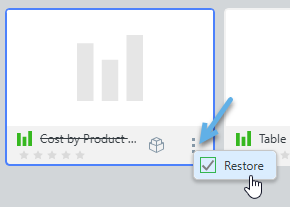
You can see your own soft-deleted items in the My Content folder by clicking on the View Deletes button (orange arrow above). Selecting this option shows deleted items in the list and in the tree.
You can Restore your own deleted folders or content items in My Content using the right-click context menu (blue arrow above).
Related information
Other Delete, Purge, and Restore Actions
In addition to the functions above, Administrators can also perform the following delete lifecycle actions:
- Admins can also Purge or "hard-delete" deleted folders or content items, fully removing them from the repository. Warning: Purged items CANNOT be restored by any user or admin without a repository backup.
- Admins can Restore deleted folders or content items across the different folders in the Content Manager.
For more information, see Delete, Purge, and Restore for Pros.