The Content Search view combines search functionality with a "dynamic content" interface where you can interact with the results of your search. It enables users to locate any item or folder within the system and interact with the results using standard Content Actions and Tools.
You can initiate a search either from the Content Manager or using the Search item on the Home menu.
Warning: If you create a search without providing any criteria, the entire data repository will be returned. THIS IS NOT RECOMMENDED.
Content Search view
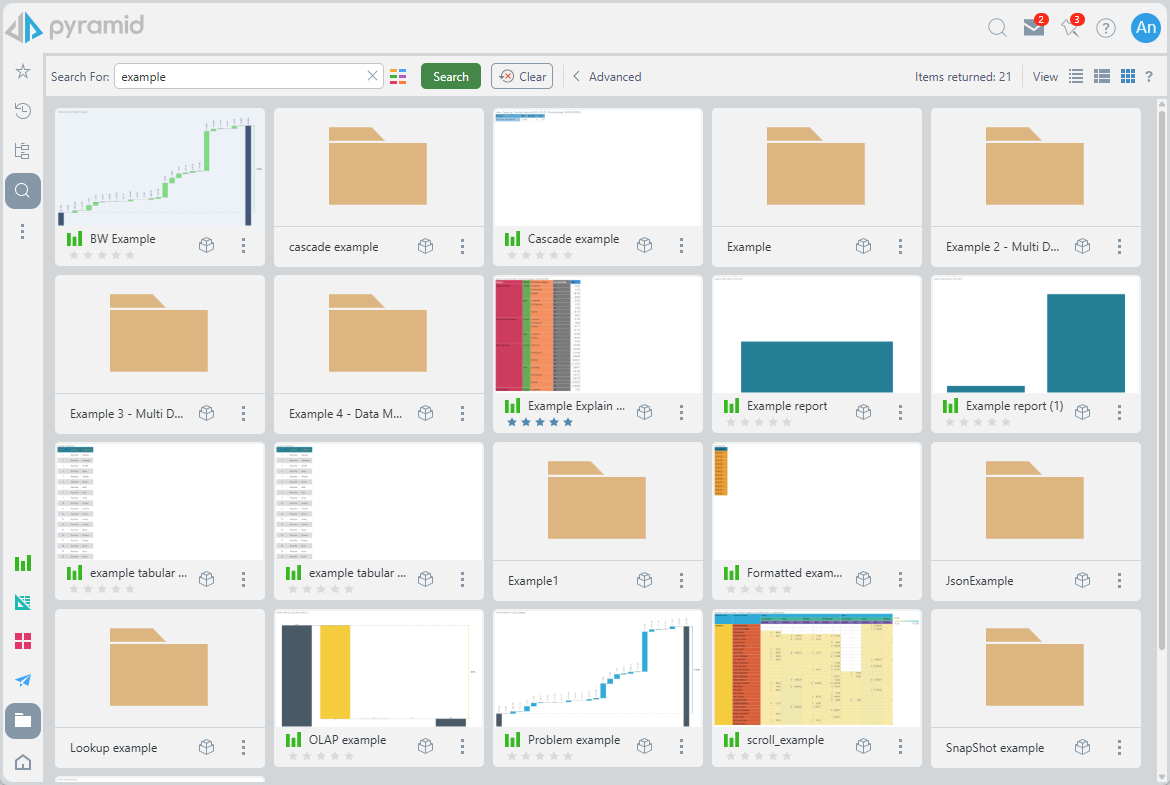
To access the content search tools and view, you can start a Simple search from the Content Manager Toolbox (purple arrow below) and open up the Advanced Search itself from the overhead menu (orange arrow):
Home Menu Search
Click Search from the Home menu (yellow arrow above) to open the basic search field. Type your Search Terms into the text field and press Enter to run the search. The results are returned in the content search view using a basic term search with a "contains" match type and ignoring all other filter options.
Simple Search
Use the search bar in the content search view to supply as many or as few elements of the search mechanism. Typically, the search term is supplied, and then the user clicks Search. The results are shown in the view with a summary count of the items returned in the bar (blue box above).
The Simple Search allows users to quickly locate content using the following tools:
- Search Terms (green arrow): Enter keywords to search across item names and descriptions. The default search type is "contains," meaning partial matches will be included. To clear the search input, click the X button in the search field.
- Content Type Filter (blue arrow): Refine your results by selecting specific content types: All, Folders, and the app types (Discover, Tabulate, Present, and Publish).
After running a search, the result count is displayed (blue box). For more precise filtering, use the Advanced Search options (orange arrow), described in the next section.
Advanced Search
Use the Advanced search (orange arrow above) to further refine your search criteria.
The Advanced Search panel provides enhanced control over the content search engine, allowing for more precise and customized queries. At any time, you can return to the Simple Search by clicking > Simple at the top of the panel:
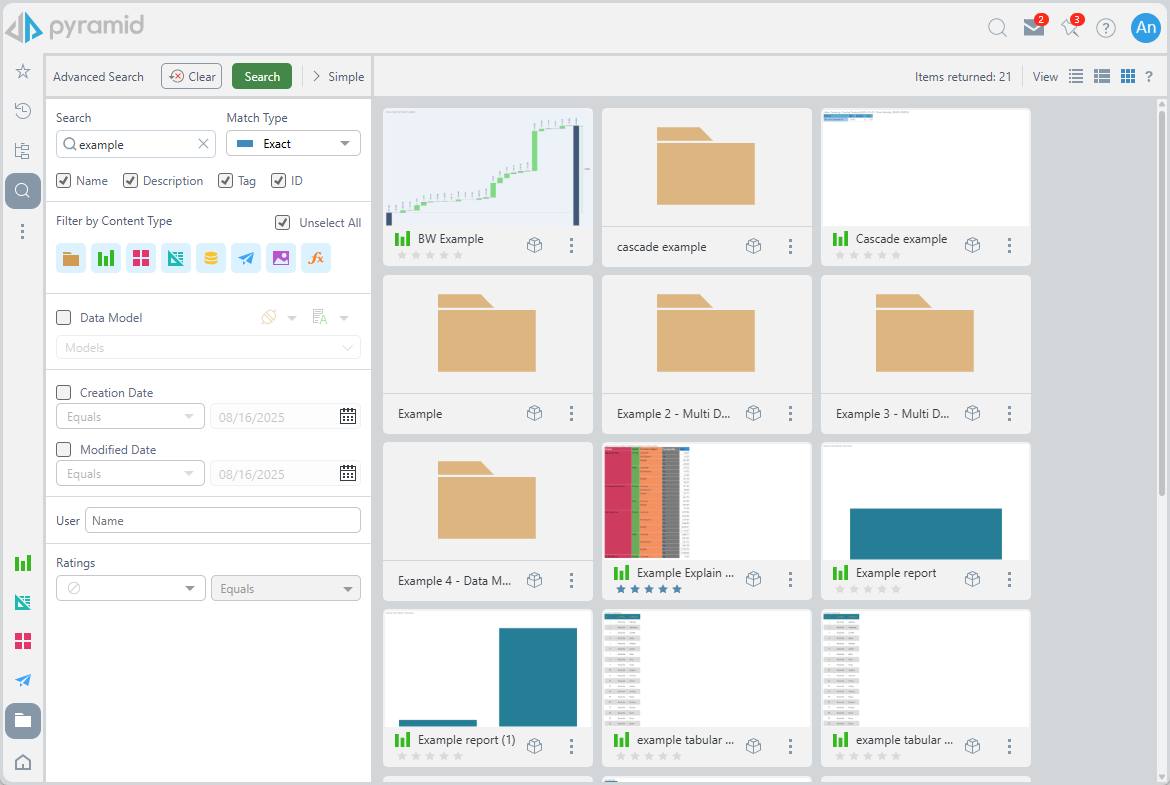
The following search options are available in the Advanced Search panel:
Search Criteria
- Search Term: The Criteria (text) on which to search.
- Match Type: The method used when comparing the Search Term to identify matches. Match types determine how closely the search term must align with the items being searched. Available options include:
- Contains: Return results that contain the search term.
- Not Contains: Return results that do not contain the search term.
- Exact: Return results that exactly match the search term.
- Starts With: Return results that start with the search term.
- Ends With: Return results that end with the search term.
- Search Location: The value that must contain the search term for a match to be returned. You can search by Name, Description, Tag, or ID associated with the content item or folder.
Note: Searching by ID is only available with the Exact match type.
Filter by Content Type
Limits the types of content returned in the results (for example, Folders). This works similarly to the Content Type Filter associated with the Simple Search.
Data Model
Filters results to include only content types linked to specific data models. Use the dropdown menu to select a data model.
Tip: You can filter the Models dropdown list to include only specific types of data models, such as In Memory or Snowflake, using the Filter by Type option. You can also use the Sort By dropdown list to organize servers by Name, Data Source Type, or Folder for easier navigation.
Date Filters
Filters content based on creation or last modified dates. Selecting the Between option reveals two date pickers for specifying a date range.
User
Finds items created or modified by a specific user. Enter the username to apply this filter.
Ratings
Searches for content based on user-assigned ratings across the platform.
Content Results
Users can change the way the result listing looks (like in all content views) by changing the display types.
View (Display Mode)
Set the appearance of the content items in this view by choosing a display mode or "view" from the following options:
- Detail List: A grid-like display of content items with various details.
- Content List: Like the detail list but with a snapshot (or thumbnail) for each item.
- Tile List: All the content items as large tiles, with each including a thumbnail.
Once rendered, the items can be used like in any other view. This includes actions for both content items and folders.