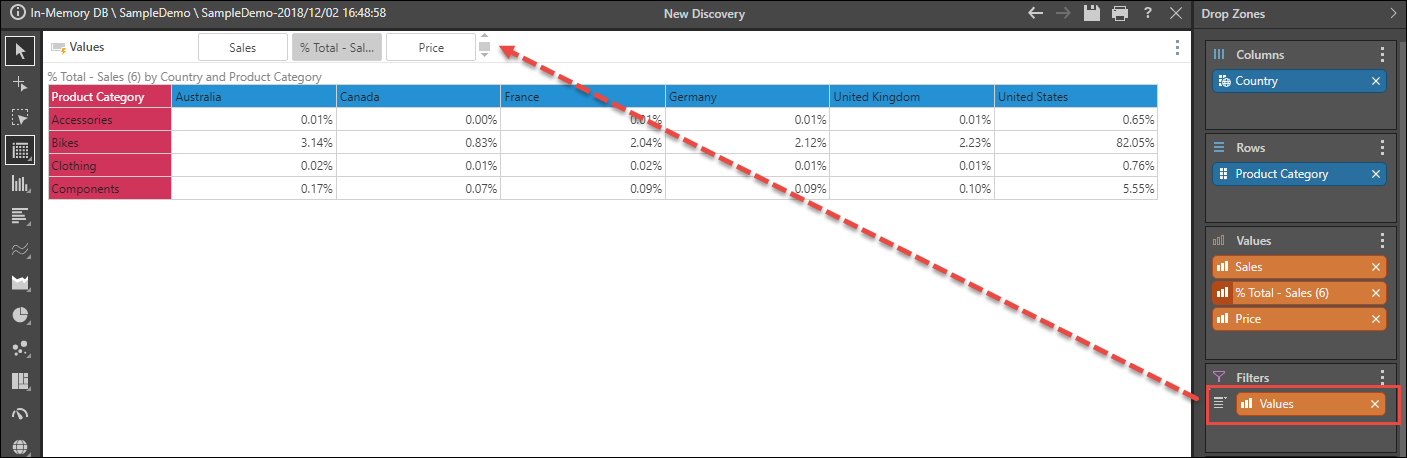
If, at any point, a single element is added to the query, it will be added as a background chip. The background filter is highly related to the filter drop zone, which is mainly used to expose lists of items that will drive background data filtering (also known as "slicers").
Adding a Background Chip
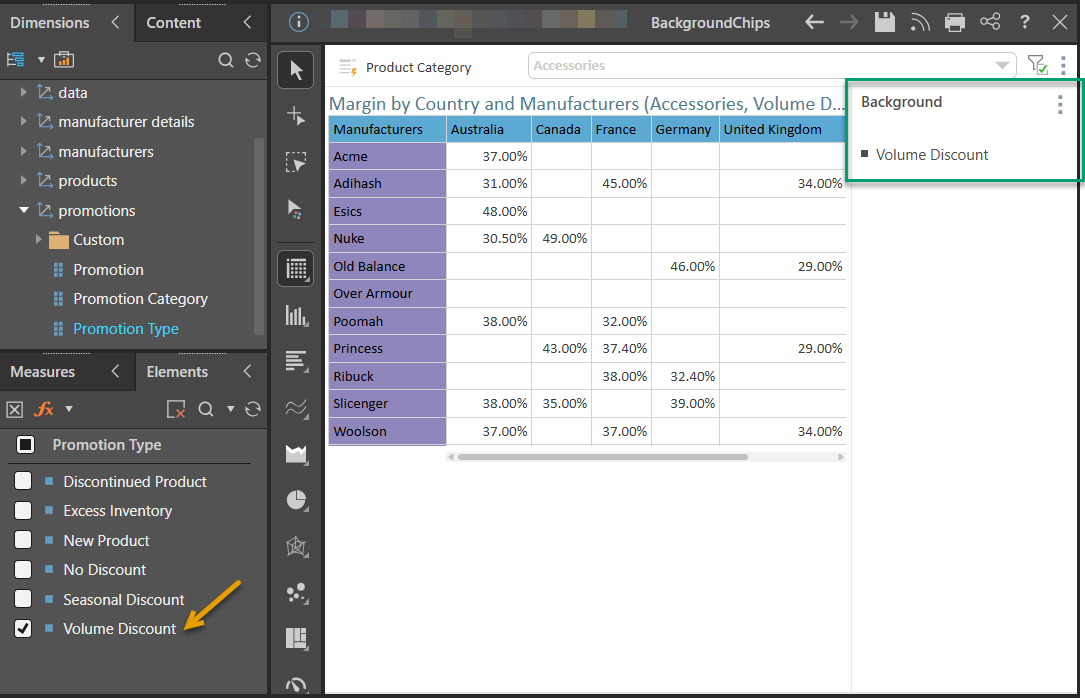
In the example below, two filters are added to the query:
- The Product Category hierarchy is added as a slicer.
- The Volume Discount element is then added to the query from the Promotion Type hierarchy. The element is selected in the Elements panel (orange arrow below), causing it to be automatically added as a background chip (green highlight) and the entire query to be filtered by Volume Discount:
Disabling the Background Chip
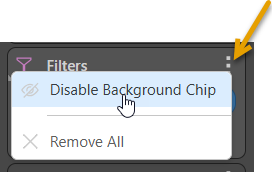
If there is a Background Chip on your canvas, you can select Disable Background Chip from the Filters drop zone context menu (orange arrow below):
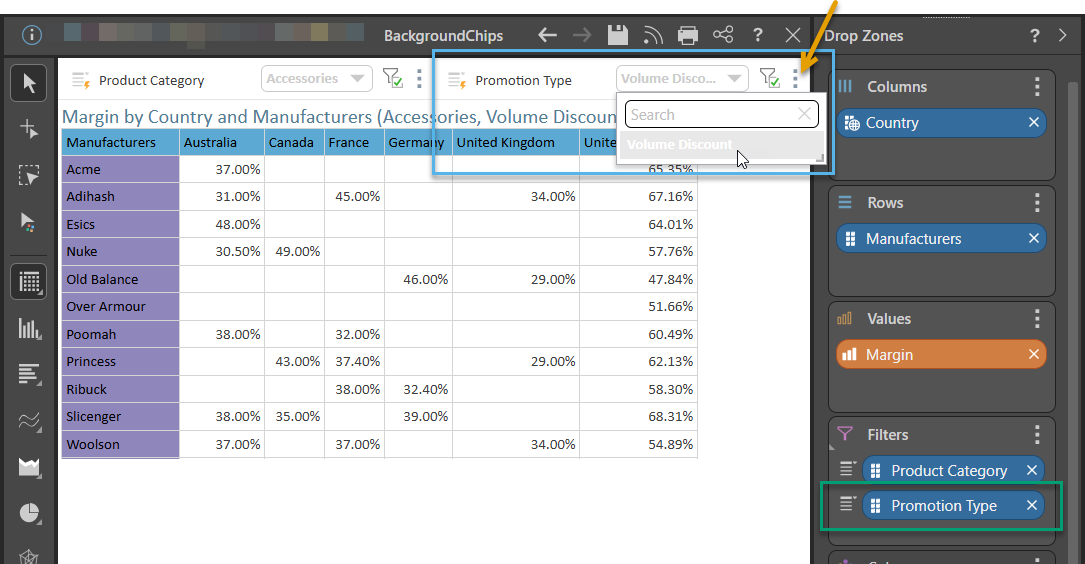
This causes the hierarchy associated with the Background Chip to be added to the Filters drop zone and adds a slicer containing only one value:
Enabling and Disabling Background Chips
Users can disable the Background Chip function, so that single elements will be added to the query as a filter chip. This allows the user to edit the slicer properties for the single element or move the element to another drop zone.
- To enable or disable this function from the Filters drop zone, open the Filters context menu and then click Disable Background Chip or Enable Background Chip.
- To enable or disable background chips from the Slicer Settings, open the Slicer Settings panel from the slicer's context menu (orange arrow above) and then select or clear the Enable Background Chip checkbox.
Note: Preferences set from the Filters drop zone override preferences set in the Slicer Settings.
When the background chip is disabled, single elements will be added to the filter drop zone (blue highlight above) and you can edit the filter's Slicer Settings or move the chip to another drop zone as required.
Background Measures
To add a background measure, place the Values chip in the Filters zone; be sure to enable the background chip from both the Filters zone context menu and the Slicer Settings dialog. This is useful if you intend to apply certain context calculations to the entire grid.
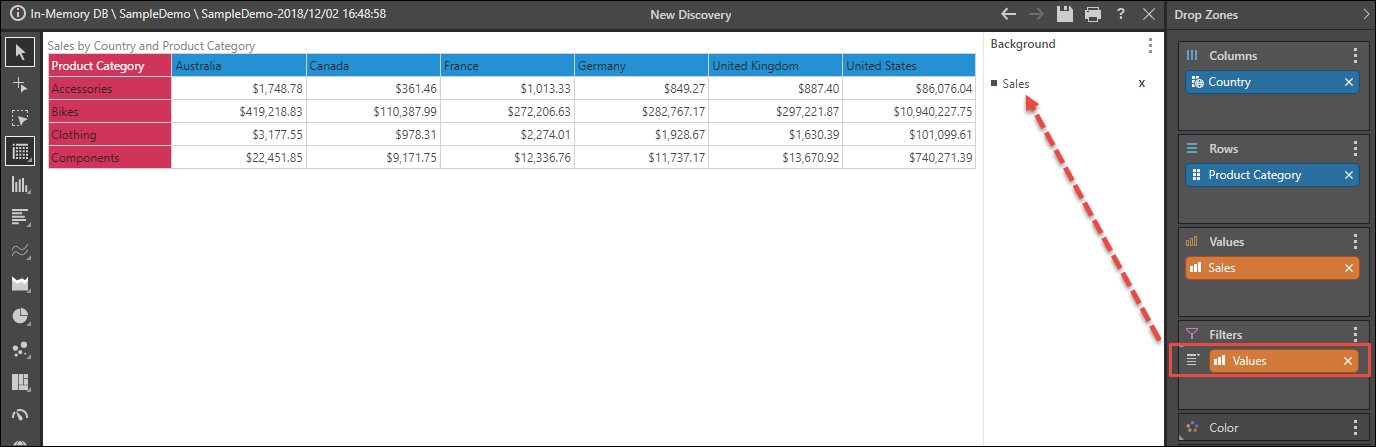
If multiple measures are added, the measures will be displayed in a single-select slicer: