You might want to visualize data on a 3D Street map to clearly show how data points relate to buildings and streets, using location pointers to highlight spatial patterns and insights that are hard to see in two dimensions. A map that incorporates this functionality has the Map Type 3D Street.
You can zoom in on your 3D Street maps using the standard zoom tools, rotate and tilt the map to get a 3D perspective, and, once you're done, reset your tilt and rotation commands to return to your map. For Layered Maps, you can also see location markers.
Layered Maps
Navigating around your Map
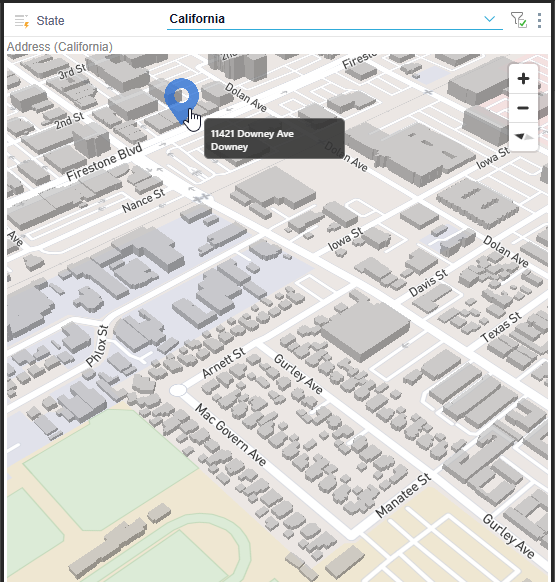
To navigate around your 3D Street Map, the standard controls are:
- Pan around the map by clicking and dragging.
- Zoom in and out using your mouse wheel, the built-in zoom control, or zoom lassos (note that the Zoom Lassos are different in Discover Lite and Discover Pro).
- Rotate the map by right-clicking or holding the
Ctrlkey and dragging the map left or right. - "Tilt" the map (or change its pitch) by right-clicking or holding the
Ctrlkey and dragging the map up or down.
Navigating on a Mobile Device
If you are using a tablet or mobile, you can drag using your finger, use two fingers to rotate the map, and swipe two fingers up or down to shift the viewing angle.
Resetting the View
After you've flown around and explored your 3D Shape map, you can use the Reset button from the Zoom control to return to the default view.

This button typically returns the 3D Map to its default "tilt" (also known as its pitch) and its default direction or bearing. This is typically a flat, top-down perspective, with north at the top.
Related information
Setting the 3D Street Map Type
Each map style (bubble, shape, heat, and layered) supports several different Map Types which affect the look and feel of the map. If you want to fly around your street map in three dimensions, you need to set your Map Type to 3D Street.
- Click here for instructions