The New Report functions let you open the current data model in another tab (creating a new discovery), or duplicate the current report in another tab.
Creating your New Report
With Discover Pro open in Pyramid:
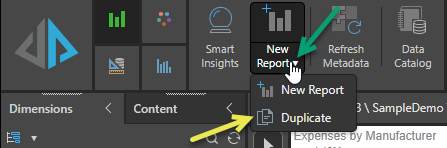
- Click New Report (green arrow below) or New Report > New Report from the Report ribbon to create an empty discovery in a new Discover tab. This action opens the current data model.
- Click New Report > Duplicate (yellow arrow) to create a duplicate copy of the currently open report and open it as a new Discover tab.
Duplicate Reports
- The Duplicate option is only enabled on the New Report menu once the currently open report is saved.
- The Duplicate report is created alongside the original with the same name plus a numeric suffix. For example, if you duplicate a report called "Sales by Manufacturer," the duplicate is typically called "Sales by Manufacturer (1)."
Related information
Other ways to create new reports
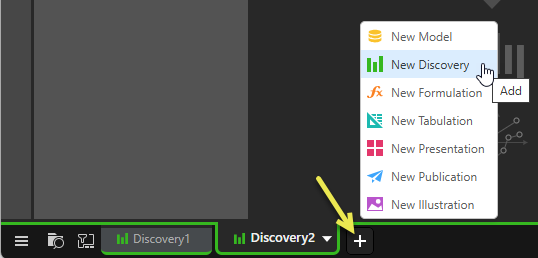
In addition to the New Report ribbon options, you can also create a new discovery using the standard New Discovery options. These options are found on the App Tabs menu (yellow arrow below), on the User Hub (New Discovery and Smart Discover), or, if you are viewing the home page, from the App Toolbox along the left. For more information, see Access Discover Pro.