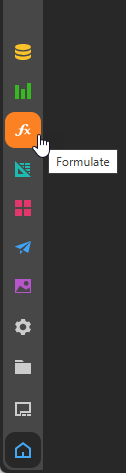
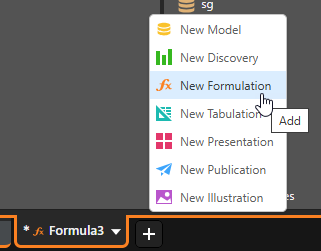
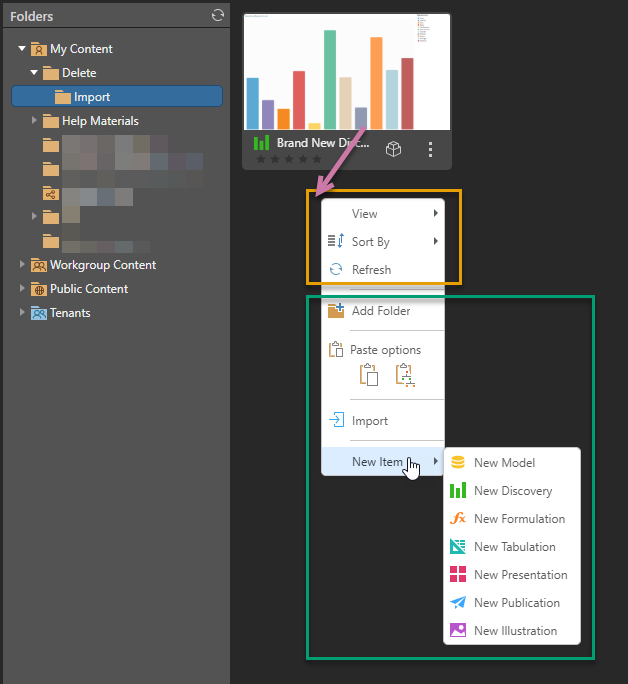
Formulate can be opened directly from the main navigation or from within other Pyramid modules. To launch Formulate, click the orange Formulate icon in the Toolbox. You can also access it from another module by selecting New Formulation from the App Tabs or from the Content Explorer using New Item on the Background context menu.
Creating a New Formulation
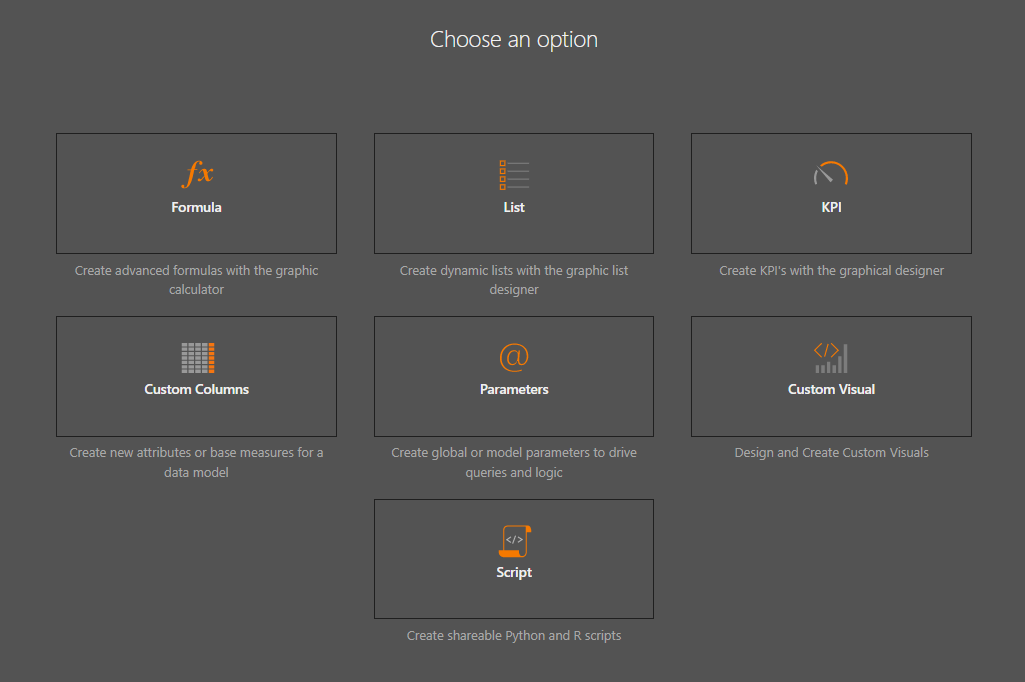
All the following options open the Formulate panel, where you can select the type of formulation that you want to create.
App Toolbox
To launch Formulate, click the orange Formulate icon in the App Toolbox to the left of the home page.
App Tabs
You can, alternatively, open Formulate from within another module by opening the Add menu from the App Tabs:
Content Explorer
You can also create a New Formulation by right-clicking the background in the Content Explorer and choosing New Item > New Formulation from the context menu. You will then be prompted to provide a name for your new formulation before you can begin the process:
Choosing a Formulation Type
Next, select the type of Formulation you want to create:
Opening a Data Model
For most of the Formulate options, you need to open the data model you want to use for your formulation. This is done by selecting the Model in the Content Manager:
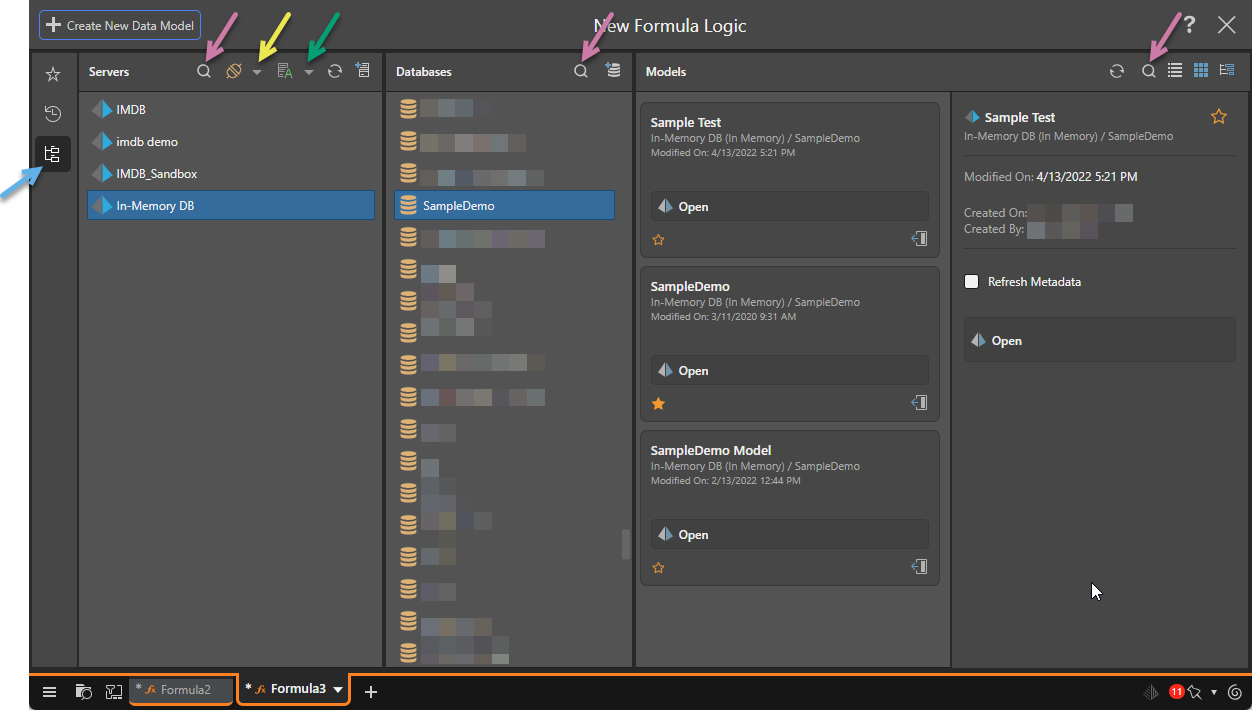
- Select Explorer (blue arrow above) in the toolbar.
- In the Servers column, find and select the server:
- Use Search (purple arrow, above) to filter servers by name.
- Use the Type dropdown list (yellow arrow) to filter the server list by type.
- Use the Sort dropdown list (green arrow) to arrange the servers by name, type, or to arrange the list by folder. The folder name is created when the data source is created.
- In the Databases column, select the required database within the given server:
- Use Search to filter databases by name.
- In the Models column, select the data model that you want to query:
- Click Refresh to refresh the list of data models.
- Use Search to filter data models by name.
- Use the buttons to view the data models in a List view, Tile view, or Tree View.
- Open the data model.
Tip: You could, alternatively, use the Favorites or Recents options if your Model is marked as a favorite or has been used recently.
Note: The filter and sort selections are saved within the session, so any subsequent visual will default to your sort and filter selections.
Tip: Hover your cursor over the server to see the server name, type, and description as a tooltip.
Adding new Servers and Databases
Depending on your access rights and selected server type, you may be able to use Quick Model to create a new server or database on the fly:

- In the Servers column, click Add New Server (orange arrow above) to create a new server.
- In the Databases column, click Add New Database (blue arrow) to add a new database to your selected server.
- Click here for more information about Quick Modeling