Slicer Settings are used to configure the default behavior of the slicer and define which elements are presented in the slicer. For example, if you want to create a slicer based on a custom list or a hierarchical structure. You may want to configure your slicer settings to change your slicer's elements, set it as a Pre-Query slicer, customize its default state (disabled), and so on.
Open the Slicer Settings panel
- Start by right-clicking the slicer and selecting Settings on the context menu (blue arrow below):
- Specify the details for your slicer using the options in the Slicer Settings panel.
- Once you have set all your options, click Apply to save your changes.
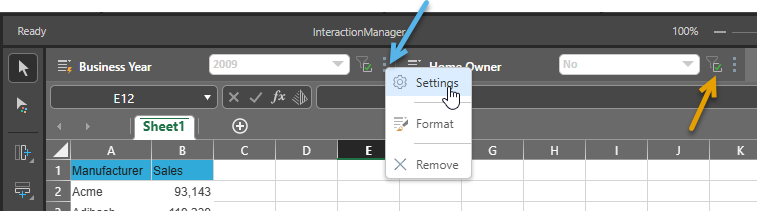
The Slicer Settings panel opens at the bottom of the page.
You can move between the pages of settings by clicking the tabs along the left-hand side of the panel.
Slicer Settings panel
Type
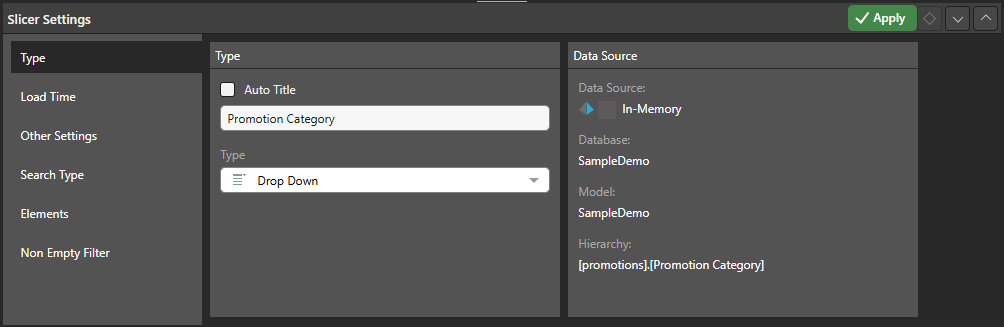
Auto Title
Select the Auto Title checkbox to disable the Title field and use the default name of the item as the title for your slicer:
- If the slicer is based on a hierarchy, this is the hierarchy name.
- If the slicer is based on a parameter, it is the parameter name as it appears in Content Manager.
Clear the Auto Title checkbox to enable the Title field, where you can type your own custom title for the slicer.
 Example: Custom Parameter Name
A new slicer's title defaults to the name of its underlying hierarchy or parameter. You can override this value manually or enable Auto Title in the Slicer Settings to keep the slicer's title automatically in sync with changes to the hierarchy or parameter name. This example shows how the name of a slicer appears throughout its lifecycle.
Adding the Parameter to the canvas (through its Formula) creates a slicer with a name that matches the parameter name:

If I change the value in the Slicer Settings Title field, the slicer name is overwritten with a custom name; in this case Gross Values:

If, instead of typing a new title, I selected the Auto Title checkbox in the Slicer Settings, the slicer title would be returned to its initial parameter name. However, now, if I were to rename the parameter, the slicer would be automatically updated to reflect the parameter's new name:

Tip: For more information about creating and using Binary parameters, as seen in this example, see Binary Parameters in Formulate.
Type
The slicer type that you select here indicates whether the slicer you use to filter your assets is a dropdown list (default), set of buttons, a tree, or even a date-time calendar. Your slicer can be one of:
- Drop Down: Adds a dropdown list that you can select one slice from.
- Multi Select Drop Down: Adds a dropdown list that you can select multiple slices from.
- Single Select Tree: Supports 'regular' hierarchies in both cube and SQL models. Adds a single-select tree, which you can navigate through to find the relevant element.
- Multi Select Tree: Supports 'regular' hierarchies in both cube and SQL models. Adds a multi-select tree, which you can navigate through to find and select relevant elements.
- List Box: Adds a single-select list within a box container.
- Multi Select List Box: Adds a multi-select list within a box container.
- Text Box: Adds a textbox with dropdown.
- Buttons: Adds single-select buttons, rather than a list.
- Multi Select Buttons: Adds multi-select buttons.
- Date Calendar: This calendar tool is a specialized slicer visualization designed to make it easier to use date-time hierarchies and their associated calculations. The date-time picker is automatically generated at runtime when using the dateKey hierarchy to create a slicer. As with other slicers, the date-time picker slicer can be customized from the slicer settings.
Date-Time Pickers are only supported for SQL models. This functionality is not currently supported for MS OLAP, Tabular, or SAP BW.
A Toggle is a special slicer visualization type that is only applicable to global binary parameters.
Data Source details
The read-only data source metadata, including the data source, database, data model, and the hierarchy used in the filter.
Load Time
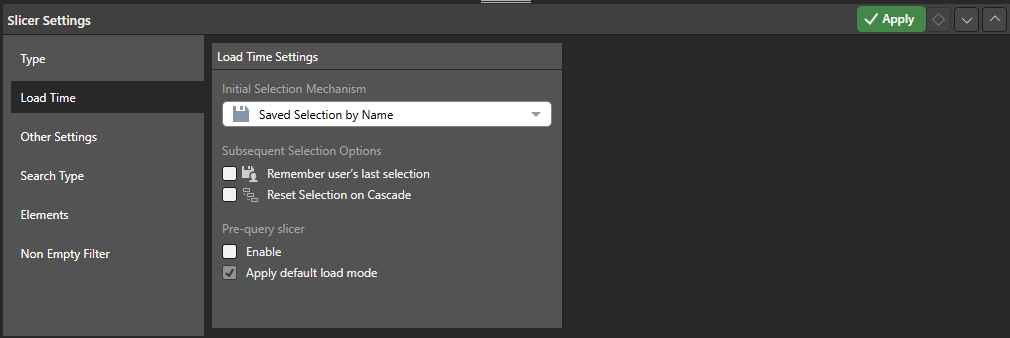
The load time settings determine which of the slicer's elements will load automatically when the report is opened.
Initial Selection Mechanism
The initial selection mechanism determines which slice will be automatically loaded when the user opens the report.
- Saved Selection by Name: Select the initial slicer selection by name; this slicer will be selected by default whenever the report is opened.
- Saved Selection by Position: Select the initial slicer selection by position; this slicer will be selected by default whenever the report is opened. This is useful if the slicer is based on a custom calculation that shows, for example, the top ten products. You might want to automatically load the top selling product. In this case, the slicer position needs to be saved.
- First Member: Automatically select the first member in the slicer whenever the report is opened.
- Last Member: Automatically select the last member in the slicer whenever the report is opened.
Subsequent Selection Options
Subsequent selection options determine whether the user's slicer selection will be saved. If so, these selections will override the initial selection mechanism.
Remember user's last selection
Enable this option to save the current user's saved slicer selection. Each time the user saves the report, the currently selected slice will be saved, and that slice will automatically be loaded when the report is next opened by that user.
If this option is not enabled, the given initial selection mechanism will be loaded every time the user opens the report.
Reset Selection on Cascade
Select this option if the selected slicer is being cascaded to. For instance, if you've configured a cascading slicer that cascades from Country down to State, check this option for the State slicer to apply the given slice value modes to State.
In this scenario, if Last Member is set as the load mode, then the last member in the state slicer will automatically be selected whenever a country is selected from the parent slicer. Then, when United States is selected from the country slicer, Wyoming will automatically be selected form the state slicer; when Australia is selected, Victoria will automatically be selected from the state slicer.
Pre-Query Slicer
Pre-query slicers can be used to set the slicer selections for specified slicers and parameters on opening the tabulation, before the query is loaded.
Enable
Select the Enable checkbox to indicate that the query should not be run until the user specifies their slicer selections. The effect of this selection is that the Pre-Query slicer dialog opens and the user is prompted to select either bookmarks or individual selections for their discovery, publication, or tabulation slicers in the Pre-Query slicer dialog.
Note: The Pre-Query slicer dialog opens automatically when you open the discovery, presentation, or tabulation in its app, the discovery in the Viewer, or the presentation at runtime. If you view the discovery or presentation in the Hub or as an Embedded visual, you will need to click the Make Pre-Selections option to open the Pre-Query slicer dialog.
Apply default load mode
Use the Apply default load mode checkbox to indicate which options should be selected in the Pre-Query slicer dialog by default:
- Select the checkbox to use the default slicer selection.
- Clear the checkbox to use the last selected slicer in the Pre-Query slicer dialog.
- Click here for more information about Pre-Query Slicers
Other Settings
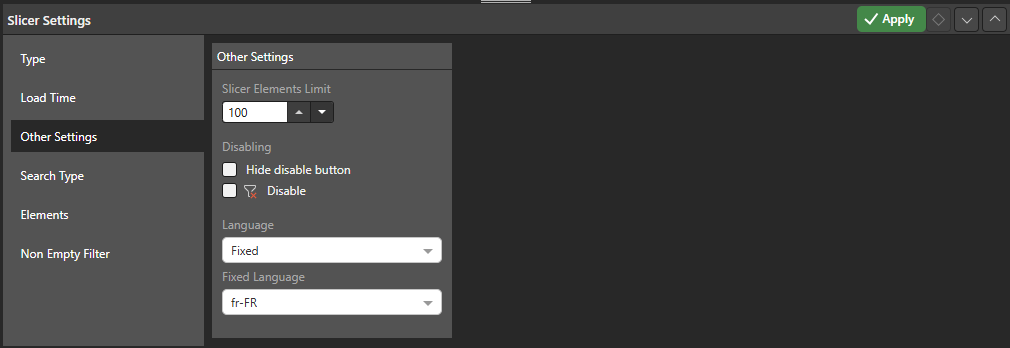
From the Other Settings tab, you can update the slicer elements limit for this slicer, disable and enable the filter button, specify whether you want to apply a change to a slicer automatically whenever its value is changed, and make this slicer into a pre-query slicer:
Slicer Elements Limit
Set the maximum number of slicer elements to include in the slicer. The limit set here cannot exceed the limit set from the user defaults. Where it is exceeded, the number of elements in the slicer is limited and a limit indicator is displayed on the slicer at runtime.
Examples: Slicer limit indicator
If the number of elements in the slicer hierarchy exceeds the elements limit, a Limit Indicator is displayed alongside the slicer's header (green arrow below) and the list is truncated:
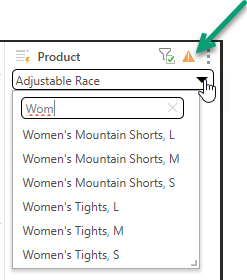
All items remain accessible using search. For example, a truncated alphabetical product list may end before "W" in the dropdown list, but items starting with "Wom" can still be found using the search field (see above).
Tip: You can hover your cursor over the indicator to see what the slicer elements limit currently is:

Disabling
The disabling options relate to the filter associated with the slicer. By default, the filter is enabled and can be used to enable and disable the slicer.
- Select the Hide disable button checkbox to hide the filter entirely. The filter is not shown and, therefore, cannot be used to enable and disable the slicer.
- Select the Disable checkbox to make this filter disabled (rather than enabled) by default. Note: This option only changes the default state of the filter, the user can still enable the filter if needed.
Language
For models that include translations, the Language dropdown list can be used to choose the language for the slicer. You can allow the language to differ for different users (by application language) or you can enforce a particular "fixed" language:
- Application Language: Use the language of the Pyramid application for the current user (falls back to default if the language is unavailable).
- Model Default Language: Use the model's default language as defined in the data source.
- Fixed: Use a specific language that is explicitly supported by the model.
Fixed Language
If you select to use a Fixed language, you can select from the languages on the model using the second dropdown list.
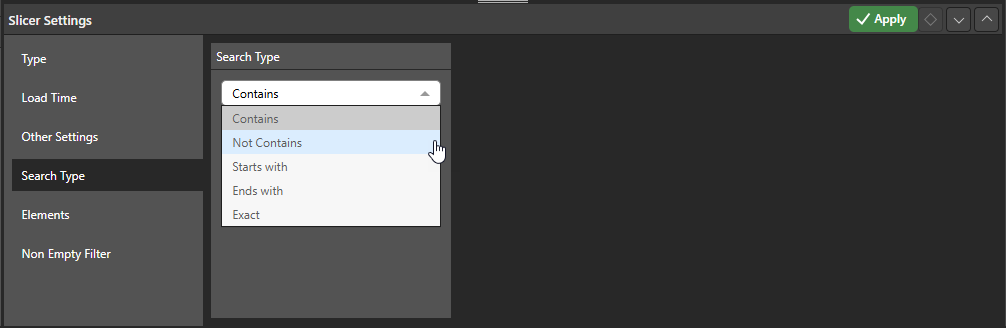
Search Type
Set the search type. This is applied to any slicer type that supports search (dropdown list and text box).
Elements
Select those elements that should be included in the slicer:
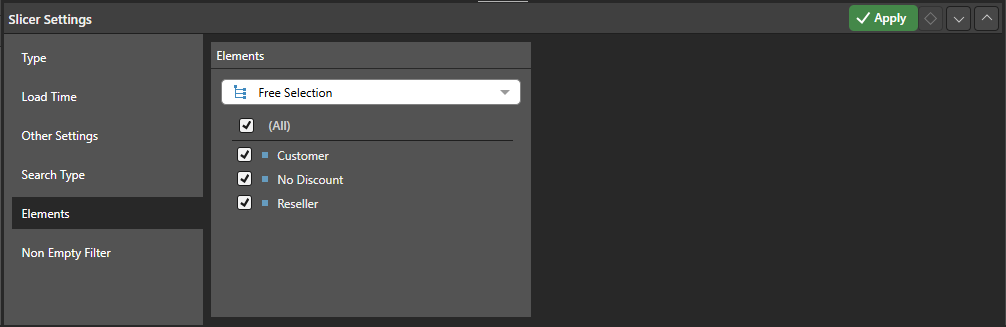
Choose the hierarchy elements that will be included in the slicer. There are three ways to determine the slicer's elements:
- Free Selection: Select the elements that you want to include on the slicer. You can select individual elements or all elements from the hierarchy using the checkboxes at the top of the panel, or you can navigate to and select a formulation from the tree to include its items. When individual elements and formulations are selected together, they are combined into a single list. Where the same item appears in both lists, the element only appears once in the final selection.
- Level: This option is relevant when working with OLAP or Tabular hierarchies, or regular SQL hierarchies. When creating a slicer based on a regular hierarchy, select this option to specify a particular level of the given hierarchy.
- Lists: Choose this option to use a custom list as the slicer.
Non Empty Filter
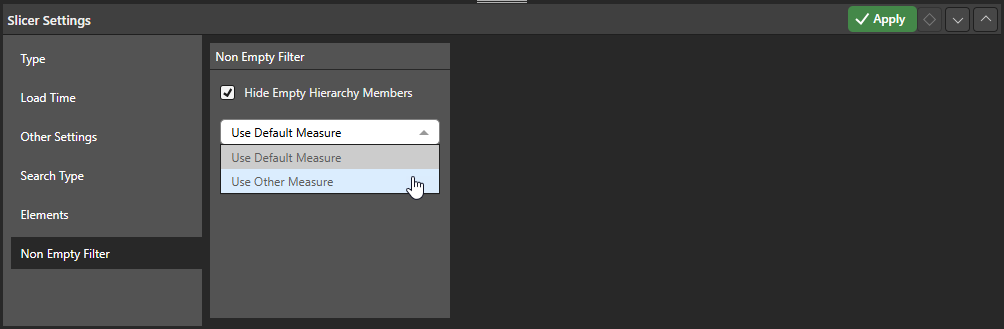
Go to the Non Empty Filter to hide empties from the slicer.
Hide Empty Hierarchy Members
Select the Hide Empty Hierarchy Members checkbox to hide any members from the slicer if they don't have any value for the given measure.
Use Default Measure
This dropdown list is exposed when you select the preceding checkbox. The options are as follows:
- Use Default Measure: (Default.) Hierarchy members with no values in the data model's default measure will be hidden from the slicer.
- Use Other Measure: Select this option to hide empty hierarchy members using a different measure. This will expose a Measures tree, from which you can choose the required measure.