Viewers can print and export content from discoveries and presentations.
Printing is available for users from the Pro or Analyst clients, the Viewer client, or for content loaded via the application or directly (via URL). Limited printing options are also available from natively embedded content (content embedded via code). These capabilities are device independent and will work from desktop or tablet devices. You cannot print from the mobile application.
Tip: Subscriptions are very similar to prints, as they effectively involve automated printing with a schedule and distribution mechanism. For more information, see Subscribe to Content from the Viewer.
Printing discoveries as a Viewer
Accessing Print
With the report that you want to print open the Discover Viewer, either:
- Click Print in the status bar (green arrow).
- Open the Hamburger menu (purple arrow) and click Print in the panel.

The Print & Export dialog opens, where you can choose the options for exporting the current report.
Print & Export Settings
When exporting from Discover, you can set default or custom page margins, choose to fit content onto one page or let it span multiple pages, and decide whether to maintain the aspect ratio of visuals. Headers and footers can also be included by enabling them in the General panel and configuring them in the second tab.
- Click here for more information about Printing in Discover Pro
Note: When printing from the Viewer, you cannot send your print job to the Job Spooler.
Printing presentations as a Viewer
Accessing Print
With the presentation open at runtime, click the hamburger menu at the top-left corner of the slide and then select Print from the Presentation Menu:
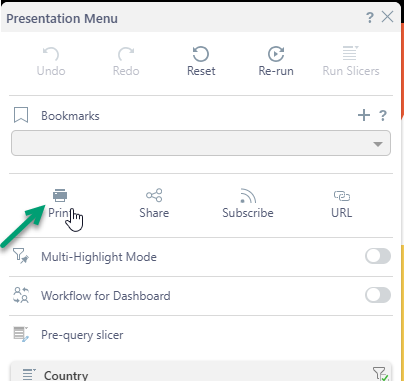
The Print & Export dialog opens, where you can choose the options for exporting either the entire presentation or specified slides therein.
Print & Export Settings
When printing from Present, you are manually exporting content while the presentation is running. You’ll need to select the specific part of the presentation to include. Like Discover, you can set default or custom page margins and choose whether to maintain the aspect ratio of visuals.
- Click here for more information about Printing in Present
Related information
Exporting to Excel
Exporting content to Excel involves a range of decisions and settings, defining how sheets are named, the retention or otherwise of styles, and what metadata is included in the output. Memory limits may also affect the output spreadsheet, changing the output to a CSV where limits are reached. For more information, see Exporting to Microsoft Excel.
Removing Value-Based Filters from Text Exports
When exporting content to Excel, CSV, JSON, or XML, there are a number of considerations that are specific to exporting content to a text file. These options include a checkbox that allows you to ignore value-filtering in the original report and export all data instead. For more information, see Removing Value-Based Filters from Text Exports.