You can print embedded discoveries and presentations by exporting them to a chosen output and then saving or printing them from there. When printing an embedded presentation, you can either export the entire presentation or selected visuals.
Note: The basic print defaults are assumed when printing from embedded content. The user has no ability to configure these settings. For more control over printing with other output choices, users should access the same content using the Lite or Pro apps.
Printing Embedded Discoveries
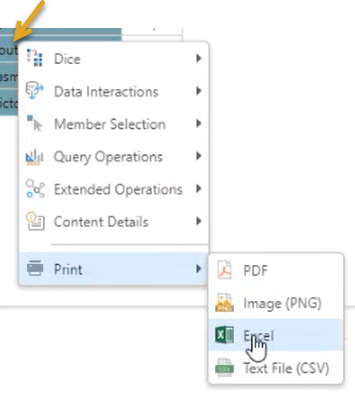
To print an embedded discovery, right-click on its background. From the context menu, choose Print Report and then PDF (Single or Multi-page), PNG, Excel, or CSV (comma separated files). The visual is exported to the selected output, where it can be saved or printed:
Print to PDF
When printing a visual to PDF from either from an embedded discovery or within a presentation, you can select between two options on the Print menu:
- PDF Single-Page: Selecting this option scales the visual to fit onto a single page.
- PDF Multi-Page: Selecting this option prints the visual without scaling.
Printing Embedded Presentations
Background Printing

The background printing options are as follows:
- Entire Presentation: To print the whole presentation from start to finish (all slides), right-click the presentation background and select Print > Entire Publication > <Output Type> from the context menu.
- Current Slide: To print just the slide you are currently looking at, right-click the presentation background and select Print > Current Slide > <Output Type> from the context menu.
In each case, the <Output Type> is PDF or Excel. The presentation or slide is exported to the selected output, where it can then be saved or printed.
Embedded Visual Printing
To print specific visuals from your presentation, right-click the visual you are interested in and select the output type from the context menu as described above. In this case, the <Output Type> is one of Excel, CSV, PNG, or PDF (Single or Multi-page).