This page is used for adjusting features and functions that affect the way content is stored in the system.
The page options are split across two tabs:
- Content Settings (the tab that is selected by default).
- Workflow Settings (green highlight on the image below).
Content Settings
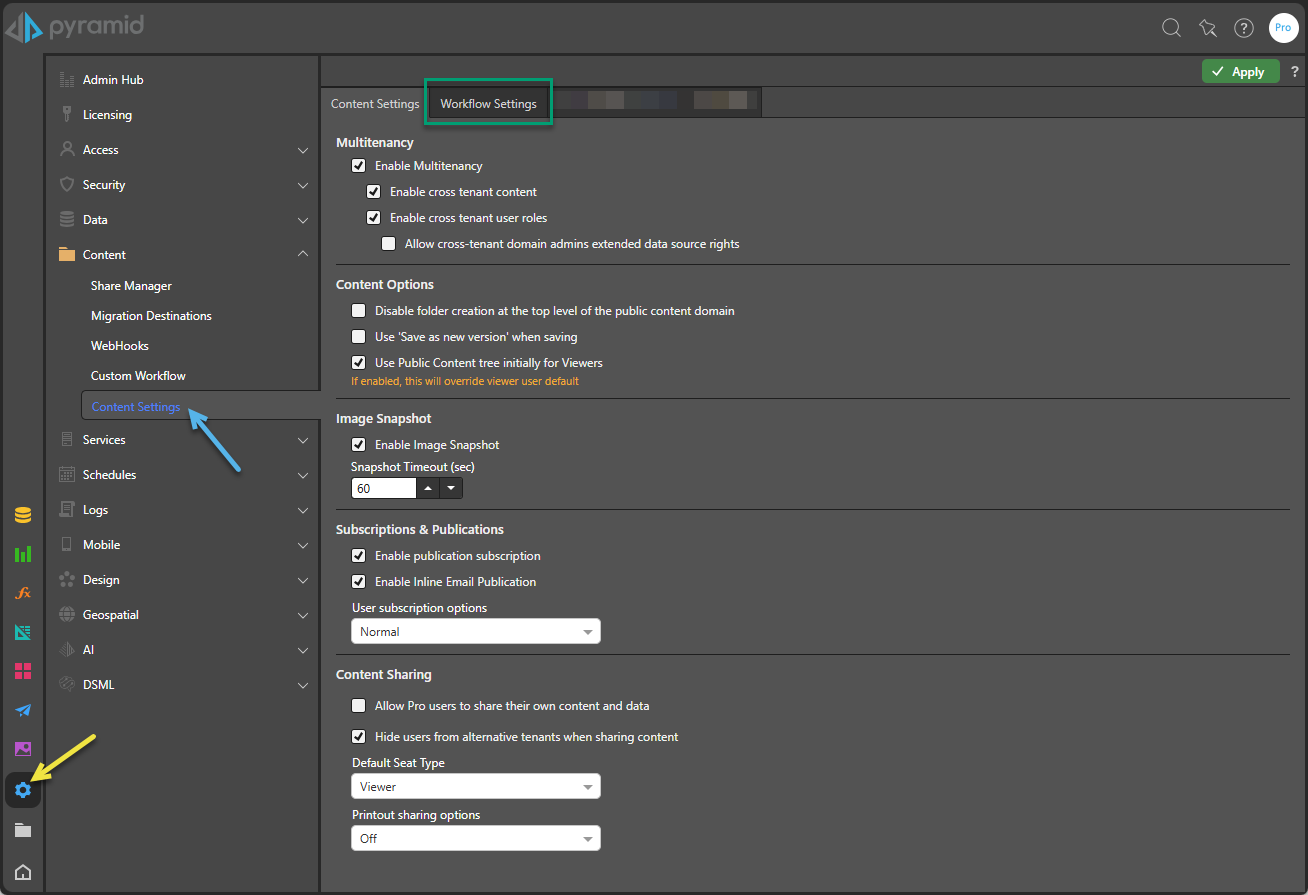
Multitenancy
Enterprise Admins can enable multitenancy from the Multitenancy page. This allows the system to use multitenants in the system.
Note: This feature is only available with the Enterprise edition.
The user-role-tenant model in Pyramid uses the classic multi-tenant approach: users, content, and data within a tenancy cannot be accessed by other users in another tenancy. However, this can be altered using Cross Tenancy options.
Cross Tenant Content
Cross Tenant Content is useful if you want the same content to be seen and accessible by different tenants without having to create duplicates. It works by explicitly adding multitenant roles to content or folders and can only be set and managed by ENTERPRISE admins.
- If you are an Enterprise Admin, you can select the Enable Cross tenant content checkbox to assign public content to users from different tenants.
- To learn more about cross-tenant content, click here.
Cross Tenant Roles
If you're an Enterprise or Domain Admin, you can assign users from different tenants to roles in another tenant, granting them access to content across multiple or all tenants. To enable this functionality:
- Select the Enable Cross Tenant Roles checkbox. Once enabled, Admins can assign roles from various tenants to users in different tenants directly from the Roles panel (see below for more information).
- If you have the preceding option selected, you can also select the Allow cross-tenant domain admins extended data source rights checkbox to extend the content seen in the Data Model Management pages for Domain Admins. When this option is not selected, domain admins only see data from their own tenant or that they created. When this option is selected, domain admins can see additional cross-tenant data and also assign cross-tenant roles.
Cross Tenant Roles offer similar capabilities to Cross Tenant Content by allowing users to be assigned roles outside their own tenant. Since the configuration is tied to the role itself, broader applications are enabled such as data security and future content access.
This feature empowers Domain Admins to manage user access across tenants without needing Enterprise Admin involvement. They can add or remove users from other domains or tenants to existing roles, streamlining the ongoing management of shared content and data at the domain level.
- For more information about roles, including cross tenant roles, click here.
Content Options
Folder Creation
You can also opt to disable folder creation at the top level of the public content domain, to more easily govern folder creation.
Versioning
Select the Use 'Save as new version' when saving checkbox to ensure that each change is saved as a new version, enabling version control.
Warning: Enabling this feature can greatly enlarge the database and adversely affect performance.
Content Tree for Viewers
Select the Use Public Content tree initially for Viewers checkbox to open the Public view (yellow highlight) by default when any viewer opens the Content Explorer for the first time. Note: This could either be when the viewer selects the Content Explorer option (green arrow) for the first time, or, if the Content Explorer is selected as the Default Content View for the Viewer's tenant, when they first open the app.
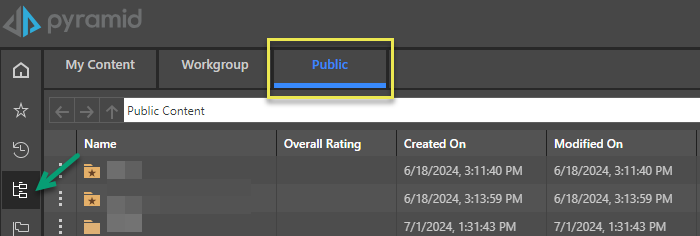
Note: The default view when accessing the Content Explorer for the first time is typically the My Content view. Since a Viewer typically does not have any content in their My Content folder, this checkbox is provided to override that default for Viewers without affecting the default for any non-Viewer users.
Image Snapshots
Select the Enable Image Snapshot checkbox to enable automatic thumbnail generation. Thumbnails help users visually identify content in the Content Management tools and across the UI. If a snapshot isn't generated, a default image is used based on the content type (for example, a Formula is represented using the Formulate icon). Clearing this checkbox prevents thumbnails being rendered.
The Snapshot Timeout (sec) option sets the maximum length of time to create a snapshot for each item. For example, if this is set to 60 seconds and it takes longer than that to create a snapshot for an item, then a snapshot will not be created.
Subscriptions & Publications
These options configure the Subscription and Publication capabilities:
- Enable publication subscription: Allows viewers to see publications in the Viewer hub and Content Manager and allows them to subscribe to those publications in personal mode (to subscribe to their own publications).
- Enable Inline Email Publication: Allows users to create inline email publications. Enables or disables the Email option in Publish Pro's New Publication wizard.
User subscription options
This option constrains access rights for all users when creating subscriptions:
- Personal Mode: Allows users to create subscriptions for themselves only. This means that the Distribution panel only ever contains the basic options only.
- Normal Mode (default): Allows users to create subscriptions for themselves and to subscribe on behalf of any other users (recipients). Where subscriptions are set up for other users in Normal mode, the subscription is run as the initiating subscriber (that is, the user creating the subscription) and can be distributed through the Bulletin Board, by email, by SMS, or using webhook Channels. Importantly, other recipients get the same reports and data as the initiating subscriber in this mode.
- Strict Mode: Also allows users to create subscriptions for themselves and other recipients. In this case, however, the subscription is run as each recipient user using their own data security. To be successfully added to the subscription, the other users or roles can only be selected if they are in the same tenant as the initiating user, with security access to the content item and the underlying data source. The reports must also be saved to workgroup or public folders, and the data source must be a supported type. Distribution from strict subscriptions can only be made to the Bulletin Board or by email.
- Click here for information about creating subscriptions in the preceding modes
- Click here for more information on setting up secure strict subscriptions by role.
Tip: To secure which publication templates are shown to viewers, content developers should ensure the publication templates are secured appropriately in the content system and its folders.
Content Sharing
The Content Sharing settings allow admins to configure the Governed Sharing capability. Admins can configure sharing to require admin approval for all shared links, hide users at alternate tenants in the Share Content dialog, assign a type other than the default 'Viewer' to newly created users, and either disable email sharing or restrict it to existing users only.
Allow Pro user sharing (Share Link)
Clear the Allow Pro users to share their own content and data checkbox to prevent Pro users from sharing live links to their artifacts without intervention from an administrator:
- When this checkbox is selected (default) and the Pro user clicks the Share Link option, the artifact is shared with the recipient without the administrator needing to approve the action. The Pro user must OWN the entire artifact to trigger this step (see Artifact Ownership below).
- When this checkbox is not selected and the Pro user clicks the Share Link option, the share request needs to be approved by an administrator before the recipient is granted access. Note that this is the default behavior where the user is not a Pro user, when the artifact is NOT fully owned by the user, or both (see below).
Artifact Ownership
To own an analytic artifact:
- The user must have created the content item or have been given management rights over the item.
- The user must have created the data (semantic) model and its underlying database.
- The underlying database must not be configured with "pass-through" security.
Hide Users from Other Tenants
Select the Hide users from alternative tenants when sharing content checkbox to prevent your users from being able to see or select known users at other tenants when sharing artifacts:
- When this checkbox is not selected (default), users can share artifacts with recipients who are known by the system, but who belong to a different tenant. These users are identified as belonging to another tenant in the Share Content dialog, where they are shown in purple.
- When this checkbox is selected, recipients who belong to a different tenant are not "found" in the Share Content dialog. This means that the user cannot select email addresses for users at other tenants and cannot, therefore, share content with those users, even where their email address is valid.
Default Seat Type
The type of user seat that should be used when a user is created automatically by the Governed Sharing process. This automatic creation happens when the user shares an artifact with another user who is known to the system but does not have a Pyramid login. The default seat type is Viewer, since this assigns the new user sufficient rights to view the shared artifacts.
Printout Sharing Options
This dropdown list controls content item sharing by email (Send Export):
- Normal: Allows artifacts to be shared by email with users at any valid email address, unless the email address belongs to a user at another tenant and users from other tenants are hidden.
- Off: Prevents artifacts from being shared by static email. Where off is selected, the Send Export button is always disabled in the Share Content dialog, and your users can only share using the Share Link option (sharing a link to the artifact in Pyramid).
- Strict: Allows users to share emails with existing users only. Existing users are users who have a Pyramid login and share the same tenant as the user creating the share.
Workflow Settings
Workflow settings controls access to built-in "Conversations" and other custom workflow applications added to the application.
Conversations, the standard built-in workflow, enable users to write comments and annotations into visualizations, reports and dashboards by starting new threads with one or more users in the system. Custom workflow templates can also be added by developers to use the same infrastructure for other purposes beyond conversations and annotations.
Note: This feature is only available in the Enterprise Edition.
- Enable Workflows: By default, workflows are not enabled. Check the box to enable workflows and the built-in Conversations tools.
- Enable Workflow Snapshots: By default, workflow snapshots are disabled. Check the box to enable snapshots. Workflow snapshots enable users to store query results and the underlying report structures at the time a workflow is started. Workflow participants can then load the snapshots back to view the exact query results and/ or structure at the time the original workflow was submitted. Click here to learn more about snapshots.
- Enable Workflow Templates: This setting allows developers to load custom workflow templates into the system to supplement the built-in Conversations workflow. Access to the templates in the system is governed by the permissions setting (see below).
- Exclude roles from recipients: This setting allows you to hide roles from recipients.
Template Permissions
If custom workflow templates are added to the system, administrators can select how the custom templates can be accessed:
- Allow All Templates: All custom templates, including the built-in conversation option, are universally available
- Templates by Model: Each custom template and the standard Conversation workflow need to be enabled for each data model deployed. Since each data model is governed by Tenancy and Role access, this option offers granular control over which users will see which workflow template.
Polling Interval
- The Polling Interval is the frequency at which clients are updated with changes in the workflow threads. By default, this is set to 60 seconds. Setting the polling rate too low can have a negative impact on performance.