Analysts can monitor the scheduling details associated with subscriptions in the Content Manager's Subscriptions panel. The panel lists scheduled subscription jobs associated with the selected content item and enables users to create new subscriptions, edit existing subscription jobs, monitor job executions, and view, download, and re-run the output from those subscriptions.
Note: Subscriptions are only available with the Enterprise Edition license.
Opening the Subscriptions View
To view the subscriptions associated with one of your content items:
- Select the content item in the Content Explorer.
- Open the Subscriptions panel for the content item:
- Click Metadata (yellow arrow) and, from the top of the right-hand metadata panel, select Subscription.
- Click the Ellipsis to open the context menu (purple arrow) and select Actions > Subscriptions.
Note: You are viewing Subscriptions that are associated with a particular content item (for example, a particular publication) in this view. To view and interact with all of your subscriptions or scheduled items, see Schedule Manager for Analysts.
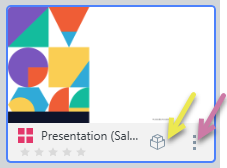
The Subscriptions view opens to the right.
Subscriptions View
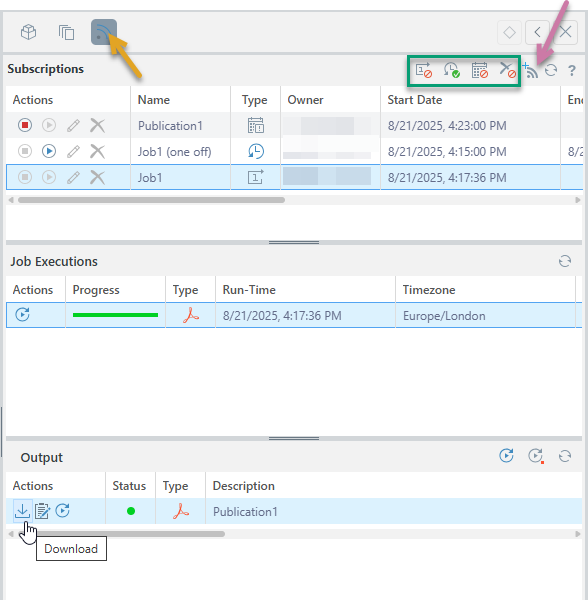
The following example view shows the Subscriptions for a publication:
- Subscriptions: The top panel, visible by default, displays all current subscriptions.
- Job Executions: The middle panel appears when a subscription is selected. It displays jobs that are created each time a schedule is run.
- Output: The bottom panel shows output files (such as PDFs, Word documents, and so on) related to the selected job execution.
See below for more details.
Subscriptions
When you open the Subscriptions panel, you'll see a list of schedules associated with subscriptions for the selected content item. By default, only "live" schedules are shown. These include active recurring schedules and one-off schedules that are pending or completed within the last 24 hours.
Schedule Filters
Toggle the following options (green highlight above) to show and hide schedules based on their current status:
- Expired one offs: Show or hide non-recurring schedules that have expired.
- Inactive recurring: Show or hide recurring schedules that are no longer active.
- Inactive on demand: Show or hide on demand schedules that are no longer active.
- Deleted: Show or hide deleted schedules.
Note: All of the preceding filters are "hidden" by default.
New Subscription
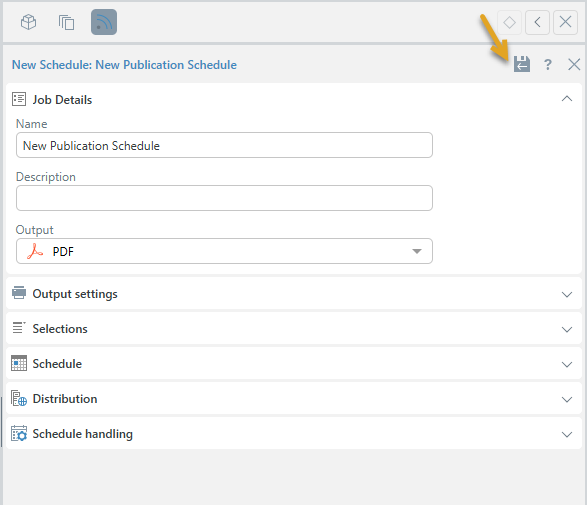
 Click New Subscription (purple arrow above) to create a new subscription for the content item you currently have selected in the CMS. For details of the subscription creation settings, see Setting up Subscriptions. Once you have completed all of the Subscription details, you will need to click Save & Close (orange arrow below) to create and launch your Subscription.
Tip: The same panel opens when you choose to Edit an existing schedule.
Warning: When subscribing to content in NORMAL mode and distributing it to other users, the subscription will run with the initiating subscribers data security. When Strict mode is chosen, the subscription runs as the recipient (the target user) so the recipient will only ever see data they have permission to see.
Schedule Rows
The top panel displays a table of existing schedules for the selected item, you can:
- Use the Action buttons to start, stop, edit, or delete the schedule.
- Select the row to view its job executions in the Job Executions panel. Note that these are instances when the schedule was run in the past.
Job Executions
The Job Executions panel displays a list of jobs that were created each time a schedule was run. (The job executions are for the selected schedule.)
Each job execution has the following columns:
- Actions: Option to re-run the entire job.
- Progress: Shows the job's progress, including the percentage and status of individual tasks:
- Blue: Tasks waiting in the queue. You may want to refresh the view when you see this status.
- Red: Tasks that have failed.
- Orange: Tasks currently processing.
- Green: Tasks completed successfully.
- Type: The file output type (relevant for publications only).
- Run-Time: The date and time the job was executed.
- Timezone: The timezone that the job was executed in.
Outputs
Output Header
Above the Output list are buttons to:
- Rerun All: This reruns all tasks, which is the same as rerunning the entire job.
- Rerun All Failed: This reruns only those tasks that failed.
- Refresh: Refreshes the current list.
Results
The Output panel displays the results of job executions. (The outputs are for the selected job executions.) Each output entry includes the following columns:
- Actions: Download the output file, view the Print & Export Summary, or re-run the specific task.
- Status: Indicates the result of the output task:
- Red: Task failed.
- Orange: Task partially failed.
- Green: Task completed successfully.
- Type: The output file format (for example, PDF, Word, or Excel).
- Description: The name of the scheduled job.
- Start Date: The date and time the output task began running.