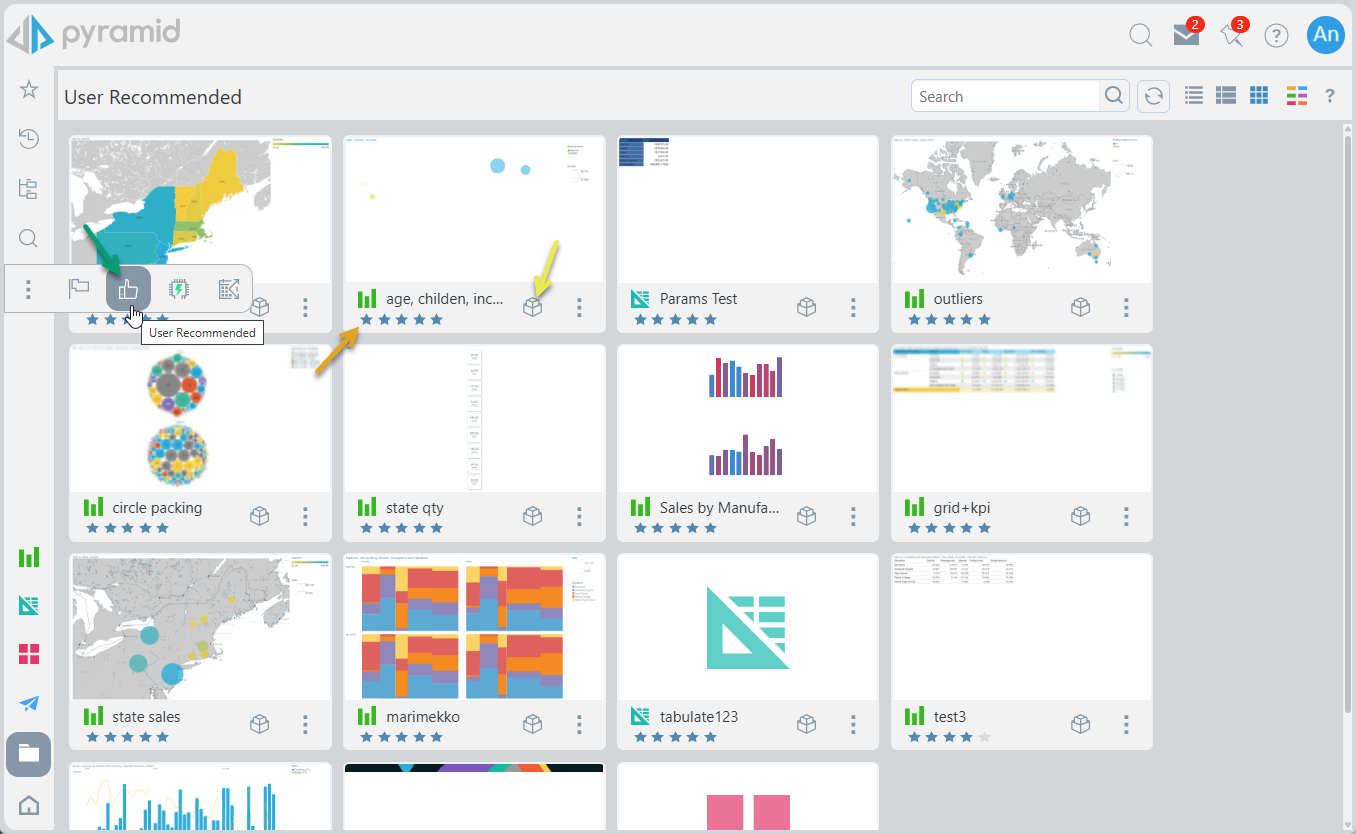
The User Recommended view is a FLAT list of the top 20 most recommended content items, as voted by all users on the system, that can be accessed by the current user. The User Recommended content view can only be accessed from the Content Manager.
Note: This view is available for all user types, each with some tailored functionality. Click to learn more about Pro and Viewer access.
How it works
The User Recommended list is based on user ratings, where content items are scored from 1 to 5 stars. The system calculates an average rating across all users and displays items in descending order based on their scores, tailored to what each user can view. The list is limited to 20 items.
Accessing User Recommended Content

The User Recommended view itself is only available in the Content Manager and is represented by a Thumbs-up icon. For both the Pro and Analyst versions of the CMS, this icon is hidden by default. You need to click the ellipsis menu to show the submenu.
Ratings are visible across all Content Manager views, both in the item list and within each item's action panel.
Recommended Items in the Hub
User Recommended items can also be accessed from the Quick Start panel where the Welcome widget preset has been added to the Hub:
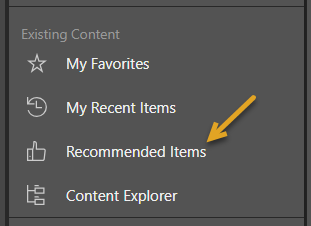
User Recommended View
Click the Thumbs-up icon in the toolbox (green arrow below) to open the User Recommended view in the CMS. Note: Each content item displays its average user rating using a five-star system (shown here using an orange arrow):
- Click here for more information about accessing content in the Analyst client.
Navigation Bar
Quick Search
Quick search (Magnifier icon) lets the user search for items by their name or description within the context of the current selection. For example, in the Content Explorer view this means within the current folder and its sub-folders.
Refresh
Refresh the current view.
View (Display Mode)
Set the appearance of the content items in this view by choosing a display mode or "view" from the following options:
- Detail List: A grid-like display of content items with various details.
- Content List: Like the detail list but with a snapshot (or thumbnail) for each item.
- Tile List: All the content items as large tiles, with each including a thumbnail.
Content Type Filter
Filter the types of content items in a given view that will be shown in the list. For example, if you clear the Unselect All checkbox and then select the Discovery checkbox, only discoveries are shown.
User Recommended Item Actions and Tools
Any items found in the User Recommended view can be used as if they were found in a normal folder structure - including all content actions and tools.
In the main Content Manager, all standard Content Actions can be applied to Most Used items except for Paste. You cannot paste copied items directly into the User Recommended folder.
Rating a Content Item
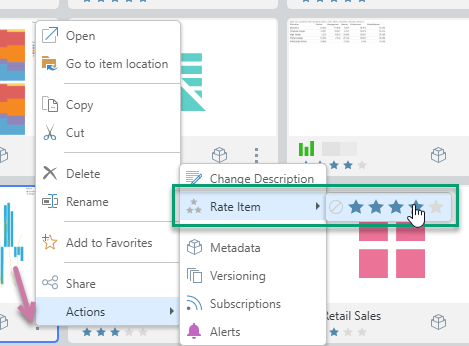
Users can set their rating for a particular content item from the Action Panel of the item in any of the content manager views, on the right-click context menu, and on the App Tabs menu.
In all cases, the user selects the stars in the Rating field to set the number of stars they wish to assign to the content item. The rating you have set can be changed at any time.
Action Panel
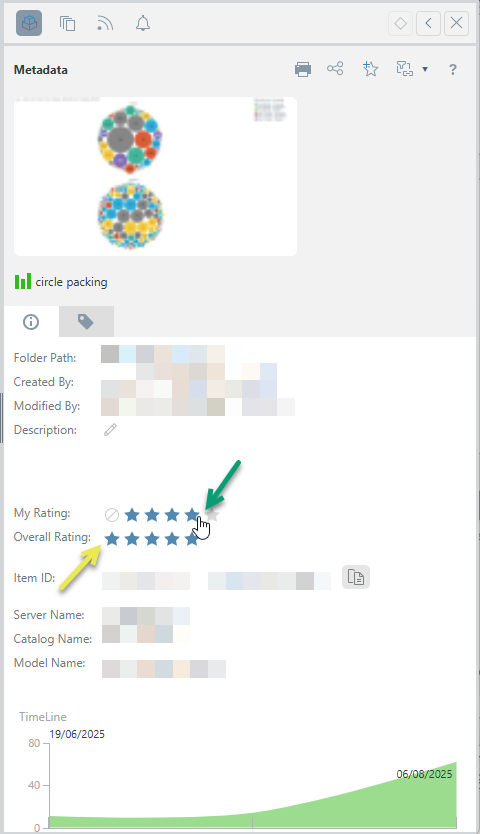
Use the Metadata button (yellow arrow above) or Actions option on the context menu to open the panel:
- Use My Rating (green arrow below) to set the star rating you want to assign.
- The Overall Rating (yellow arrow) appears below the user's rating for the item. This value is based on all user scores for that particular item.
Tip: You can clear your rating by clicking the No Entry sign alongside the My Rating widget.
Context Menu
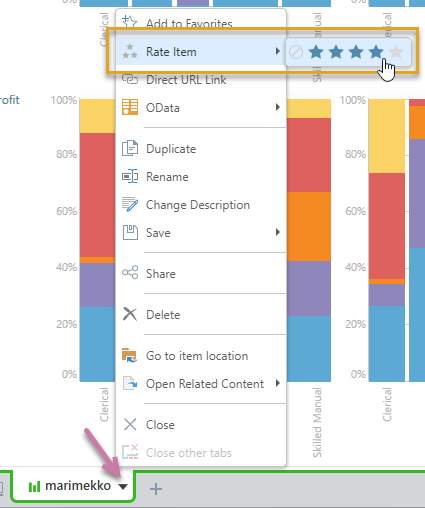
Any item, excluding folders, from any content view can be rated from the context menu (as shown below):
App Tabs
From the App Tab menu (purple arrow below), click Rate Item and then select your rating (orange box):