Advanced users can construct a master flow, which can contain advanced pipeline and flow logic, multiple data flows or decision flows and interactions with various other tools like APIs, command line and messaging. The master flow is a powerful feature that provides users with the flexibility to perform complex data cleansing and manipulation.
The following tutorial video demonstrates Master Flows for a data pipeline:
Accessing the Master Flow
The Master Flow is for Pro users, and is hidden by default.
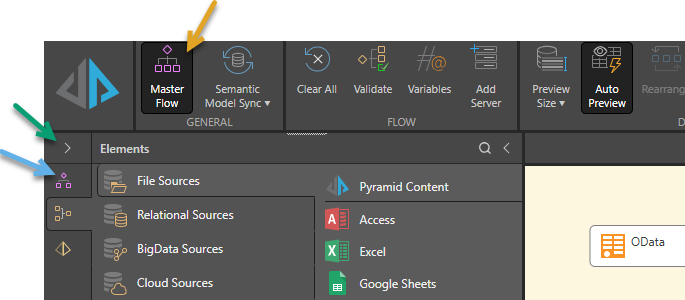
To open the master flow:
- If it is not already selected, select Master Flow (orange arrow above) in the Model ribbon.
- Click the Master Flow tab (blue arrow) to open the master flow on the canvas.
This adds the Master Flow icon to the Modeling tabs.
The master flow opens. Note that the master flow has a pink, rather than a yellow canvas. If you have already configured your data flow or model, those nodes will have been automatically added to the master flow.
Tip: You can click the expand option (green arrow above) to expand the panel and see the names of the different model views, as well as the tab icons.
Master Flow Nodes
Users can use master flows to build advanced pipeline and flow logic, multiple data flows, multiple data models, and interactions with various other tools like APIs, command line and messaging.
- General and Pyramid: The General and Pyramid nodes allow you to perform a range of essential functions, like adding data flows and models to the master flow, running SQL queries against the database, calling REST APIs, and more.
- AI: If you are working in an environment where Generative AI has been enabled by your administrator, you can add AI Nodes to enable AI-driven functionality in your Master Flow.
- Loops: Loops create a process that is used to execute repeatedly (looping) based on a given variable or condition.
- Conditional: Create conditional or switch expressions that determine the execution of subsequent nodes dynamically, based on a given condition.
- Messaging: Use the messaging nodes to trigger an email or SMS. Both the message distribution list and the content may be static or dynamic.
Node Context Menus
You can select and right-click any node on the Master Flow canvas to open its context menu:
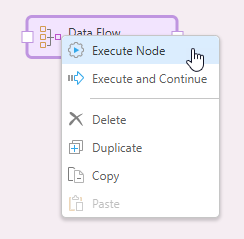
Execute nodes
The Execute options are shown where exactly one node is selected:
- Execute Node: Execute the selected node without executing any other nodes.
- Execute and Continue: Execute the selected node and then each of the nodes that follow it in the Master Flow.
- Click here to learn more about executing nodes
Clipboard tools
Clipboard tools are shown on the right-click context menu when any node or set of nodes is selected on the canvas:
- Delete: Delete the node.
- Duplicate: Create a duplicate of the selected node.
- Copy: Copy the node to your clipboard.
- Paste: Paste a copied node.