The Publication Print jump action triggers the export of a given publication, which can then be saved and printed. Once configured, this action allows the user to click an image, text box, or infographic in their presentation at runtime to create and download a publication in formats including PDF, Power Point, PNG, and so on.
The following video demonstrates the configuration and use of publication print from a presentation:
Configuring a Publication Print Action
With an item that will act as your "button" selected on the canvas, right-click Click Action. The Jump Actions panel opens at the bottom of your page:
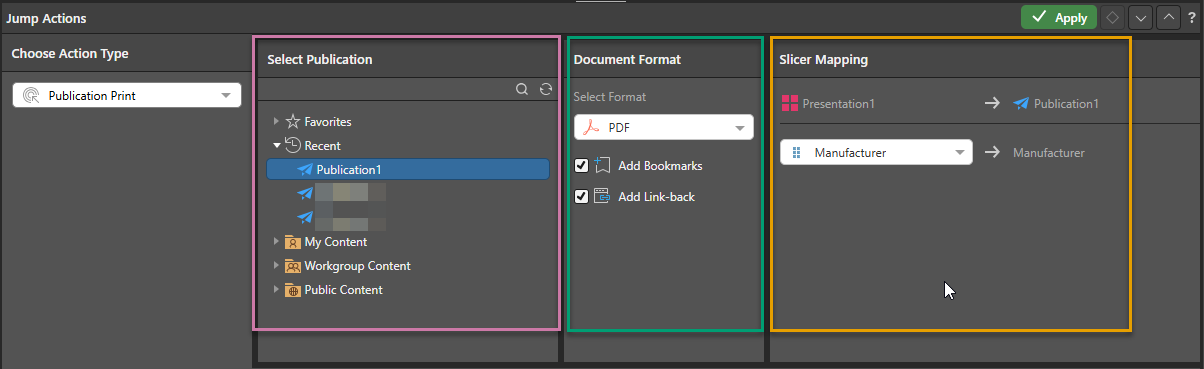
- From the Choose Action Type dropdown list, select Publication Print.
- From the Select Publication panel, navigate to and select the publication that you want to print (purple highlight above).
- From the Document Format panel, select the Output settings (green highlight above):
- From the Select Format dropdown list, select a format type for your publication from PDF, Power Point, Word, Excel, HTML, PNG, CSV, JSON, and XML.
- Select the formatting options that you would like to apply for your print. The formatting options that you can select, from Add Bookmarks to Show Title, are the same as those used when Printing and Exporting a publication using the Print & Export dialog.
- Click here for more information about printing publications including details of Output settings
Mapping presentation to publication slicers
The Slicer Mapping panel (orange highlight above) opens if the presentation containing the jump action and the selected target publication contain matching slicers. This mapping indicates which slicers in the presentation map to which slicers in the publication, so that your slicer selections can be passed from the presentation to the publication when it is printed.
To ensure that the exported publication will be filtered by the slicer selection from the presentation, make sure that each slicer in the presentation corresponds to the same slicer in the publication.
Important: To ensure you get the expected output from your mapping, you must ensure the slicer types match. For example, if a slicer is a multi-select type in the source presentation (for example, a dropdown list that allows you to select multiple countries), the mapped slicer in the target publication must also be a multi-select type.