An existing publication, created in Publish Lite or Publish Pro and saved to the database, can be opened from the Content Manager, your Pyramid home page, or using the Quick open panel to the left of your App Tabs. Once open, your roles and licensing options control your ability to view and edit the content of the publication.
Publish Pro and Publish Lite
The mechanisms for opening publications are basically the same in Publish Pro or Publish Lite. For more information about opening existing publications and creating new publications, see:
Open from explorer-style views
You can open your publications for editing from any lists of content items that appear in the explorer-style views of the Content Manager or your Home Page.
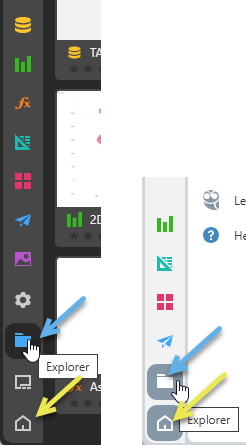
To go to the explorer-style views from the App Toolbox:
- Click the Content Explorer icon (blue arrow, above) to open the Content Manager. Note that the Content Manager differs for Pros and Analysts.
- Alternatively, click the Home icon at the bottom left of any page (yellow arrow) to open your Home Page. Your Home page may include explorer-style Existing Content panels; such as Favorite items, Recommended items, and Recent items.
Note: If you open the home page and see a Quick Start panel in the middle of the page, you can click either Go to My Hub or clear the Show next time checkbox to close the panel to jump to your home page. Your home page is highly configurable, both by your administrator and by yourself. It may, therefore, not include the explorer-style list views or other panels described here.
Context Menu
Wherever you see an explorer-style list of content items (from your Home Page or in the Content Explorer for Pros or Analysts), you can open any publications as follows:
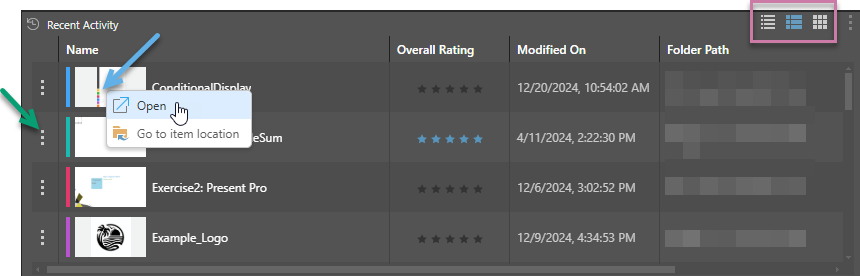
- Double-click to open the publication for editing.
- Click the Ellipsis (...) and select Open from the menu (green arrow).
- If a list view is selected (details or content view), right-click anywhere in the row (snapshot, name, or any other value) and select Open from the context menu.
- If the tile view is selected, right-click anywhere in the name panel and select Open from the context menu.
Tip: You can change the type of view used by a panel using the view options located in the top-right corner of the panel (highlighted in purple).
- Click here for more information about the Home Page
Content Manager
 From the Content Manager, you can also click the Metadata icon for any publication to open its Metadata panel and then double-click the snapshot from there to open the publication.
Quick Open
Quick Open (green arrow) offers a fast way to find and open content without leaving the App Tab interface. Click this option to open an explorer-like interface and access files from your private folder (My Content) and any Workgroup or Public folders you have access to. The pop-up also contains a "search by name" facility and lets you open files from Recent and Favorite locations. For more information, see Quick Open.

Editing publications
The right to edit a publication is governed by your user roles and your license type. Broadly speaking, Pro and Analyst users can edit publications, while Viewers and Basic users have read-only access (they can only open and interact with content). Users with editing rights can manage content items that are saved in their My Content and Workgroup folders, and, depending on their permissions, content items in the Public folders.