Once created, slicers can be attached to or detached from data points within a tabulation. By default, new slicers are attached to all data points, meaning that a selection from your slicer filters all the data points in the visualization. When you detach slicers from specific data points, those data points are no longer filtered by the slicer. This allows the filter to affect only those values relevant to the selected slicer.
For example, a Date Year slicer can be used to filter attached data points by year, while detached data points remain unfiltered.
Attaching and Detaching Slicers
Important Notes:
- You cannot attach or detach slicers to data points that retain a "live" link to discovery data. If you dragged a discovery into your tabulation and created a Direct connection between it and the tabulation, the Attach Slicers functionality is not available. For more information, see Drag discoveries into Tabulate Pro.
- You can only attach or detach slicers where the data and the slicer are from the same model.
Before you begin
You need to create a new slicer from the Toolbox or using the Add New Slicer option in the Attach Slicers panel.
Opening the Attach Slicers panel
To open the Attach Slicers panel at the bottom of the page, select the relevant cells on the canvas and click Attach Slicers on the Advanced Setting ribbon:

The Attach Slicers panel lists all slicers for this tabulation. The checkbox alongside each row indicates whether that slicer is attached to the cells that are currently selected on the canvas.
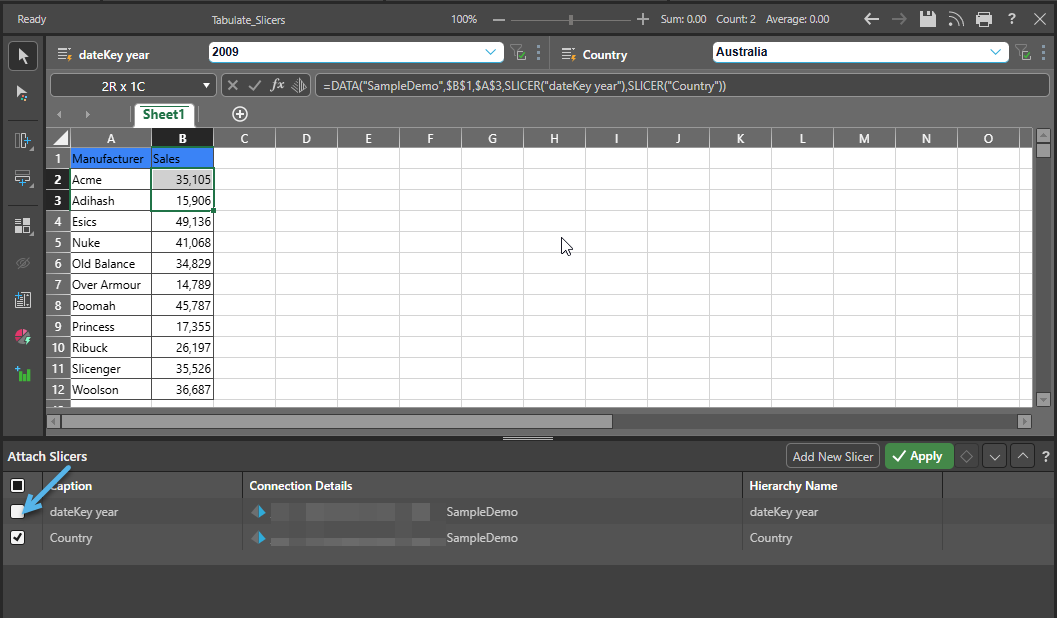
Note: When you create a new slicer for your tabulation, the slicer is attached to all data points by default.
Detaching Slicers
To detach a slicer from some data points, so those data points are no longer filtered:
- Select the cells that you do not want to be affected by the slicer.
- To detach the slicer from the selected data points, do one of the following:
- In the Attach Slicers panel, clear the checkbox alongside the name of the slicer that you want to detach. Click Apply to detach the slicer from the selected cells.
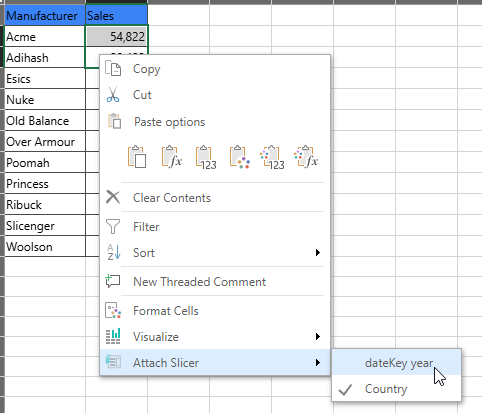
- Right-click the selection, then Attach Slicer > <Slicer Name> from the context menu. Once the tick is removed from alongside the <Slicer Name>, the slicer is detached.
Note: If the slicer is attached to multiple cells, you can choose to detach the slicer from one, some, or all cells.
Attaching Slicers
To attach a slicer to some data points, so they are filtered:
- Select the cells that you want to filter using the slicer.
- To attach the slicer to the selected data points, do one of the following:
- In the Attach Slicers panel, select the checkbox alongside the name of the slicer that you want to attach. Click Apply to attach the slicer to the selected cells.
- Right-click the selection, then Attach Slicer > <Slicer Name> from the context menu. Once the tick is displayed alongside the <Slicer Name>, the slicer is attached.
Note: You can select one, some, or all cells in one action.