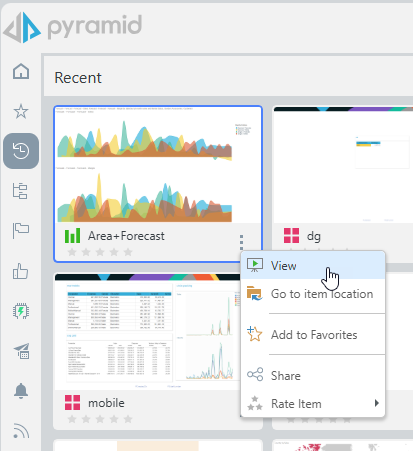
"Auto Recommended" is a FLAT listing of the top 20 most system recommended content items for a given user based an AI-driven algorithm. The "Auto Recommended" content view can only be accessed from the content manager.
Note: This view is available for all user types, each with some tailored functionality. Click to learn more about Pro and Analyst access.
How it works
The AI-powered recommendation engine uses a Matrix Factorization algorithm to learn about content usage patterns across all users. It identifies which content is likely to be useful to a given user by comparing their preferences with those of similar users; much like how online stores suggest products based on past purchases.
The model is updated regularly to ensure users see the most relevant and up-to-date content in this view.
Accessing Auto Recommended Items

The Auto Recommended view, which contains content items that have been identified as relevant to this user automatically, is indicated using a Certificate icon. For both the Pro and Analyst versions of the CMS, this icon is hidden by default. You need to click the ellipsis menu to show the submenu.
Auto Recommended View
Click the Certificate icon in the toolbox (green arrow below) to open the Auto Recommended view in the CMS:
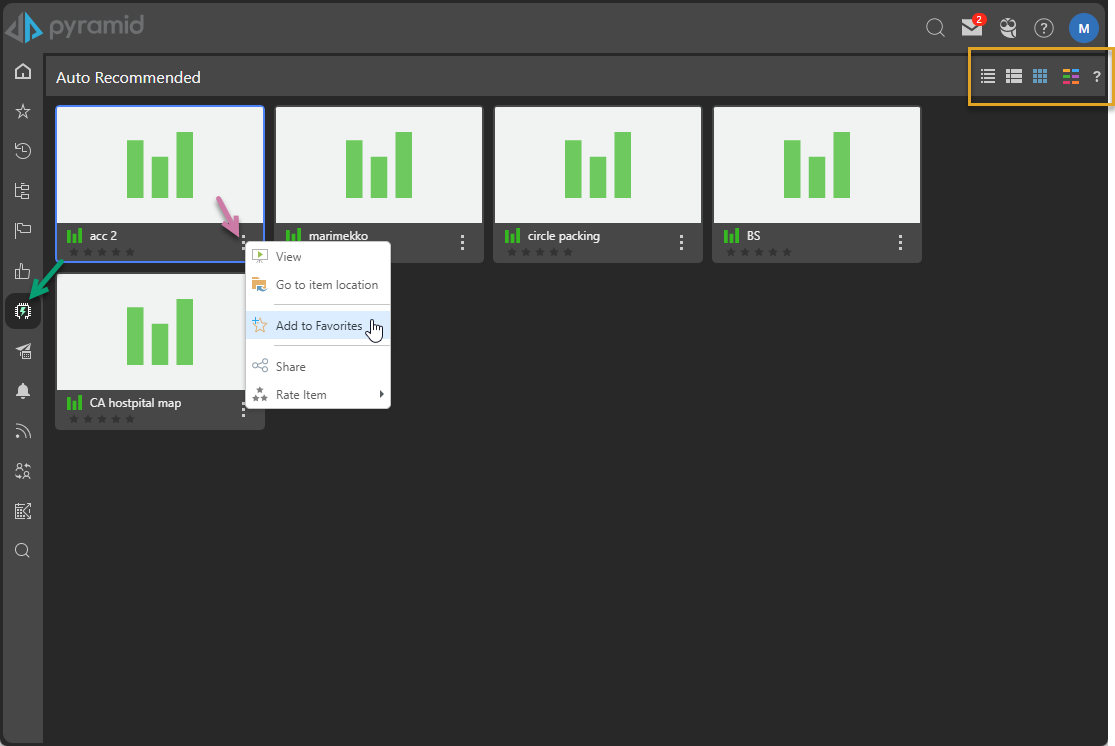
Auto Recommended View
Navigation Bar
View (Display Mode)
Set the appearance of the content items in this view by choosing a display mode or "view" from the following options:
- Detail List: A grid-like display of content items with various details.
- Content List: Like the detail list but with a snapshot (or thumbnail) for each item.
- Tile List: All the content items as large tiles, with each including a thumbnail.
Content Type Filter
Filter the types of content items in a given view that will be shown in the list. For example, if you clear the Unselect All checkbox and then select the Discovery checkbox, only discoveries are shown.
Content Items (Main Body)
The item listing is visible in every content view. It shows a list of items that match the selections, search, filters, and so on. It contains files of all of the content types available to the Viewer user (items created in Discover, Present, and Publish).
Context Menu
When you right-click your content items or folders, a context menu opens with the following functions:
- View: Content items. Open the content item for viewing and interaction.
- Open Folder: Folders only. Open the folder. This is equivalent to clicking the thumbnail.
- Go to Item Location: Go to the item's location in the Content Explorer.
- Add to Favorites: Add the item or folder to your favorites list. Favorites is a flat list of up to 20 items (content items and folders) that have been flagged as favorites by the current user.
- This option changes to Remove from Favorites if your content item is currently a favorite. Select this option to remove the item or folder from your favorites list.
- Share: Opens the Share Content dialog. You can share your artifact with other users (recipients), either by attaching the exported content to an email or by sending a Share Link to the recipient for access in Pyramid. For more information, see Share Content.
- Rate Item: Apply a rating out of five.
Note: There are additional options on the context menu if your content item or folder is saved to the My Content location, even if you are in one of the other views.