The Content Explorer is the master content view for managing content in the pro client content system. It delivers a folder and item interface similar to the Windows Explorer tool - allowing users to organize and manage their content and folders. The Explorer is just one of the ways of viewing content in the Content Manager toolset - however, it has the richest functionality.
Explorer Workspace
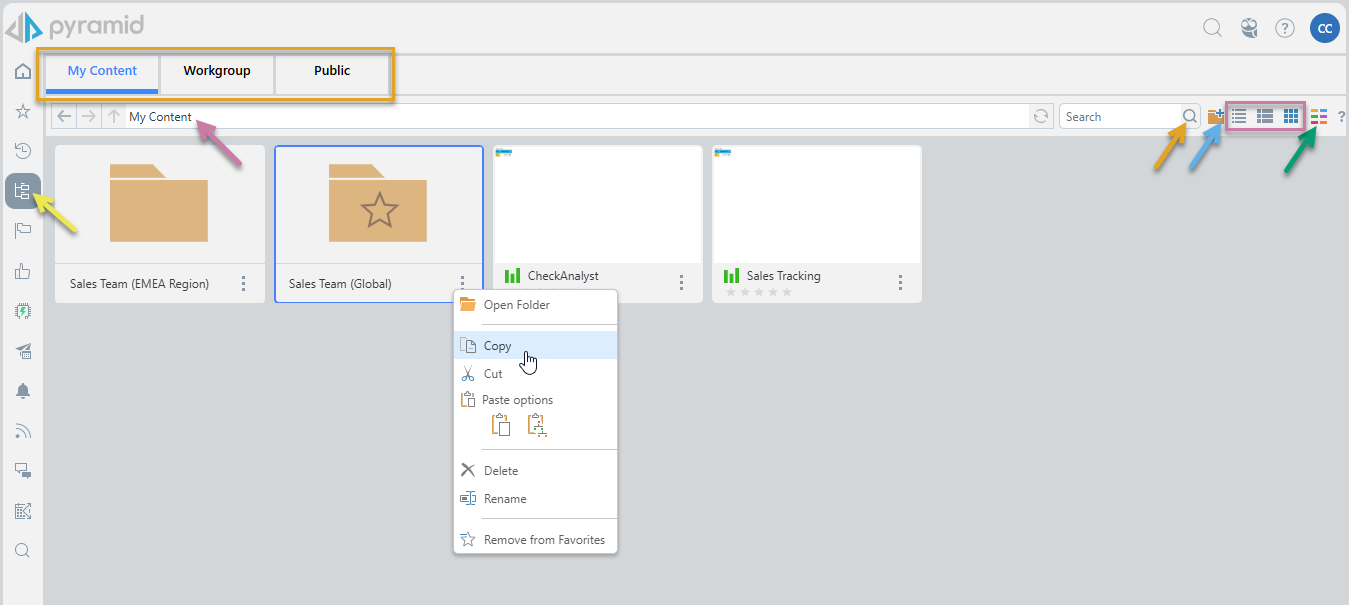
The Folders icon in the content manager takes users into the "explorer" view (yellow arrow below):
Tabs
The tabs at the top of the page (orange highlight above) reflect the Pyramid folders where the discoveries, presentations, and publications that you have access to are seen. Change tab to change which files are shown. The folders are:
- My Content: A personal domain of content accessible only to you.
- Workgroup: A shared workspace for users that belong to the same security role as you. Content creators save content to the Workgroup folder when they want to share that content with all users who belong to a certain security role.
- Public: Another shared workspace, but unlike the Workgroup folder, here content creators can set security permissions per folder and per content item.
Navigation Bar
The navigation bar, which can be seen in various forms across most content views.
Folder Navigation and Breadcrumbs
The folder navigation bar shows the folder you are currently in. It acts as a Breadcrumb trail, allowing you to click on a segment in the trail to jump to a previous folder in the tree. There are also navigation buttons (Up, Left , and Right) that allow you to navigate the tree exactly as you would in any explorer tool (for example, Windows Explorer):
- Back and Forward: Go back and forward to previously selected folders.
- Up: Go up the folder tree structure to the current folder's parent folder.
Quick Search
Quick search (Magnifier icon) lets the user search for items by their name or description within the context of the current selection. For example, in the Content Explorer view this means within the current folder and its sub-folders.
Paste clipboard item
If you currently have a cut or copied item on your clipboard, the Paste option (purple arrow below) is shown in Explorer's Navigation Bar:
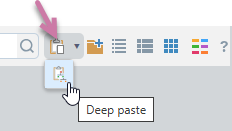
Navigate to the folder that you'd like to paste your item to and do one of the following:
- Click Paste to paste the copied or cut item into the new location.
- Click Paste > Deep Paste from the dropdown list. Your selected item and the entire tree of items beneath your selected item are pasted into the new location.
Note: This option will be disabled in locations where pasting is not supported.
- Click here for more information about Pasting
Add Folder
Content Explorer only. Add a new sub-folder to the currently selected folder. You can only use this option in folders where you have write access.
View (Display Mode)
Set the appearance of the content items in this view by choosing a display mode or "view" from the following options:
- Detail List: A grid-like display of content items with various details.
- Content List: Like the detail list but with a snapshot (or thumbnail) for each item.
- Tile List: All the content items as large tiles, with each including a thumbnail.
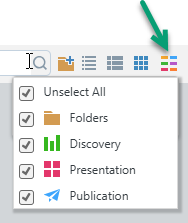
Content Type Filter
Filter the types of content items in a given view that will be shown in the list. For example, if you clear the Unselect All checkbox and then select the Discovery checkbox, only discoveries are shown.
Content Items (Main Body)
The item listing is visible in every content view. It shows a list of items that match the selections, search, filters, and so on. It contains files of all of the content types available to the Viewer user (items created in Discover, Present, and Publish).
Context Menu
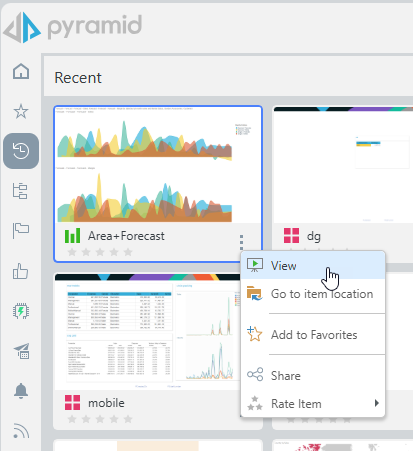
When you right-click your content items or folders, a context menu opens with the following functions:
- View: Content items. Open the content item for viewing and interaction.
- Open Folder: Folders only. Open the folder. This is equivalent to clicking the thumbnail.
- Go to Item Location: Go to the item's location in the Content Explorer.
- Add to Favorites: Add the item or folder to your favorites list. Favorites is a flat list of up to 20 items (content items and folders) that have been flagged as favorites by the current user.
- This option changes to Remove from Favorites if your content item is currently a favorite. Select this option to remove the item or folder from your favorites list.
- Share: Opens the Share Content dialog. You can share your artifact with other users (recipients), either by attaching the exported content to an email or by sending a Share Link to the recipient for access in Pyramid. For more information, see Share Content.
- Rate Item: Apply a rating out of five.
Note: There are additional options on the context menu if your content item or folder is saved to the My Content location, even if you are in one of the other views.
Additional My Content Menu options
The following context menu actions are only relevant to content items or folders that are saved to your My Content directory, excluding the Shared Items folder.
Copy, Cut, and Paste
- Copy: Copies the item into memory, awaiting the next Paste. When it is pasted, it will be copied to the new destination.
- Cut: Cuts the item from the page, copying it into memory, awaiting the Paste. When a cut item is pasted, it will be copied to the new destination and deleted from the current location.
- Paste: Paste the items that you currently have on your clipboard into a new location. You can either perform a simple paste, pasting the copied or cut item into the new location, or a Deep Paste, pasting your selected item and the entire tree of items beneath your selected item. For more information, see Deep Paste.
Delete and Rename
- Rename: Rename the current item.
- Delete: Delete the current item from the content system.
Move (Drag and Drop)
You can simply drag and drop content items into another folder in the view. The functionality is, basically, cut and paste and, as such, is limited to content items that are saved to your My Content directory.
Shared Items
When a Sender invites you to share an artifact, it is typically "copied" to your Shared Items folder. This folder is located under My Content and visible in your Favorites folder by default.
- Click here to learn more about Shared Items in the Viewer