User defaults are a set of options that drive the basic user experience for Viewers. These defaults specify settings relating to the apps, such as the default open action for presentations in the CMS. When you reset your defaults, you are only changing these settings for yourself.
Tip: To return to the Viewer home page, click the Home icon at the top-left of the page.
Accessing your User Defaults
To open the User Defaults panel:
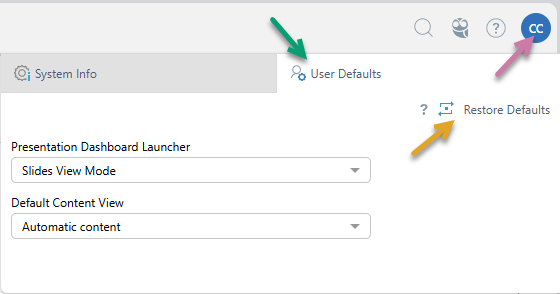
- From the Home Page, click User Settings at the top-right (purple arrow below).
- Click the User Defaults tab (green arrow) to switch to the User Defaults view.
- Specify your defaults as described below.
The User Info panel opens.
This is where you will define your User Defaults. Note that your initial defaults are set up by your administrator and changes in this view only affect your own defaults.
User Defaults panel
Restore User Defaults
Use the Restore Defaults option (orange arrow above) to reset your User Defaults to match those specified for all users of your type, by your Administrator.
Note: This action "restores" the settings to match those that are currently defined in the Admin Console, which may not match your User Defaults on creation.
Default Options
Presentation Dashboard Launcher
Indicates how presentations should "load up" when they are opened from the content manager:
- Slides View Mode: With this option set, clicking a presentation in the CMS opens a preview of all slides; You can then open the presentation in edit mode, or click a slide to open the presentation at runtime from the selected slide.
- Direct: With this option set, clicking a presentation in the CMS opens the runtime presentation at its first slide.
Default Content View
This option indicates which view of the Content Manager should be shown when the viewer first accesses the content system. The options are as follows:
- Automatic content: If there are any content items marked as favorites, display the Favorites view by default. If there are no Favorites but there are recent items, show the Recents view. Otherwise, display the Content Explorer.
- My Content, Workgroup Content, or Public Content: Show the Content Explorer with your local My Content folder, your Workgroup, or the Public folder selected by default.
Note: If your administrator has selected the Use Public Content tree initially for Viewers checkbox in the Admin Console's Content Settings view, this option will show the fixed value "Public Content," and the Content Manager will always open with the Public view selected. For more information, see Content Tree for Viewers.
Related information
You can access the User Info panel from the User Defaults panel. The user info panel allows you to view and configure some of your own user details. For more information, see User Info for Viewers.