The Aggregation Function node is used create a new column based on an aggregation of multiple given numeric columns. This function supports the following numeric column types: Integer, Float 32, Float 64, and BigInteger.
The Aggregation Function function differs from defining aggregation from Data Model, in which case the aggregation type can be set for each measure and is used in the querying process only. Using the Aggregation Function node in the Data Flow creates a new aggregated column that is part of the schema of the underlying database.
The Aggregation Function node is useful if end users have a need to analyze aggregations of multiple columns. For example, there may be a need for a column summing the cost and overhead to show all expenses.
This can be creating by inputting both of those columns in the Aggregation Function node and setting the aggregation type to Sum.
Configure Aggregation Function
Connect the Aggregation Function node to the Select tables of the relevant table.
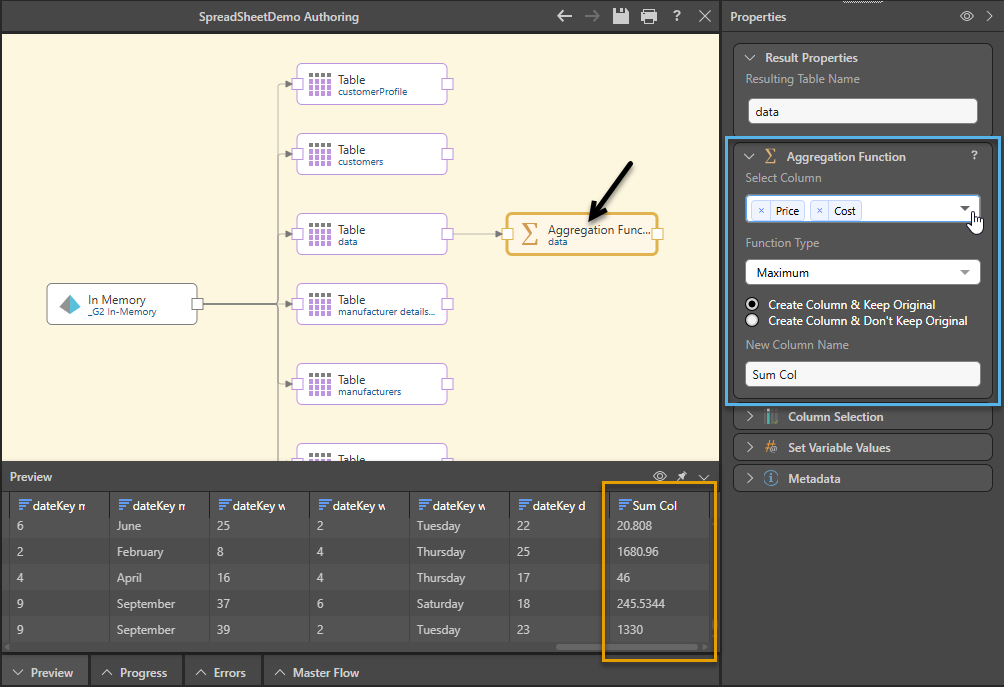
Go to the Properties panel and set the aggregation preferences:
- Select Column: Choose the columns that you want to apply the aggregation to.
- Function Type: Select the type of aggregation to use (see below for more information).
- Column Output: Determine whether to keep the original column.
- New Column Name: Name the new column.
Function Type
The Aggregation Function node enables the following aggregate functions:
- Sum: Returns the sum of values in each row from the given numeric columns.
- Average: Returns the average values for each row of the given numeric columns.
- Minimum: Returns the lowest values in each row from the given numeric columns.
- Maximum: Returns the highest values in each row from the given numeric columns.
Split Nodes
The Aggregation Function node can be used to produce one aggregated column. If you want to create multiple aggregated columns based on a single source table, you can connect multiple Aggregation Function nodes to the relevant table, thereby splitting the table node.
You can then use the merge function to combine the original table with the new aggregated columns. See the final example below for a demonstration of this process.
 Example: Sum Business Expenses
In this example, we have two columns showing business expenses: Operating Expenses and Overhead Expenses.
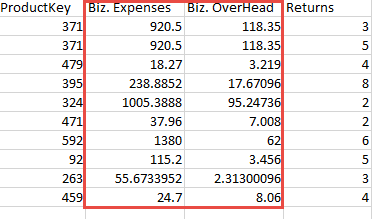
We want to create a new column that will show total business expenses.
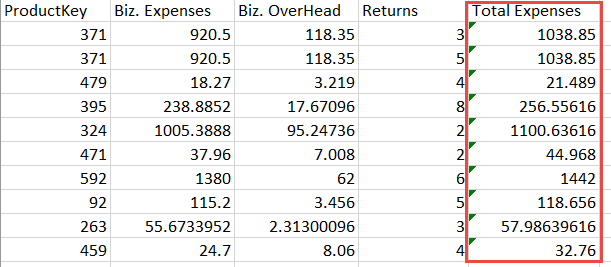
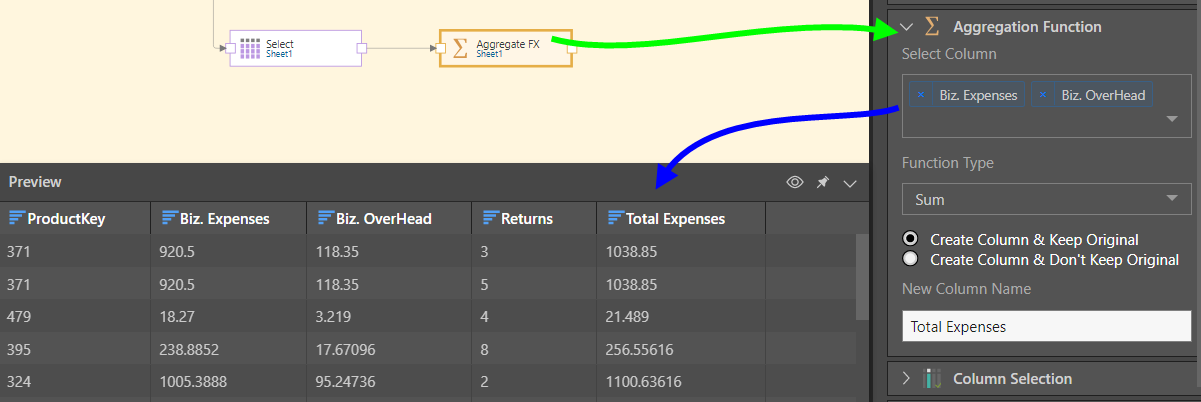
To do this, we will Sum the Operating Expenses and Overhead Expenses columns to produce a new column called Total Expenses:
Example: Get the Average
In this example, our table contains a Sales column for each month of the year.
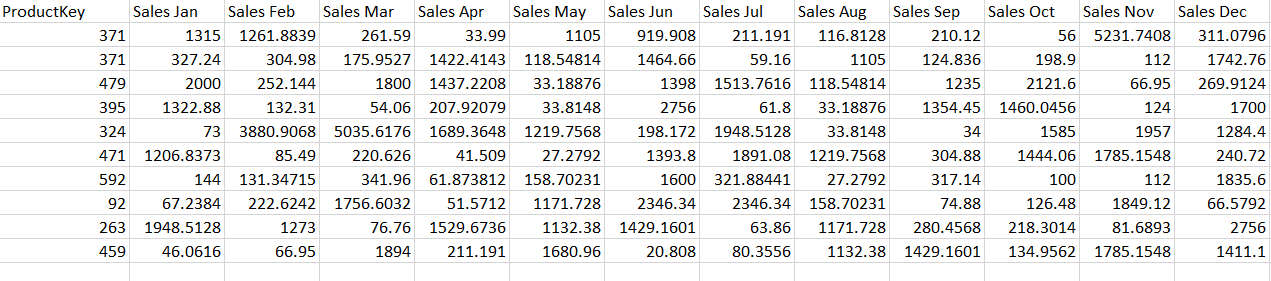
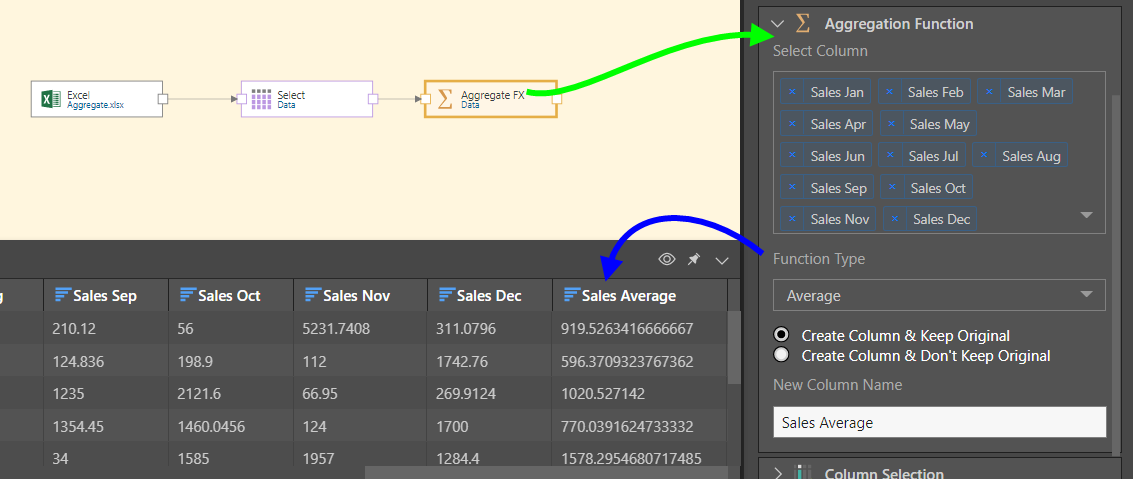
We want to aggregate these sales values to produce a new column showing the Average value for each row (i.e., the average for the year).

To do this, we aggregate all the Sales columns by the Average function, producing a new column which shows the average value for each row:
Example: Get the Maximum
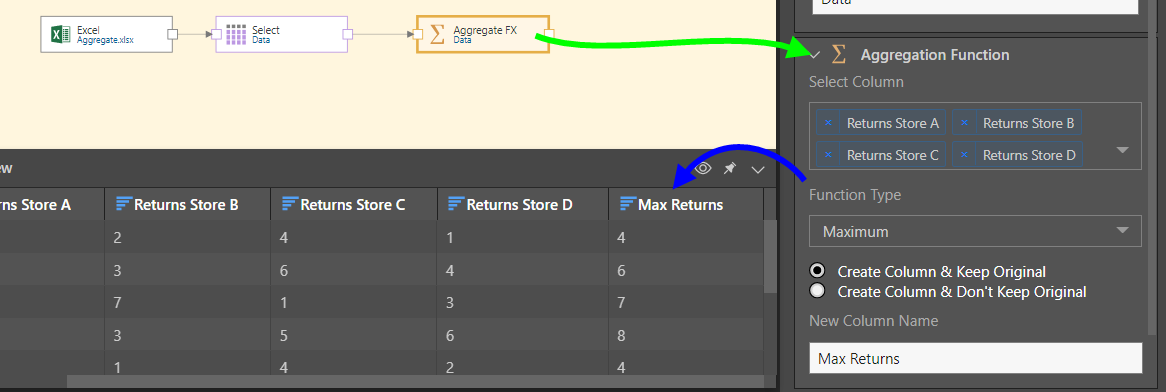
In this example, we have a table with 4 columns showing Returns; each Returns column shows data from a different store.
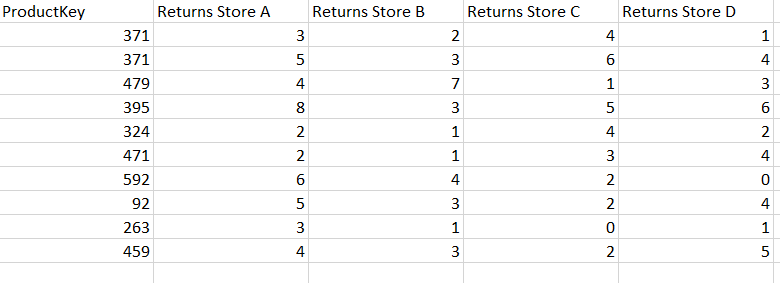
We want to aggregate these Returns values to create a new column that will show us the maximum Returns value in each row.
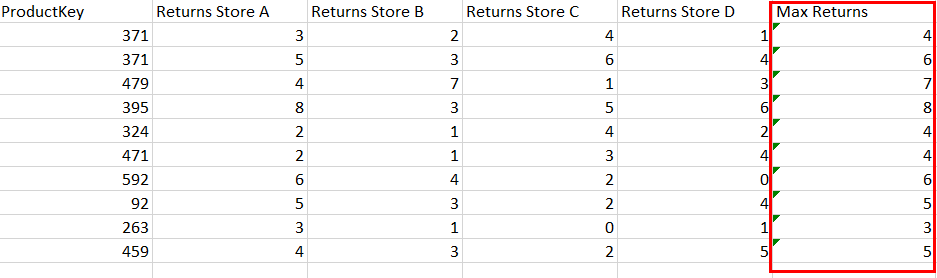
To do this, we aggregate each Returns column by the Maximum function. The new column shows the maximum return value from all given columns for each row:
Example: Get the Minimum, Maximum, and Average
Here we have several columns showing test scores from 5 different tests.
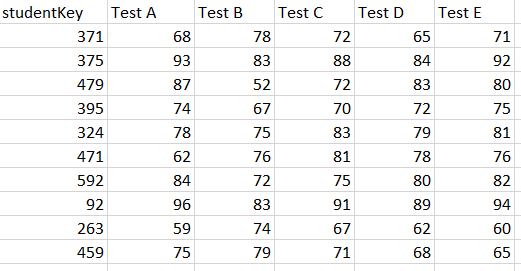
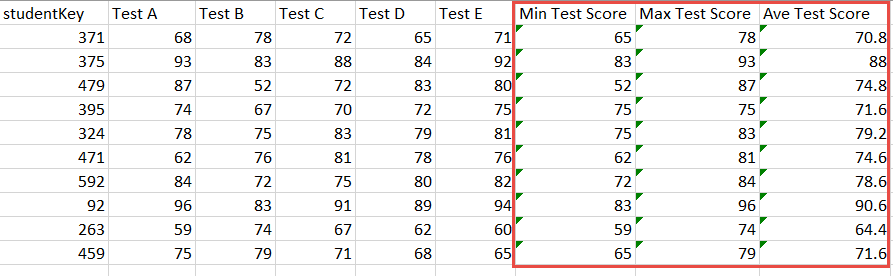
For each row, we want to see both the lowest and highest test scores, as well as the average from all tests.
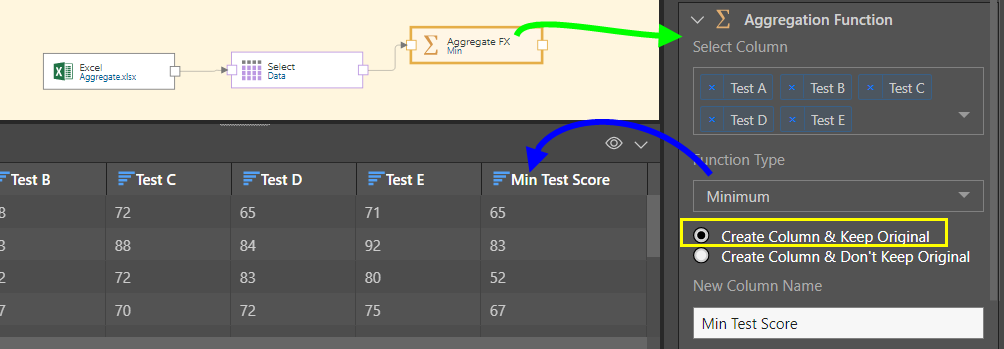
We'll start by aggregating all the test score columns by the Minimum function, to add the new Min Test Score column to the table:
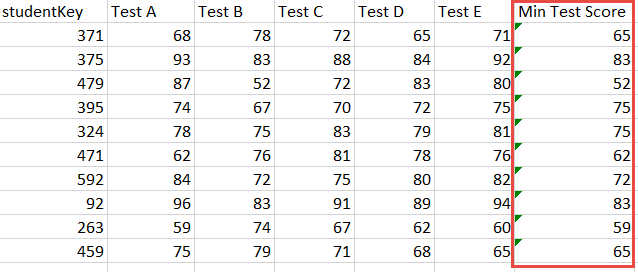
To do this, we'll connect the Aggregation Function node to the table node, and input all test score columns (green arrow below). We then select the Minimum function, and make sure to keep the original columns (yellow highlight). The new Min Test Score column is then visible, alongside the original columns, in the Preview (blue highlight):
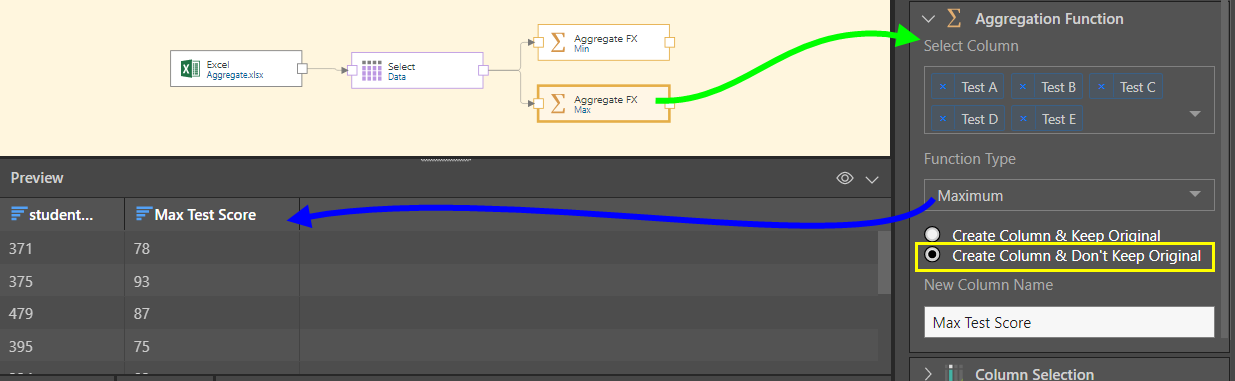
Next, we want to add a second aggregated columns showing the Maximum test scores:
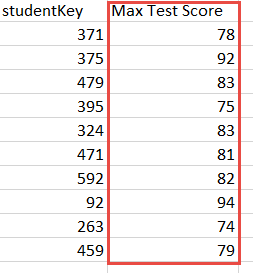
To do this, we'll add a second Aggregation Function node to the original table, this time aggregating the test score columns by the Maximum function, and being sure not to keep the original columns (yellow highlight).
We now have 2 aggregated tables; one showing all original columns and a new Minimum column, and the second showing only the key column and the new Maximum column:
We now need to join our 2 aggregated tables to produce a single table containing the original columns, and both the Min and Max score columns.
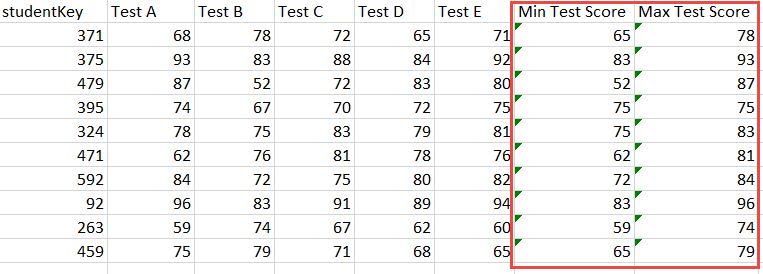
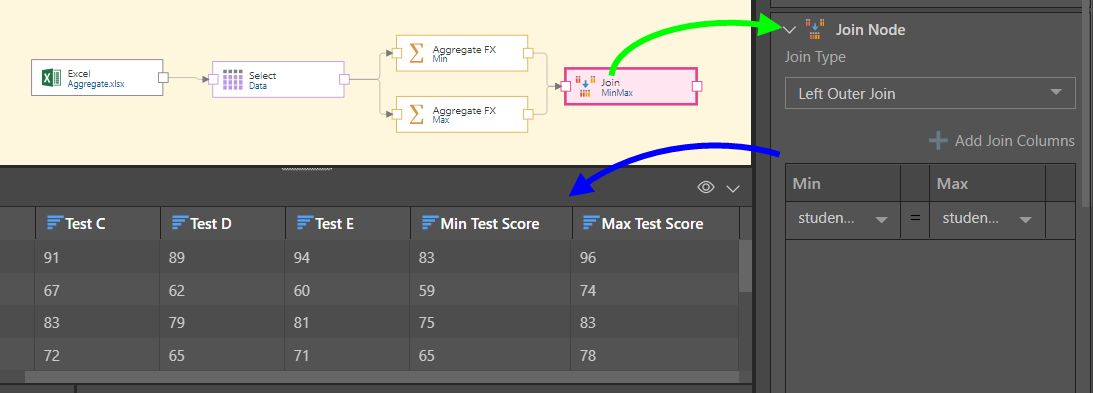
To combine the 2 tables, we'll add a Join Node to the flow, connecting it to both Aggregate nodes and adding a Left Outer Join (green arrow below).
The output is a table showing the columns from both the Aggregate nodes (blue arrow):
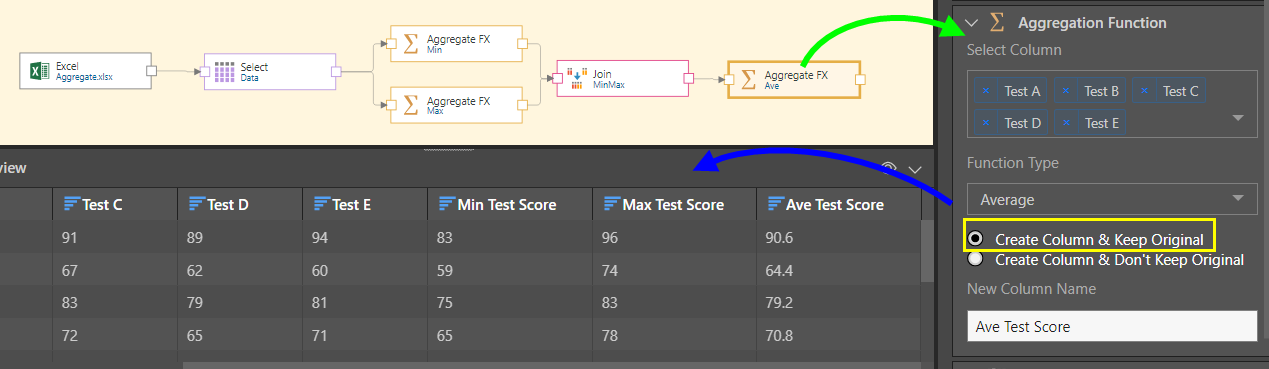
Finally, we want to add a third aggregated column showing the Average value for each row. This should result in the following table, which shows the original columns plus the Minimum, Maximum, and Average values: .
To achieve this, we connect a third Aggregate node to the Join node, and aggregate the test score columns using the Average function, and making sure to keep the original columns. The resulting table shows all the columns from the Join, and adds a new Average Test Score column:
Related information
Common Properties
There are a number of fields that are present in the Properties panel when you have any of the preceding nodes selected on the canvas. These fields include Result Properties, Column Selection, Set Variable Values, and Metadata.
- Click here for more details about the Common Properties