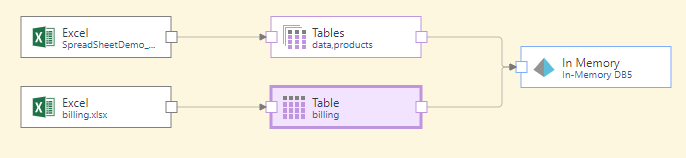
The Tables node is used to copy multiple tables from a single data source into the Data Flow, using a Multi-Select function. When using Tables nodes, all given tables are represented by a single node. Unlike Table nodes, the Tables node does not support any data cleansing operations; it can only be connected directly to the data source and the target.
A single Tables node is an alternative to a set of Table nodes, each of which is used to copy a single table (each table is represented by a different node). For more information, see Table nodes in a Data Flow.
Tables is a good option to use if your data set does not require any cleansing or manipulation, but also does not support direct querying.
Note: Unlike most other nodes, the Tables Node does not support previewing.
Configure the Tables Node
There are two ways to connect the tables node to the Data Flow.
Method 1: Click "Add as Multi-Select"
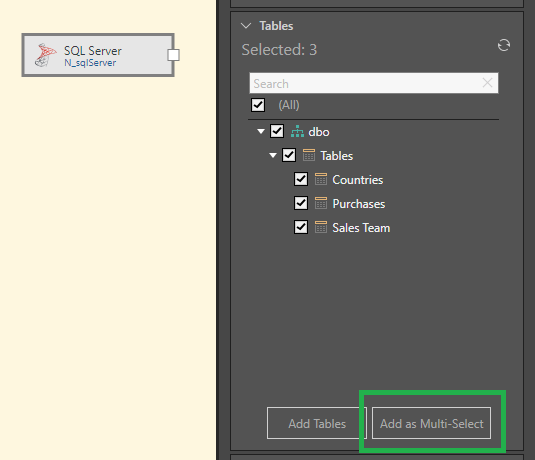
The first method is to add the required tables as a single Tables node from the Properties panel of the data source. Select the source node and click Add as Multi-Select (green highlight below):
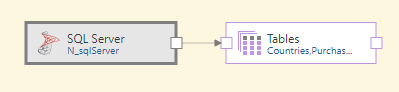
A Tables node is added to the canvas:
Method 2: Drag Tables node onto the Canvas
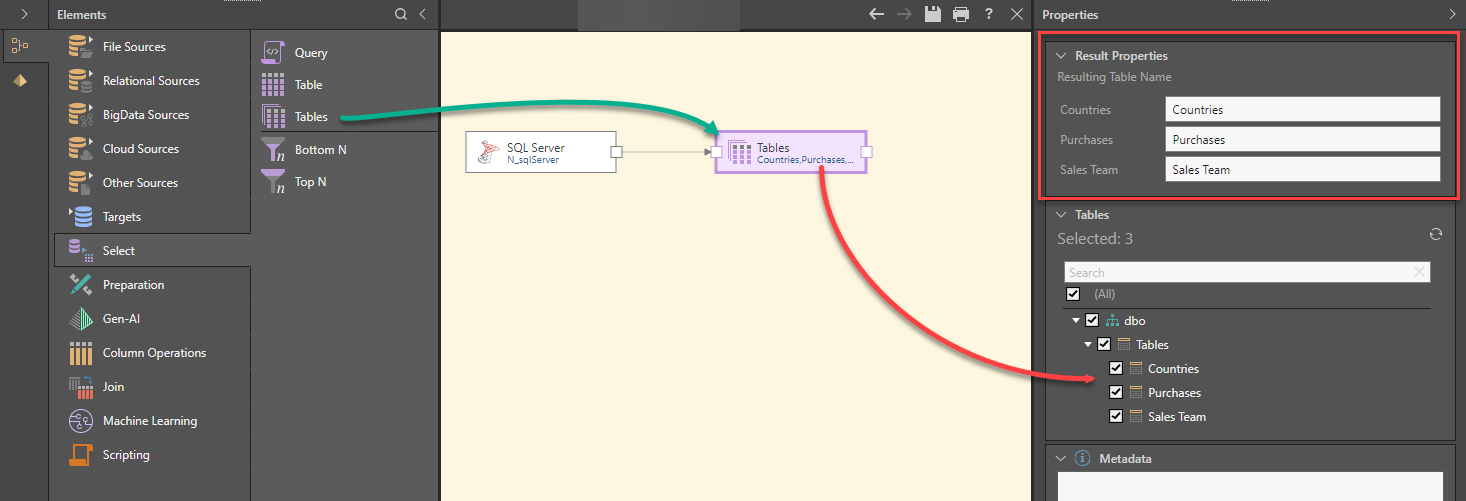
The second method is to drag the Tables node onto the canvas and connect it to the data source node; all tables in the source will be added to the Tables node:
Preview Result Set
Unlike the Table node, it's not possible to preview the result set of a Tables node. Instead, the Preview panel displays only the column names of the first table selected from the Tables' Properties panel.
- Click here to learn more about the Preview panel.
Edit Tables nodes
To edit the Tables node, go to its Properties panel and choose which tables to copy (red arrow above). You can also rename the tables as required (red highlight).
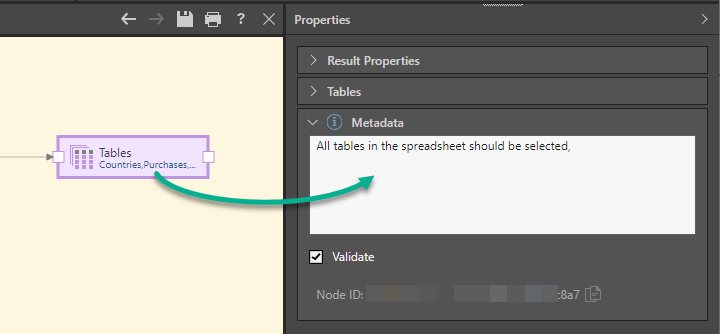
You can, optionally, also add a description to the node (green arrow below). Like all node descriptions, this is visible only from this node's Properties panel. Adding descriptions is a useful way to document each node, which can help you and other data modelers understand the pipeline that you've built;
Multiple Sources
You can create "mash ups" using a number of Tables and Table nodes, by connecting each to a different source but a single target: