You can export and print from Model Pro, just like the other Pyramid apps. When you print the summary from Model, you won't see the Print & Export dialog. Instead, a simple summary document called the Model Flow Summary is generated automatically and returned as a PDF.
Important: You can publish this summary document, whose content is described below, from any of the tabs in Model Pro. Your selection does not affect the content of the summary document.
Exporting the Data Flow
With a Model open in Model Pro:
- Click Print from the Status Bar (green arrow below):
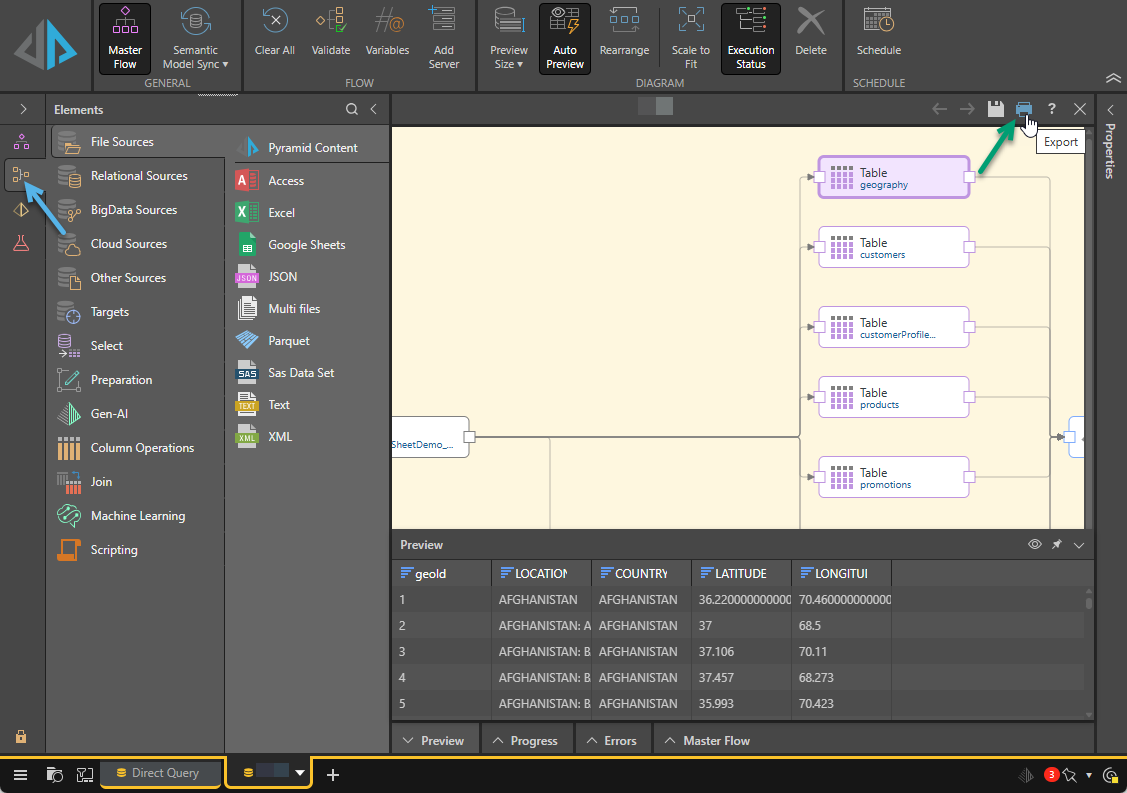
Note: In the preceding example, the Data Flow tab is selected (blue arrow above).
The Model Flow Summary document is generated and downloaded as a PDF, which you can save, print, or share as required.
Model Flow Summary Content
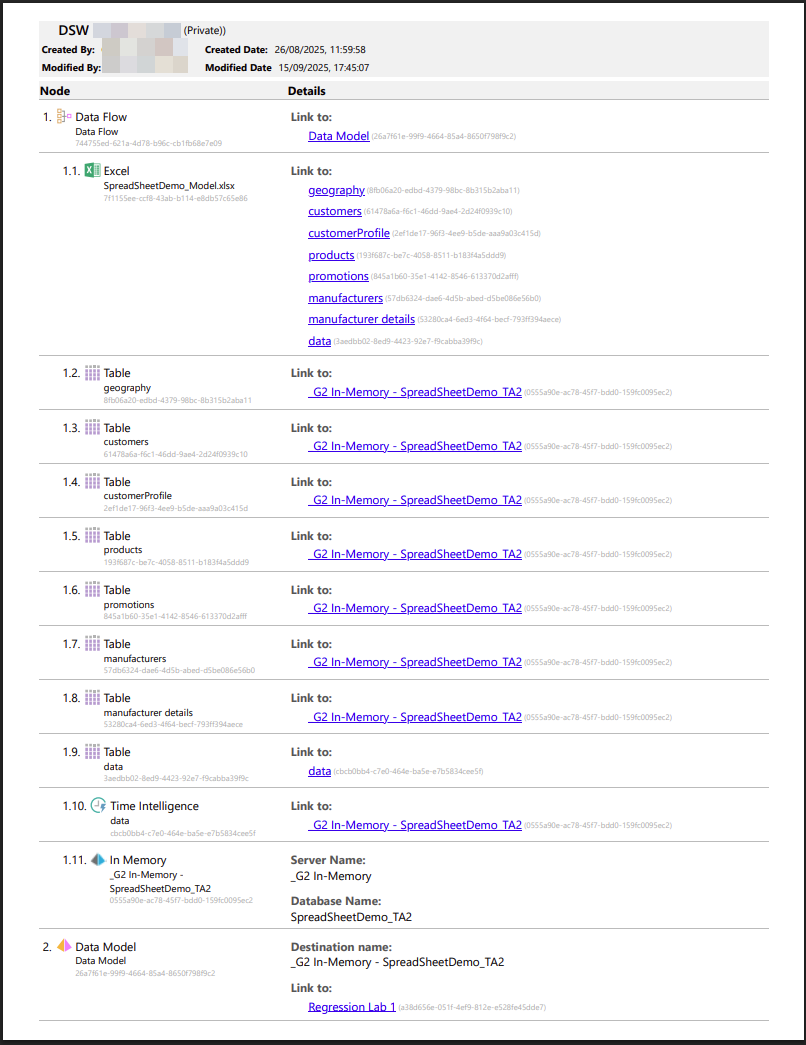
The Model Flow Summary document that you have printed includes your key model details in a single, easy-to-read document.
It typically shows the details described below.
Metadata
At the top of the summary, you'll see the metadata for the data model. This includes:
- The name of the data model.
- The name of the user who created the data model and the creation date-time.
- The name of the user who last modified the data model and the last modification date-time.
Data Flow (ETL)
Next, you'll see a list of each node in the Data Flow, and details corresponding to each. This includes data, including the metadata, for:
- The data source.
- The tables imported from the data source.
- The Data Model node.
- Functions and other nodes added to the Data Flow. For example, if your tables are sorted, the Sort node will be described in the summary document.
Data Model
After the Data Flow items, you'll see the Data Model.
Note: Functions configured in the Master Flow are also displayed in the summary.