The Jump to Tab action opens a specific tab in a Mini-Tab container. For example, where you use a mini-tab container to show visuals for sales, returns, and net profit, you could create a Jump to Tab action that opens the Returns page given particular selections by the end user.
You can either create Simple Jump to Tab actions, where you select your mini-tabs container and indicate which tabs to open by name or tab number, or you can create Advanced Jump to Tab actions, where you do the same but can use PQL to create conditions or otherwise mediate your interaction with the slicer.
Note: This feature is not available in the Community Edition.
Conditional Display
If the tabs in a mini-tab are hidden, then the blend of slicer actions with the mini-tab creates a programmatic way to hide and show content - effectively delivering conditional display functionality. This effect works in both Present as well as Publish (delivering conditional display of content when the publication is rendered).
Configure Slicer Actions
Before you begin
To create a Slicer Action that changes which tab is shown in a mini-tab container, your presentation needs to include a Slicer and a Mini-Tabs container.
Tip: In Present, you can also target an interaction to a slicer and use the parameterization to load the presentation with a given slicer selection applied and trigger any Slicer Actions attached to that slice.
- Click here to learn about adding Slicers in Present
Target Interactions to Slicers
- Right-click a Slicer and select Actions from the context menu.
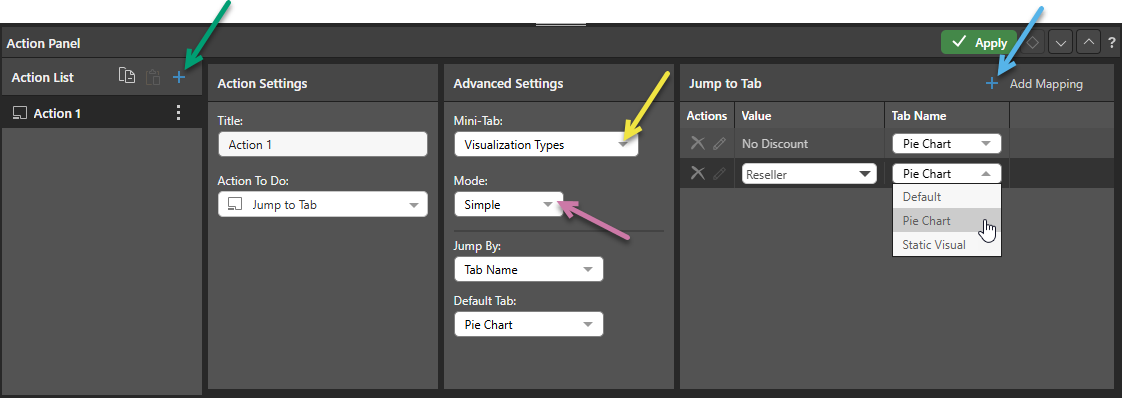
- From the Action List, click Plus (green arrow above) to add an action.
- From the Action To Do dropdown list, select Jump to Tab.
- If needed, choose the name of the Mini-Tab whose tabs you want to dynamically change in response to your slicer selections (yellow arrow).
- If you want to jump to tabs in your mini-tab container when specific values are selected from the slicer:
- Select Simple (purple arrow).
- From the Default Tab dropdown list, select the Default Tab to show what to do when no mapping is defined.
- Create mappings between each slicer value and a tab by clicking Add Mapping and selecting a Tab and Value (see below for more information).
- If you want to use PQL Functions to write an expression in the Jump to Tab window when particular values are selected from the slicer:
- Select Advanced (purple arrow).
- Create a PQL expression that maps the values from your slicers to your tabs (see below for more information). Note: You should use this advanced feature if you want to use the PQL functions to create a switching or conditional effect, or otherwise apply additional logic to your action.
- Click Validate to test your expression.
- Click Apply.
The Actions panel opens.
An action is created with the name Action # (where # is the next number available).
The Advanced Settings panel opens. This is where you will configure the Slicer Action.
Tip: The name of the Mini-Tab container is typically Mini-Tab(#). If you want to change it; for example, to give it a meaningful name and thereby make sure you select the correct container; right-click the container on your canvas and select Edit Tabs from the context menu.
Once your changes are saved, you should run your presentation (F2) and check that your selections have the desired effect on your mini-tabs container.
Action Panel
Action List
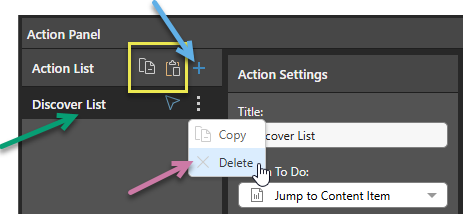
The Action List shows all of the actions associated with this slicer:
You can:
- Add actions to the Action List using the Plus icon (blue arrow above). Once clicked, you need to create the details of your new Action as described below.
- Delete an action from the list by opening its context menu and clicking Delete (purple arrow).
- Edit an existing action by selecting the name of the action in the list and updating its details in the panel.
Copy Actions between Items
You can also replicate the same action or actions across multiple discoveries and publications using the copy and paste functions (yellow highlight above). Copy one or all actions to your clipboard, then paste the actions to the Action List of your target discovery or publication.
Action Settings
From the Action Settings panel, specify the action Title and select the Action to Do. By default, the Jump to Tab action is selected from the Action to Do dropdown list:
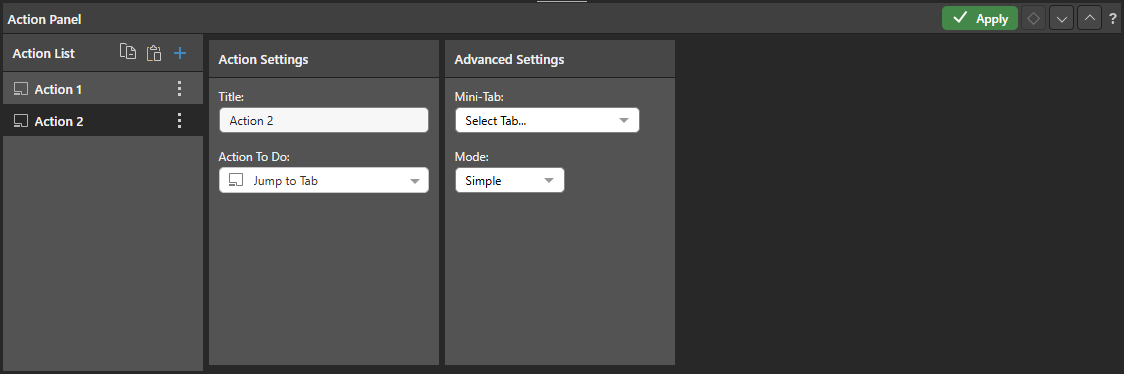
Title
The name for your action.
Action To Do
From the Action To Do dropdown list, select Jump to Tab.
Note: When you are defining Slicer Actions, Jump to Tab and Jump to Slide are the only options available on this dropdown list.
Advanced Settings
Select the relevant mini-tab container (the container that your action is going to affect) and choose the Simple or Advanced mode. The options are different depending on your Mode selection.
Simple Mode
Choose Simple from the Mode dropdown list if you want to jump to tabs in your mini-tab container when specific values are selected from the slicer.
Jump to settings
If you are creating a Simple action, the lower part of the Action Settings panel includes the following options:
- Jump By: Choose Tab name or Tab number to determine whether you want to select names or numbers when defining your mappings. Pyramid recommends using Tab names, since the sequence of your tabs is likely to change over time.
- Default Tab: The tab that should be displayed if no other tab is selected.
Jump to Tab
If you are creating a Simple action, the options to open a particular tab in a Mini‑Tab container using a slice action are presented in the Jump to Tab panel. You need to click Add Mapping, then pair a slicer value with the tab that should open when that value is chosen. You should repeat this for each of the slices where you do not want to show the Default Tab.
Advanced Mode
Choose Advanced from the Mode dropdown list if you want to use PQL Functions to write an expression in the Jump to Tab window that defines what to do when particular values are selected from the slicer. You should use this advanced feature if you want to use the PQL functions to create a switching or conditional effect, or otherwise apply additional logic to your action.
Jump to Tab
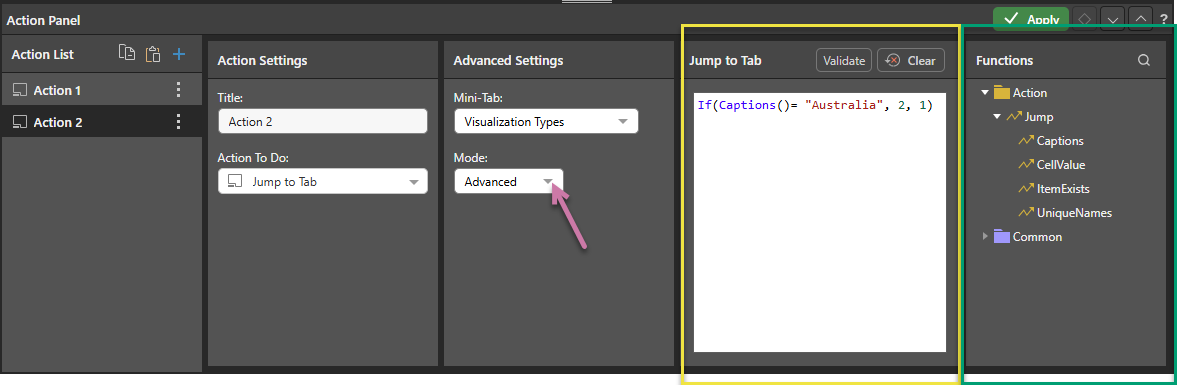
Use the PQL Functions library (green highlight below) to write an expression in the Jump to Tab window (yellow highlight). You can use the LLM function as part of your PQL statement.
Click Validate to test your expression, then click the green Apply button to apply save the action and apply it to the slicer.
Tip: You can see a description of each available function, including syntax, by hovering your cursor over the item in the Functions tree. You can also double-click the function in the tree to copy it into the window.
 Example: Advanced Action with If Statement
In the example above, the Captions function is placed inside an If statement. When Australia selected from the slicer, Tab 2 is displayed. When any other slicer element is selected, the default tab (Tab 1) is displayed:
If(Captions()= "Australia", 2, 1)
When launched at runtime, the slicer drives the conditional effect:
Example: Advanced Action with Switch Statement
In this example, the Captions function is inserted into a Switch statement. When Australia is selected from the slicer, Tab 2 is displayed, and when United Kingdom is selected, Tab 3 is displayed. When any other item is selected from the slicer, the default tab (Tab 1) is displayed.
Switch(Captions(), "Australia", "Tab 2", "United Kingdom", "Tab 3", "Tab 1")
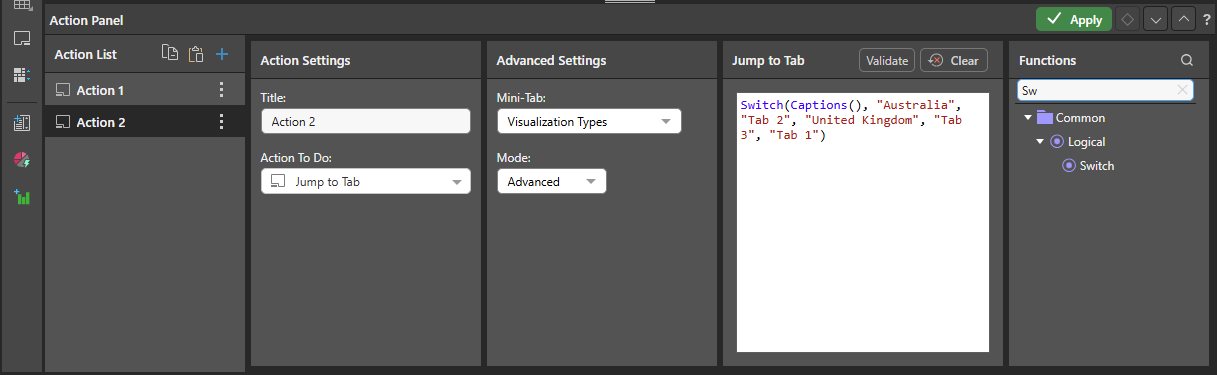
Note: This example uses the tab names. These names are strings, so they need to be contained within "double quotes."
When launched at runtime, the slicer drives the switching effect: