Viewer users can create their own schedules for alerts and subscriptions directly from the relevant content item. You can then manage and edit these schedules from the Schedule Manager.
Schedule Manager Workspace
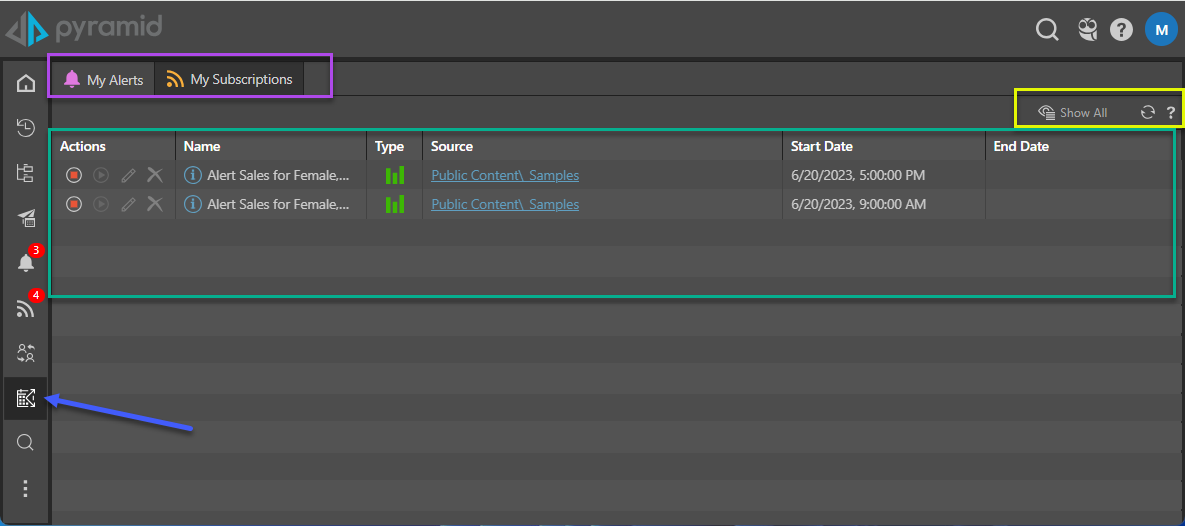
Open the Schedule Manager from the content management panel (blue arrow below).
The Schedule Manager includes two scheduling lists:
- My Alerts: A list of all alerts configured by the current user.
- My Subscriptions: A list of all subscriptions configured by the current user.
Click the tabs (purple highlight below) to open the relevant schedule manager view.
The listing appears in the middle of the workspace (green highlight). Macro buttons (yellow highlight below) are used to show or hide inactive schedules, or to refresh the list of schedules.