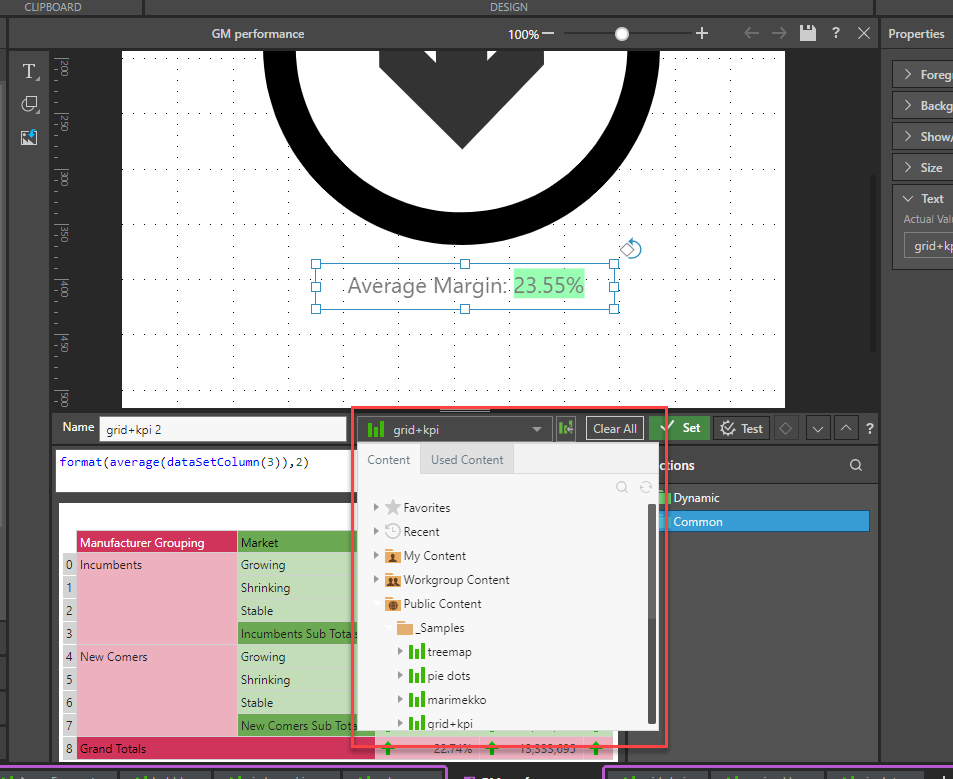
The Content Management System is pervasive throughout the Pro application. Apart from the main content manager and related views, content-related functionality appears within each app, from the App Tab interface and from the Home page.
Variations of this functionality can accessed for the Analyst or Viewer, on mobile devices, and can also be accessed using the API.
The following explains the main entry points to the content system for the Pro client.
Opening the CMS
 The CMS is represented by a folder icon, making it easy to identify and access content-related tools and views throughout the application.
App Toolbox
The App Toolbox, found on the Home page in the Pro client or in the Admin Console, provides a fast link to the content manager (blue arrow below). When clicked, the content manager opens up with the default view (as defined in your user defaults).

Quick Search
The quick search option in the home menu is a fast way to seed and execute a content search directly from the home screen. By entering a search string into the box, the search framework is triggered and a simple "contains" search query is run on the repository for the current user.
- Click here to better understand how the content search works.
User Hub
Other access points for content include the favorites and recent listing panels found in the User Hub (this dashboard is shown if users choose to hide the Quick Start and Learning center panel):
Content Views
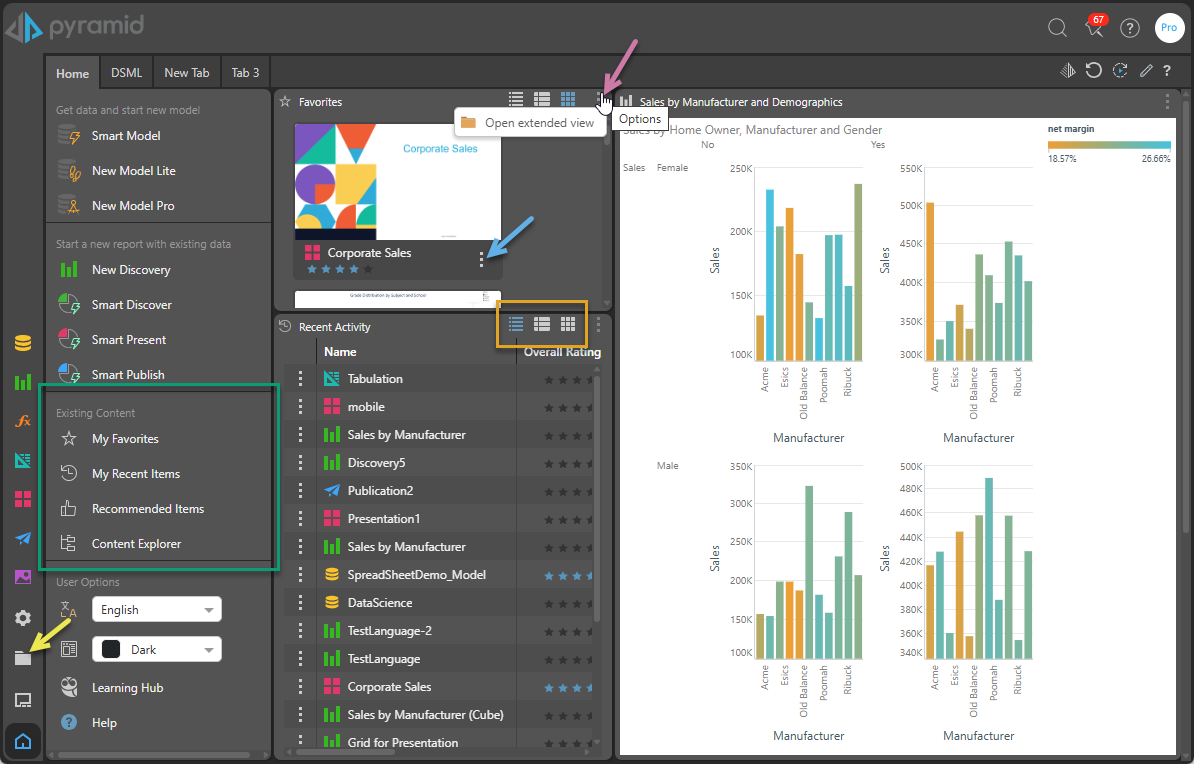
Your User Hub may include one or more containers that include Content Views; for example, Favorites and Recent Activity containers. You can show the content items in these containers as tiles, details, or content views (orange box above), jump from the container to the Content Manager using Open Extended View (purple arrow), and interact with the content items themselves using their context menus (blue arrow).
Welcome
Your User Hub may include the Welcome widget preset, which includes the Existing Content panel (green box above). You can use the links inside this panel to open the basic Content Views.
- Click here for more information about navigating the User Hub
App Tabs
Once apps are opened (either by starting new sessions or opening existing content items), the application interface changes to the "App Tab" mode. Here, each opened app appears as a tab allowing users to open and swap between multiple, concurrent sessions.
Within the App Tab interface, there are two key access points to the content system: The App Tab home menu and the tab menus for each app.
App Tab Home Menu
Content Explorer
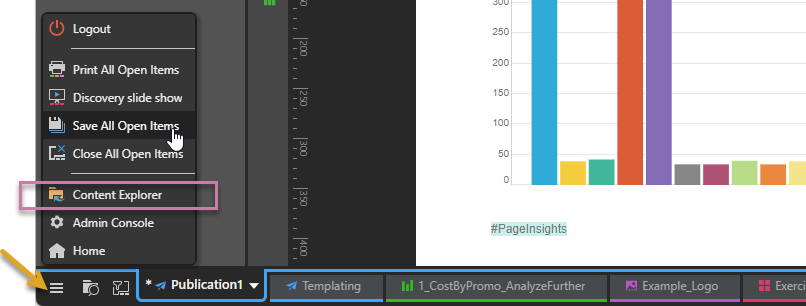
You can use the App Tab Home Menu (orange arrow below) to navigate to your content using the Content Manager. This is the primary method used by most users to switch to the content system from the open app tab interface.
Quick Open
Quick Open (green arrow) offers a fast way to find and open content without leaving the App Tab interface. Click this option to open an explorer-like interface and access files from your private folder (My Content) and any Workgroup or Public folders you have access to. The pop-up also contains a "search by name" facility and lets you open files from Recent and Favorite locations. For more information, see Quick Open.

App Tab Search
The App Tab Manager offers a way to manage and search through all the open tabbed items currently loaded in the App Tab interface. Click this option to open the tab manager and interact with the open files (brown arrow below). For more information, see App Tab Manager.

Tab Menu
The Tab Menu offers a variety of content related functions for each open tab. This includes the following functions: save, save as, duplicate, delete and opening related content. Importantly, it also offers a menu item to go to the selected item's specific location within the content explorer view.
- Click here for more about the App Tab menu.
Within each App
When an app is opened in the App Tab interface, there are multiple content system touch points common to all the apps: this includes Save and in most cases Open.
Save
All apps have a Save button on the Status bar above the canvas:

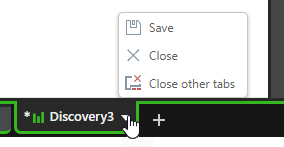
You can, alternatively, select save from the App Tab menus:
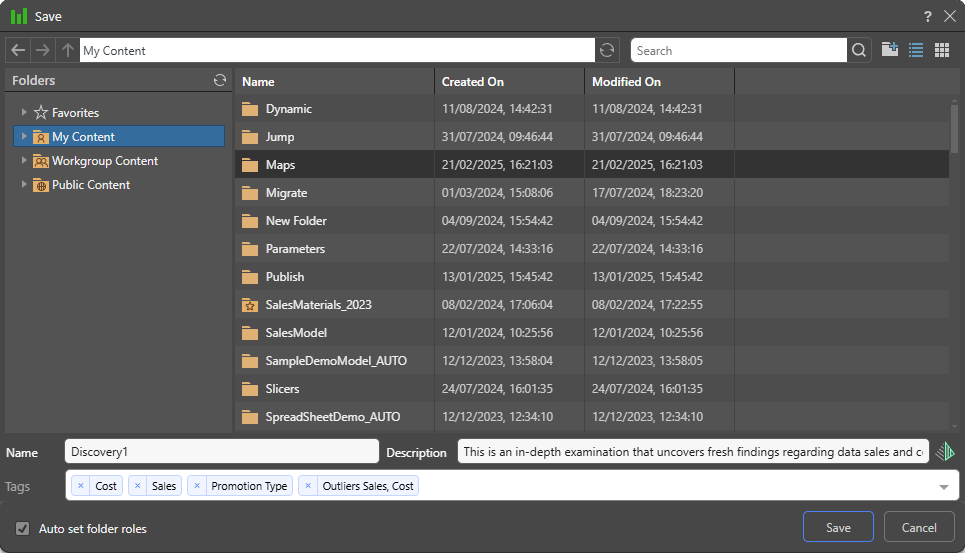
The following dialog appears when saving content for the first time or using Save As. It allows you to pick the folder location, name, and description for the content item, as well as any meta tags that can be used in the future for content search:
- Click here for more about saving content.
Open
Most of the apps open in the "App Tab" interface have open capabilities. In some cases the "open" refers to panels to allow content to be embedded (for reusability purposes); in other cases the open is a convenient mechanism to see and edit previously embedded content for ongoing edits; and finally there are cases in which the open function operates outright as a mechanism to simply open the next item. The following is an example list of a few typical "open" functions available within each app.
 Model
Model
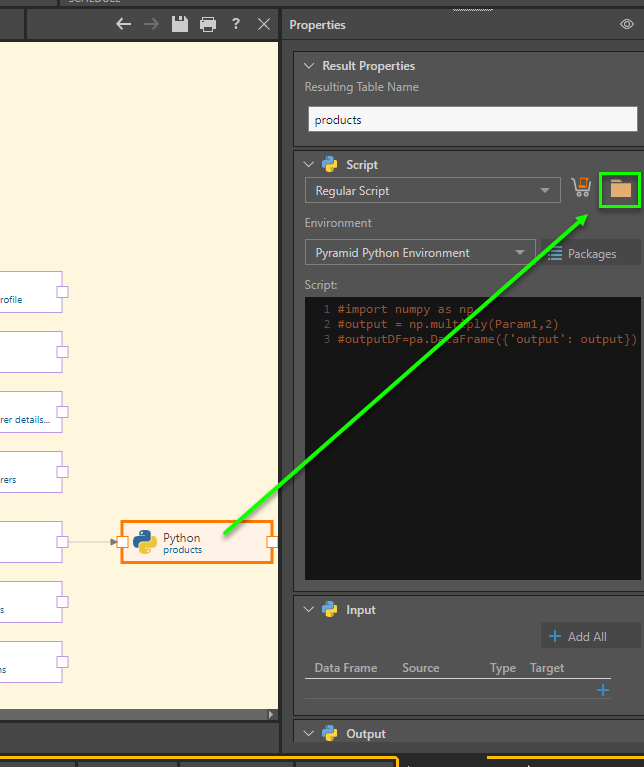
In the model app, users can add Python or R scripts stored in the CMS that have been previously created in Formulate. Clicking the folder icon will open the content explorer to find the script files.
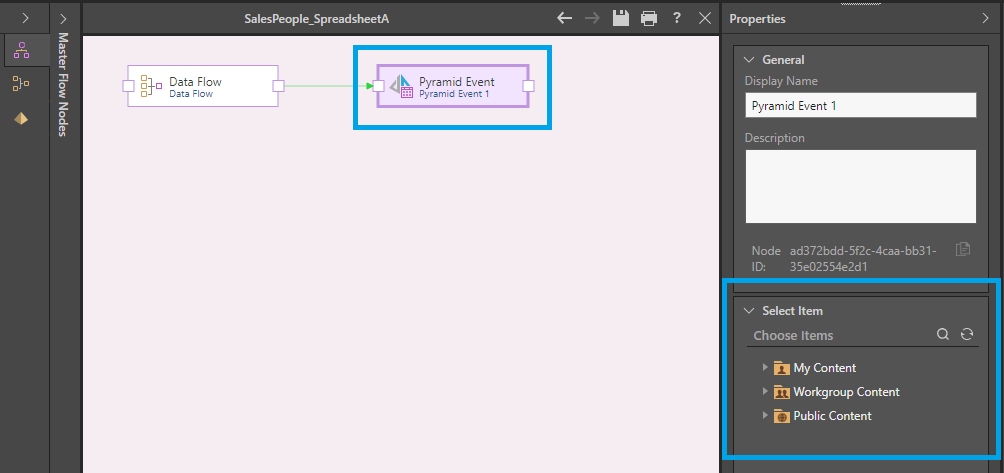
In the master flow panel of Model, users can trigger other Pyramid flows or publication jobs to run as part of the workflow. The event widget requires the user to select one of these packages from the content explorer.
Discover
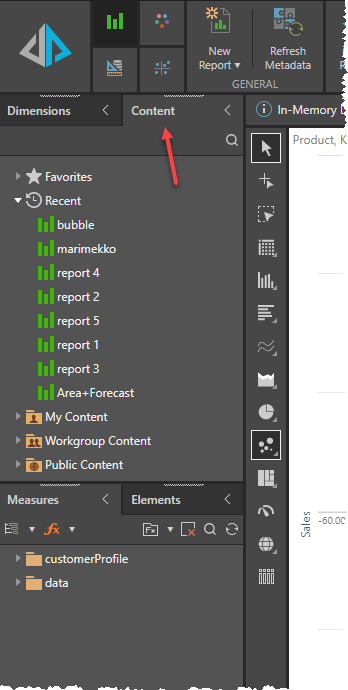
In Discover, users can open more Discover items from the Content panel. This means they do not need to go back to the Content Explorer or use the Quick Open function from the App Tab Home menu.
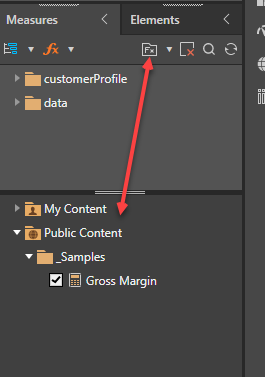
All shared business logic, stored in the CMS, is available for users to incorporate into Discover (and in many other parts of the application), Clicking the Fx button in a given element tree will expose the Content Explorer with the relevant items to choose from.
Formulate
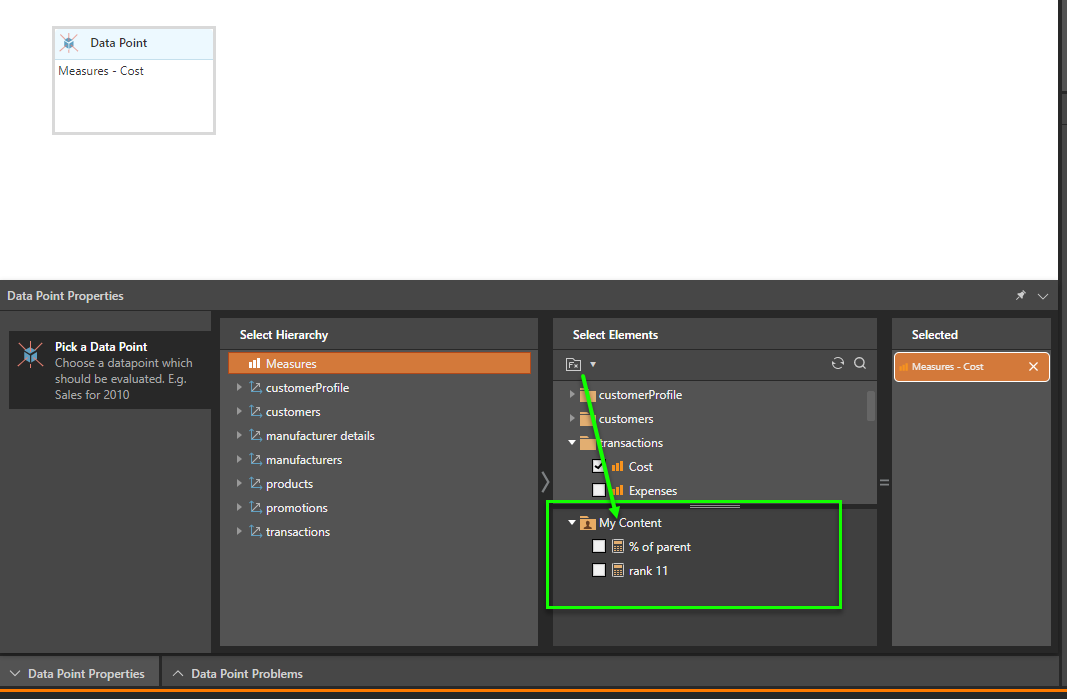
Like Discover, shared business logic items can be incorporated into formulations. Where appropriate, users can click on the Fx button to expose the content explorer with the relevant items to choose from.
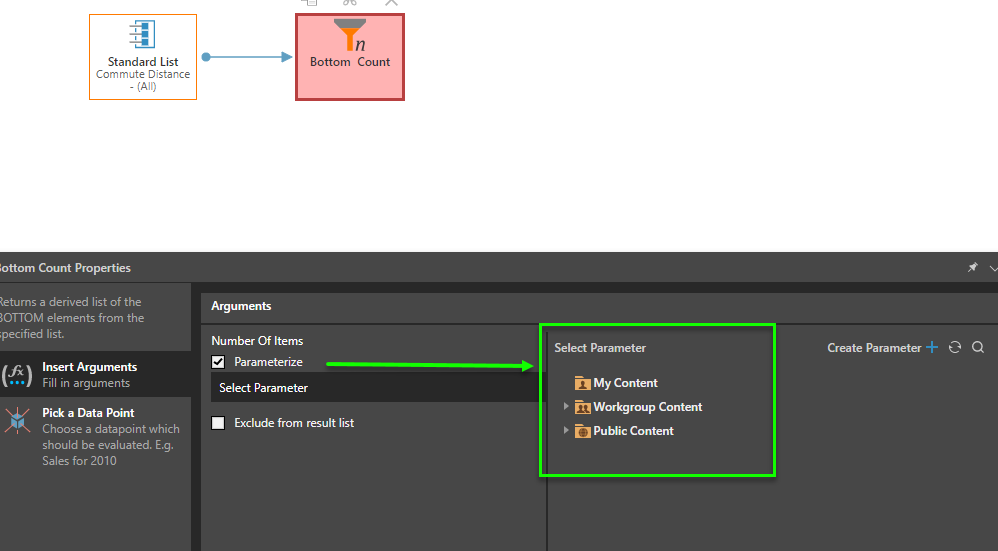
The same technique and approach applies to other elements, for example shared parameters - where the content explorer with relevant parameters can be opened within the appropriate panels.
Present and Publish
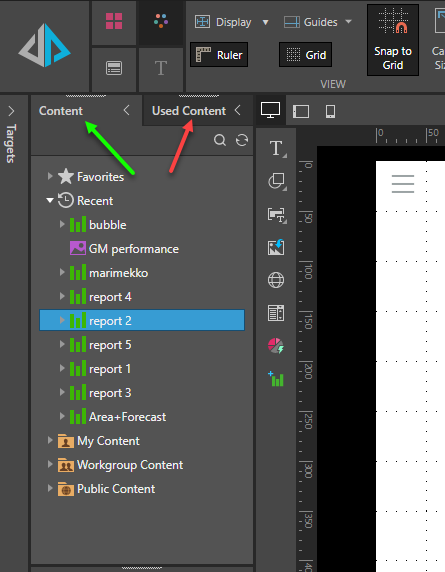
Present and Publish have common functionality. Both show a content tree panel with a Content Explorer view of items that can be used as embedded content for the presentation or publication template. Separately, the used content tab shows all items that have been previously embedded. This can be used to quickly open these items for editing.
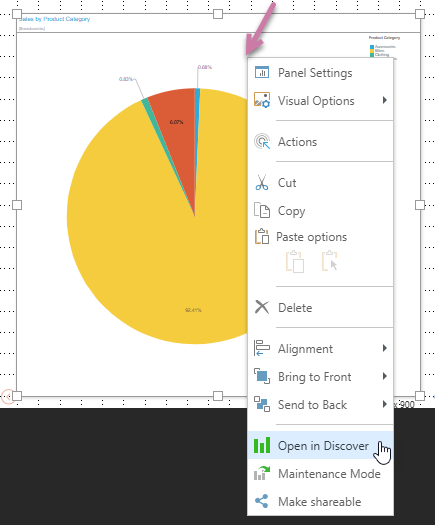
Another technique for opening embedded items for editing from Present and Publish, is to right-click an item and choose to open it in the relevant app (Discover, Illustrate, or Tabulate). The context menu also lets admins open the content in maintenance mode (which means without query execution) and to jump to the item's folder in the content explorer tools.
Illustrate
In Illustrate, all data driven logic is based on existing Discover reports. As such, when building out the formulas, the user is required to find and open these items using the content explorer tree.