The Content Management System (CMS) in Pyramid plays a central role in the application and appears pervasively throughout the different apps and tools. As a virtual, centralized framework, the CMS is key to letting users create and save their content, share and re-use content, while also providing system administrators with a framework for versioning and governing content. Since the CMS is fully centralized, it also provides the perfect platform for delivering insights from the collective, like most used, most recommended, sharing of content and ideas, and more.
Important: There are big differences between the content tools for Pro users, for Analysts, and for Viewers. The Pro CMS is full of functions, tools, and options. The Analyst CMS is streamlined but powerful, providing users with a subset of Pro options. The Viewer offers an even more streamlined experience, focused on essential tools for easily opening and accessing content.
- Click here to see the Content Manager Tutorials Video Library
Content Manager
The main toolset for working with content in the Analyst client is the Content Manager. The Content Manager includes various views of the content system and a variety of tools for managing and manipulating content. This includes Content Search (purple arrow below), Content Views including Recent, Recommended, and so on (blue highlight), and the Schedule Manager (green arrow).
Tip: To access additional views and tools, click the ellipsis (brown arrow below) to reveal more options. Hover over each icon to see its name in a pop-up.
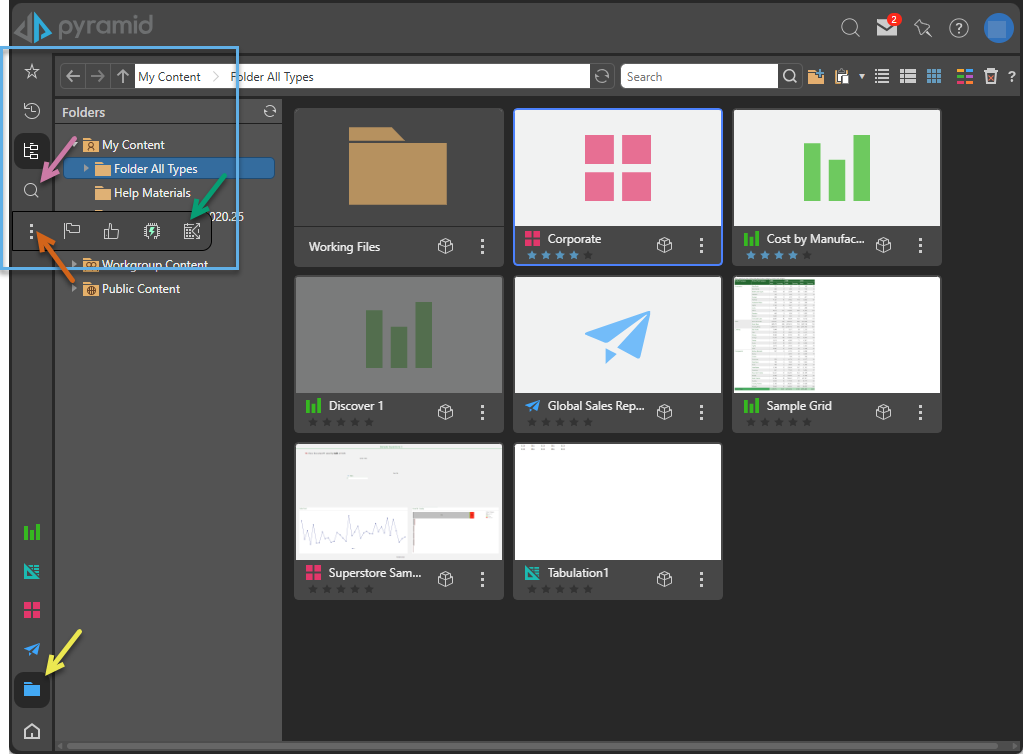
Accessing the Content Manager
 You can access the Content Manager from various points in the application. The Content Manager itself is presented as a selection of views, each with actions and tools (described below).
- Click here to learn how to access the Content Manager
Content Views
There are several ways to view content in the Lite client. The Content Manager views each have a specialized function; Favorites, Recent, Explorer, Most Used, User Recommended, and Auto Recommended. All are designed to help users quickly find and manage content in the CMS. While all views appear within the Content Manager, others appear within the context of each app as well.
- Click here for more information about the Content Manager and its views
Content Actions and Tools
Each view offers a range of content-related actions and tools for interacting with content items, organizing them, and managing their internal settings. These actions are available from context menus for files, content item types, and from the Content Manager background and navigation bar. They are also accessible from the Metadata panel.
- Click here for more information about the Content Actions and Tools