Learn how to create effective requests using supported keywords, recommendations, and selecting suggestions. Each of these functions help the Chatbot to understand what you need more quickly. You should use this information as a reference when you are using the Chatbot to build your discoveries,
Alongside this information, you might also find it useful to learn how to craft an effective prompt and understand the scope of what you can achieve using the Chatbot. For more information, see Asking a Basic Question (NLQ).
Wildcards and keywords
As you type, the Chatbot attempts to recognize any hierarchies or measures that you may be referring to and offers you a list of matches to select from.
You can also use wildcard characters to show different options in the current model if you don't know what to type. This is especially useful if you don't know the exact name of the item you're looking for, or if you want to prompt a particular Chatbot command. Options include:
\- show options - opens a list of available predefined commands.\measuresor\m- shows all measures in the model.\hierarchyor\h- shows all hierarchies in the model.\layout- Present and Publish only - changes the available layout for your storyboard.\data- Present and Publish only - changes the model for your storyboard.\redraw- Discover only - refreshes and redraws the visual. You should use redraw if you altered your visual and you want the AI to suggest the best visual type to use. For more information about this keyword, see NLQ: Visualizations.
Restart
The keywords reset / restart / start over can be used to reset the Chat session and the query. The same function can be performed by clicking the button at the top of the chat panel.
In Discover, you can type the keyword print either on its own, or as part of another prompt (for example, "change to a pie then print"), to open the Print & Export dialog and print or export the report. For more information, see Printing in Discover.
Save
In the Discover, save to save the currently open file. If the file has not been saved previously, the Save As dialog opens so that you can specify a name and other details for your file and choose where to save it. Otherwise, the file is simply saved. For more details, see: Saving Content.
Recommendations and "type ahead"
As you type your question, the "type ahead" functionality offers you options and suggestions as follows:
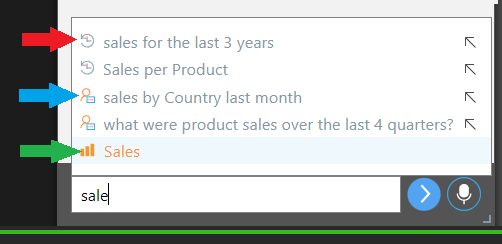
Measures and hierarchies
After you have typed two characters into the text field, you are offered any measures or hierarchies from the model that match your entries. Selecting these items ensures that your query includes exactly the selected measure or hierarchy.
User suggestions
You are also offered full queries in the following circumstances:
- If you previously ran a query against the same model, you can select that query from the dropdown list of options. Queries of this type are prefixed with a "user" icon (blue arrow above).
- If another user previously ran a query against the same model, you can select that query from the dropdown list of suggestions. Queries of this type are prefixed with a "re-use" icon (orange arrow). This suggestion list is a list of the most popular questions for the current model that match the types of questions you are asking in the session so it can give you a good sense of the sort of information people commonly look for in the current model.
Note: Suggestions are only shown if there are enough questions in the history and there are matches given your line of questioning.
Auto Model Suggestions
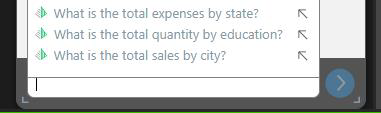
Once a model is processed, suggestions for questions to be asked will be provided automatically by the LLM. The AI-driven list is based on typical questions people usually ask for the type of data set presented. They are only generated when your model is processed.
These suggestions are prefixed with a Pyramid icon (yellow arrow) and can be selected in the same way as other suggestions.
These suggestions are only generated if Analytic Suggestions is enabled by your administrator in the Admin Console.
Copy previous question
After you have sent a request, you can use the Copy icon (opens on hover) to copy it from the session. This is useful if you want to repeat a question or make minor adjustments to it before running it again, perhaps after you have reset the Chatbot.
