If you want to save some time when using the Chatbot to build or analyze your data, you can just ask your question, and Pyramid will use its speech-to-text facility to convert that question into text and submit it to the engine for analysis. Once enabled, the Chatbot will also be able to respond to you with audio updates, prompts, and replies.
Before you begin
You can only make use of this functionality if your administrator has selected to Enable Generative AI in the AI Settings page of the Admin Console. Otherwise, the function is not available for use.
Audio Prerequisites
To be able to use this feature:
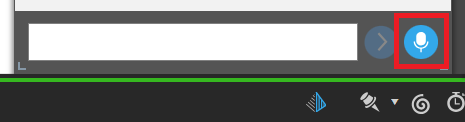
- Speech-to-Text must have been enabled in the Admin Console's AI Settings, along with the other Natural Language and Generative AI features. If speech-to-text is not enabled, the microphone buttons (shown in the following images) are not available.
- The Pyramid website must be running with secure communication over HTTPS using a valid SSL certificate. Modern browsers will block access to the microphone without this.
- You must have a working microphone.
- You must have working speakers for audio feedback.
Important: The first time the feature is used, each user must explicitly give their own authorization to the browser for the website to use the audio recording functionality in Pyramid.
Ask your question
Chatbot
From the Chatbot:
- Hold down the Microphone button. Once it is recording, it will turn red.
- Just say your question directly into your microphone.
- Once you are finished with your recording, just release the microphone button.
You will see a "sound wave" animation, indicating that the Chatbot is recording your question. Note: The question that you say should be just the same as a question you might type into the text field. For more information, see Writing Natural Language Queries.
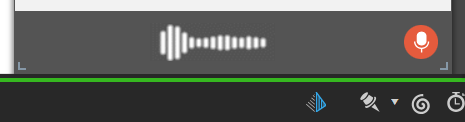
Pyramid uses its speech to text facility to convert your spoken question into text and submit it to the LLM Engine that drives the Chatbot for analysis.
Tip: Instead of holding down the Microphone button, you can double-click to start recording. The recording will continue until you click the button again, so there's no need to keep the mouse button pressed.
New Discover Session
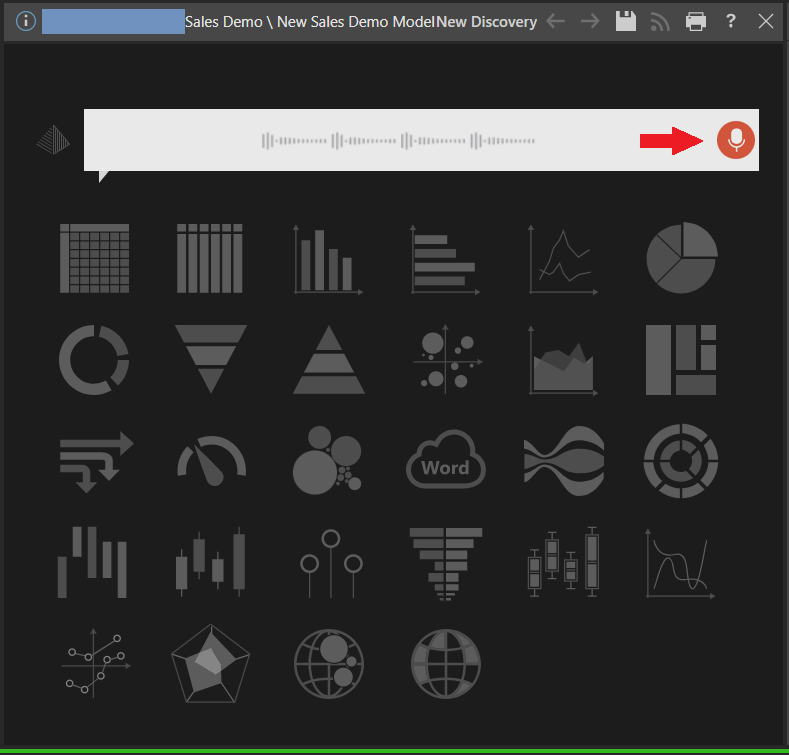
A similar functionality is also available from the Type your question here panel. For access to this panel, see Fresh Session: Type your question.
Again, you use the speech to text functionality by simply holding down the Microphone button (red arrow) and saying your question. Once you are finished with your recording, release the microphone button and your question will be processed by the Chatbot.
Embedded Search
You can use speech-to-text when creating a new discovery for your Hub using Embedded Search. The Embedded Search button opens a text field where you can describe a discovery that you would like to build and add to your Hub. The Chatbot then builds the discovery as you described it and, if you click Add To Hub, saves it and embeds it in the Hub.
- Click here for full instructions describing how to use Embedded Search.