The "Pro" full client has several elements that make up its workspace. The following explains what these elements are and how to access the different parts of the application.
Note: The viewer client as a very different workspace explained here.
Note: An Analyst user will not have all aspects of Workspace functionality available.
Note: Parts of the workspace in the pro client will change based on a user's profile.
Workspace Elements
Welcome Panel
The New User Welcome panel pops-up for new users who are logging into the system for the first time - offering a convenient touch point to clarify or enter user details and access to Pyramid's social and user community.
Home
The Home page is the main landing page when logging into the Pro client. It contains various items based on system configuration and user settings. The home page includes the master Home Menu (for accessing a user's settings, help and the Bulletin Board), the Quick Starts and Learning Center (for accessing tutorials) and the App Toolbox.
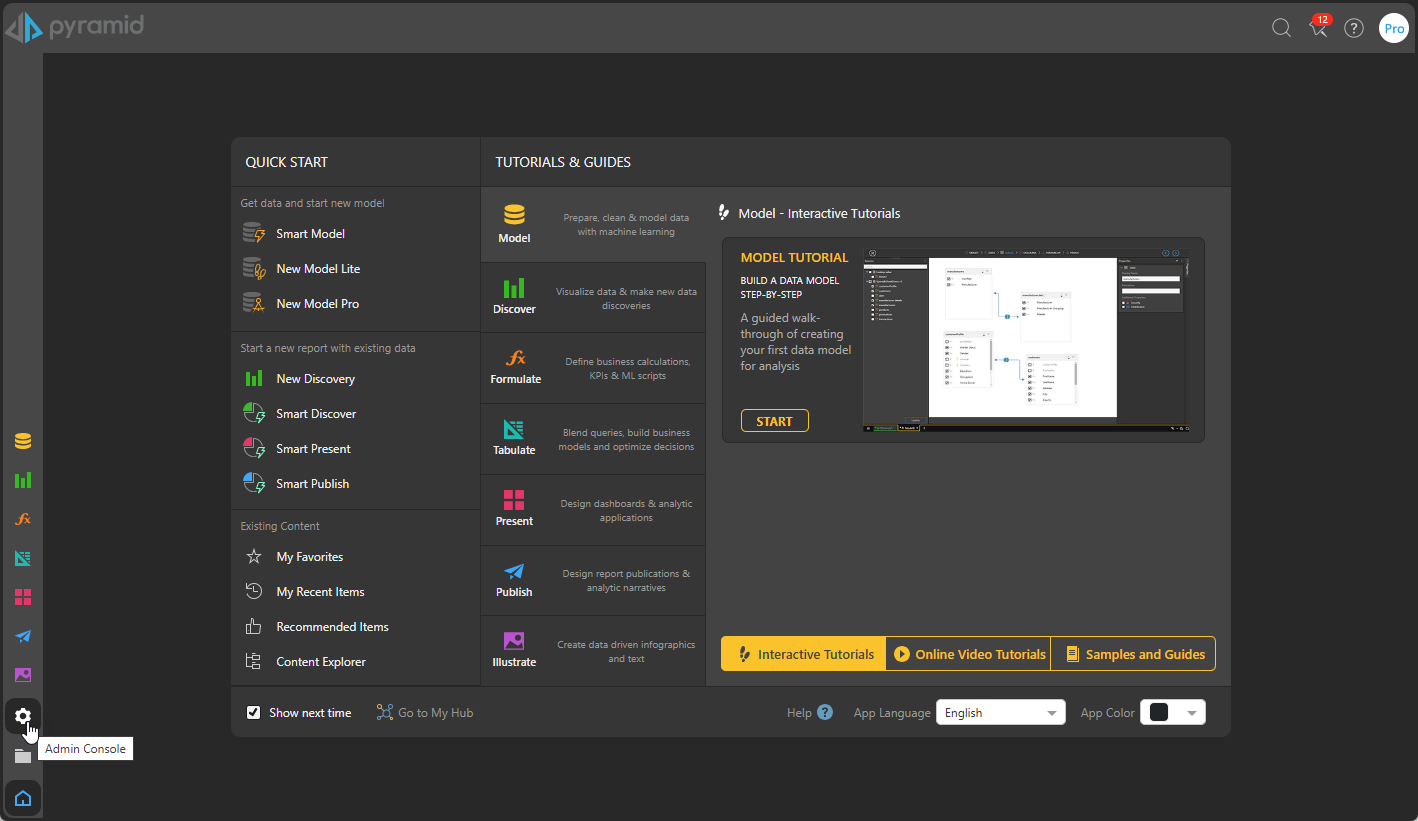
App Toolbox
The App Toolbox is the main conduit for launching app sessions (Model, Discover, Formulate, Tabulate, Present, Publish, and Illustrate) and accessing the content manager and admin console. Once an app is launched, the interface switches to the "App Tab" mode, described below.
Content Manager
The content manager in lets users organize and manage their content, share content and re-use content, while also providing system administrators with a framework for versioning, securing and governing content.
Admin Console
The admin console is the main, graphical interface for administrators managing an instance of Pyramid. It is accessible to any Pro user designated as either an Enterprise or Domain admin.
Bulletin Board
The Bulletin Board lists all rendered publications and alerts earmarked for the user, their workflow and conversation threads and the status of any model processing jobs.
App Tabs
Each time you create a new content item or open an existing content item, it is launched in an instance of its Pyramid app for editing. Content items that were already open are not closed, instead each open item is shown as a Tab along the bottom of what is known as the App Tabs interface (orange highlight below). This interface allows you to have multiple content items open so that you can easily switch between the apps using the tabs at the bottom of the page:
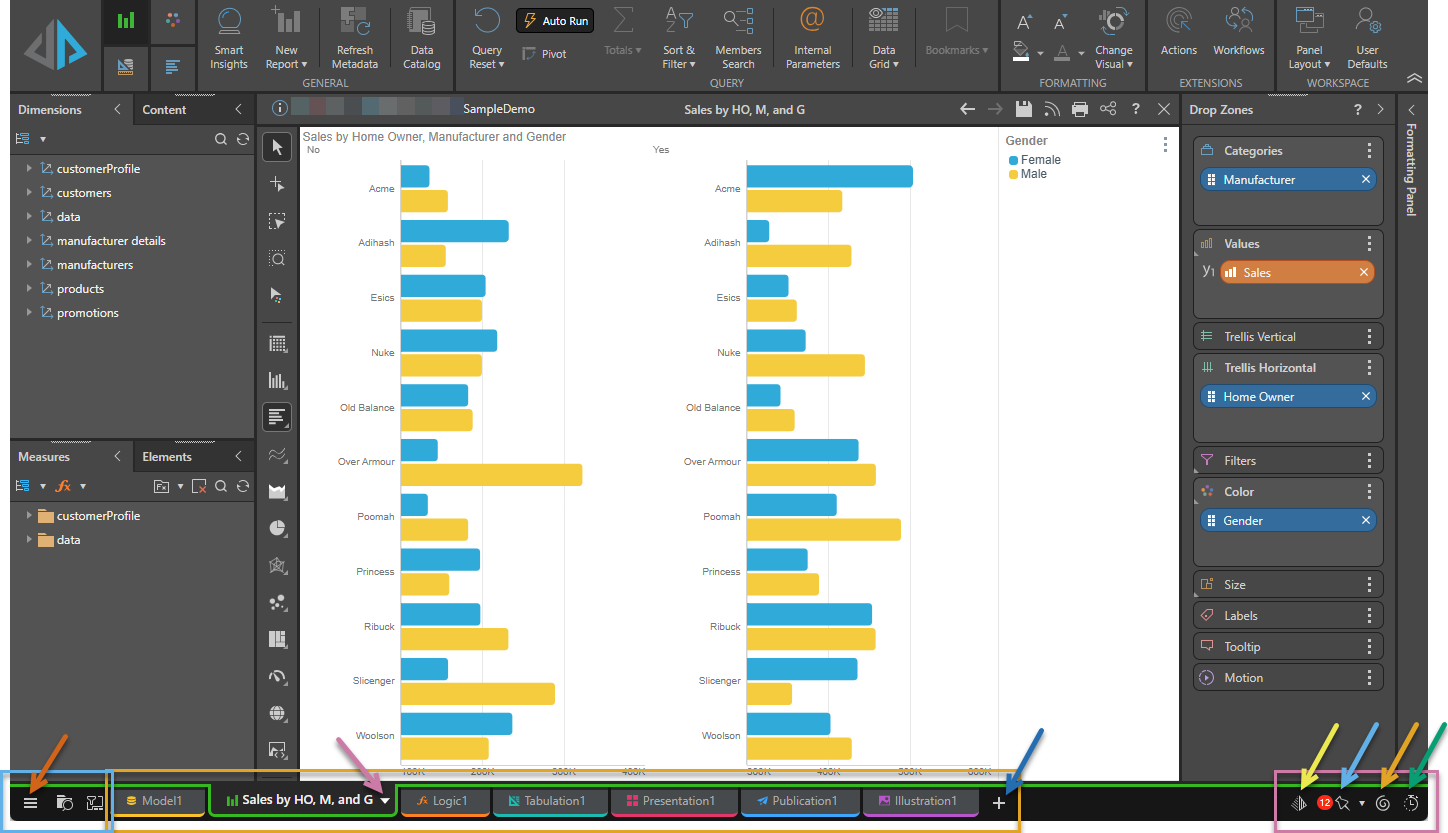
Tip: Use the App Tab Home Menu (brown arrow above) to switch back to the Home page, perform some actions against all open content items, or open the Content Manager or Admin Console.
Common App Interface
Once inside the App Tab interface, there is an application layout and design common to all the apps - covering the layout of the screen, ribbons, panels, and master functions like save and print.
- Click here for more details on the common app interface and the related functions.