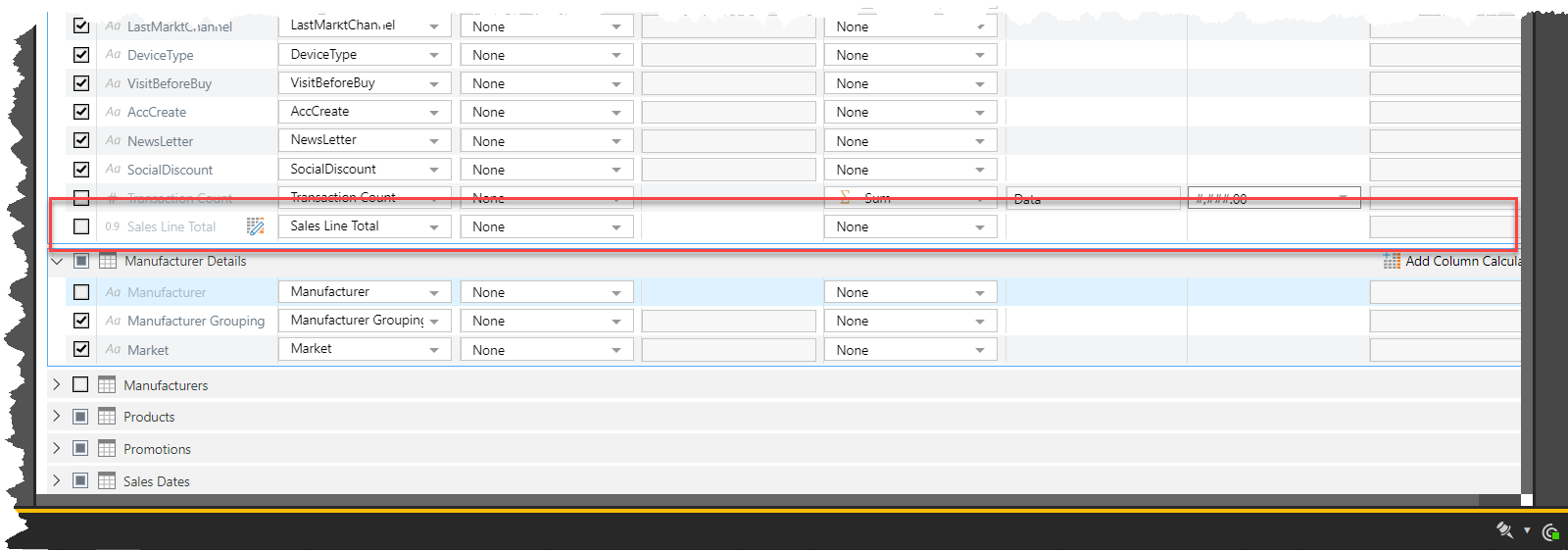
In this example, a new virtual calculated column [Sales Line Total] will be created based on two existing numeric attributes, [Quantity] and [Price].
Note: For more information about Virtual Calculated Columns, see Virtual Column Calculations.
Step-by-Step Example
Before you Begin
 You can add calculated columns either from the Table editor or from the Column editor. From either location, click Add Calculated Column to open the Calculated Column panel at the bottom of the page.
Step 1
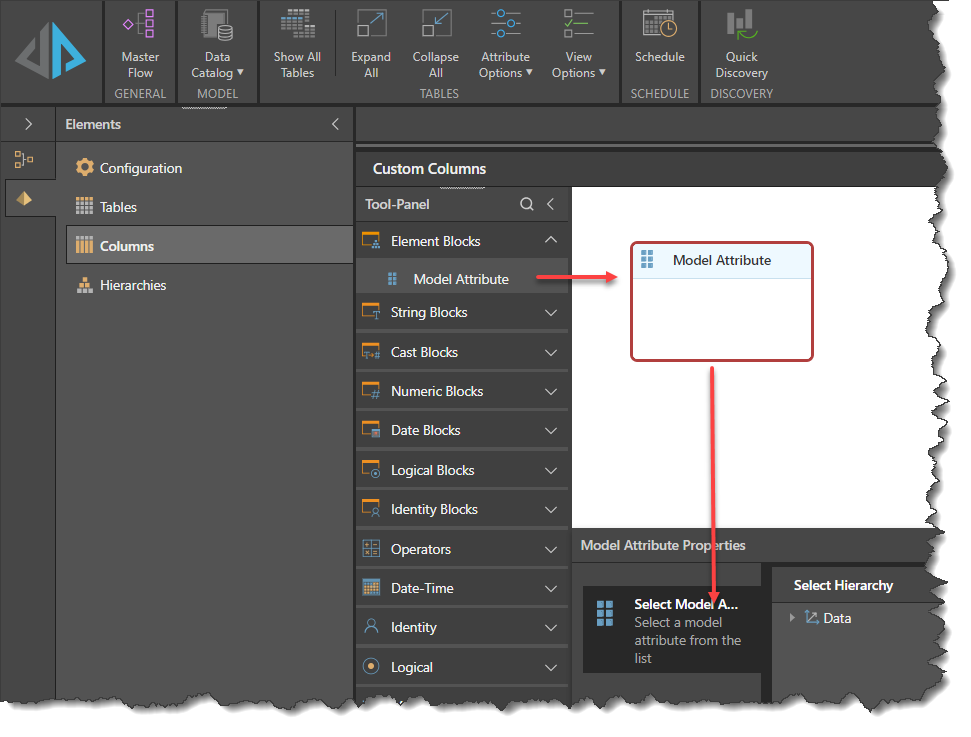
Drag a Model Attribute block onto the canvas:
Step 2
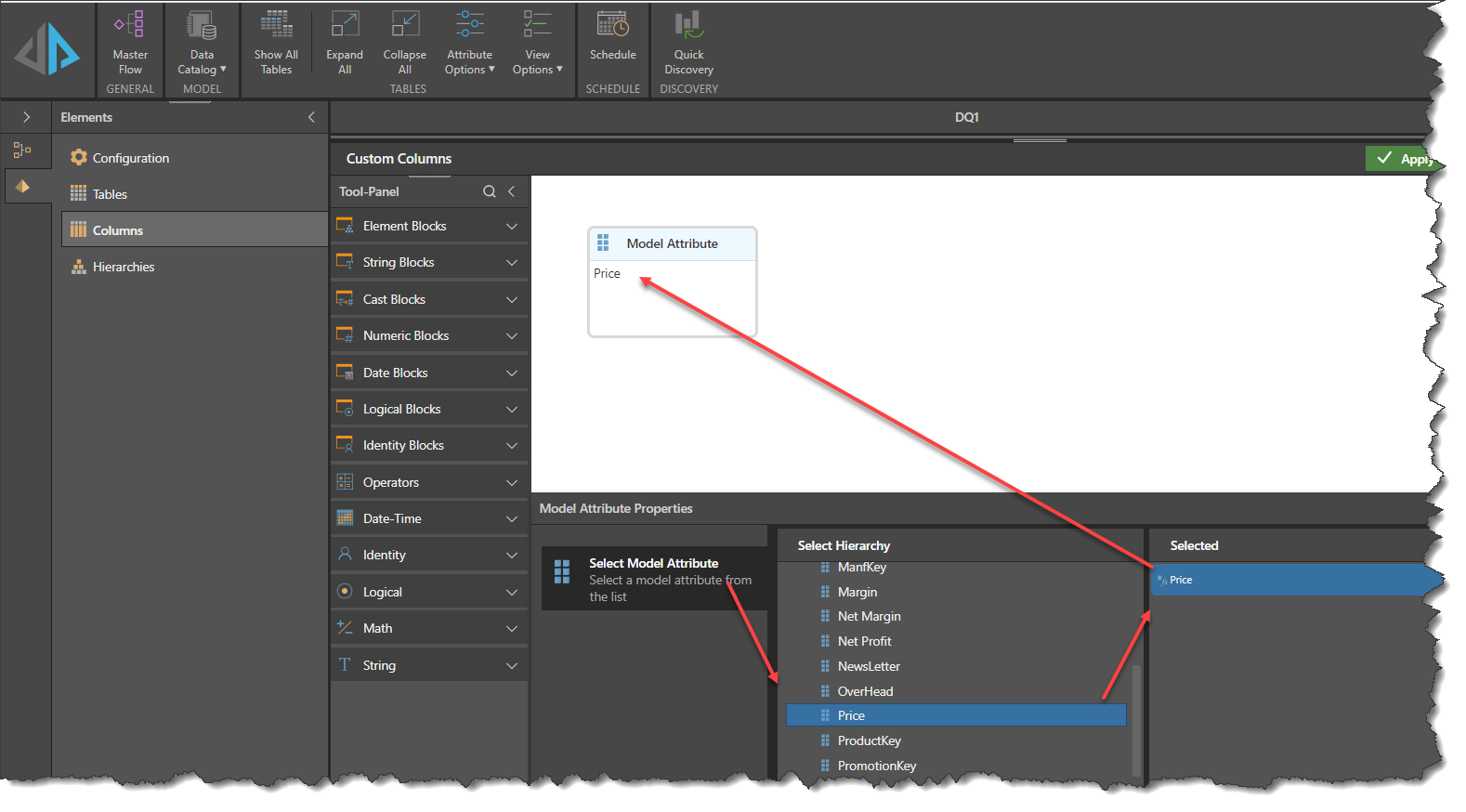
Open the Dimension Table and select the Model Attribute required.
Step 3
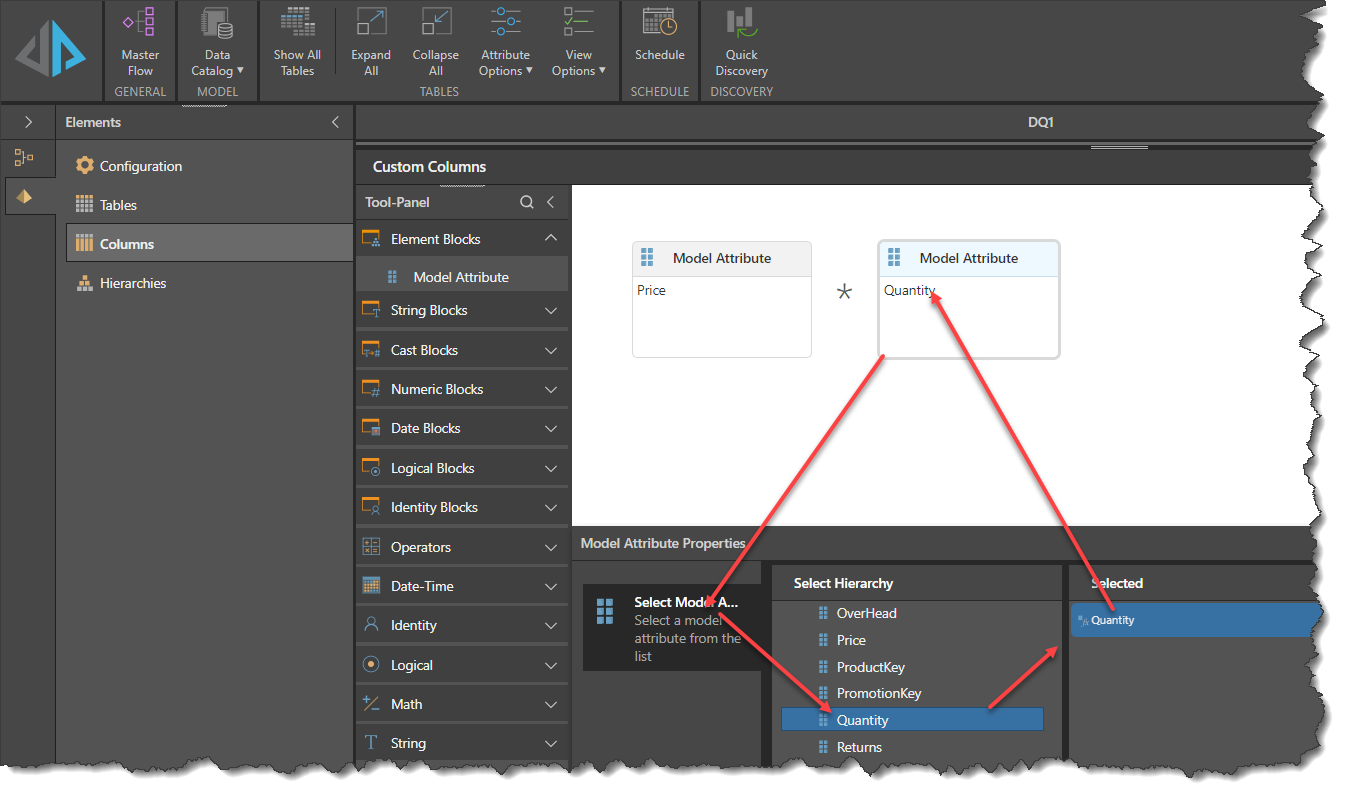
Add further Model Attributes, operators, functions etc. to complete your calculation logic
Step 4
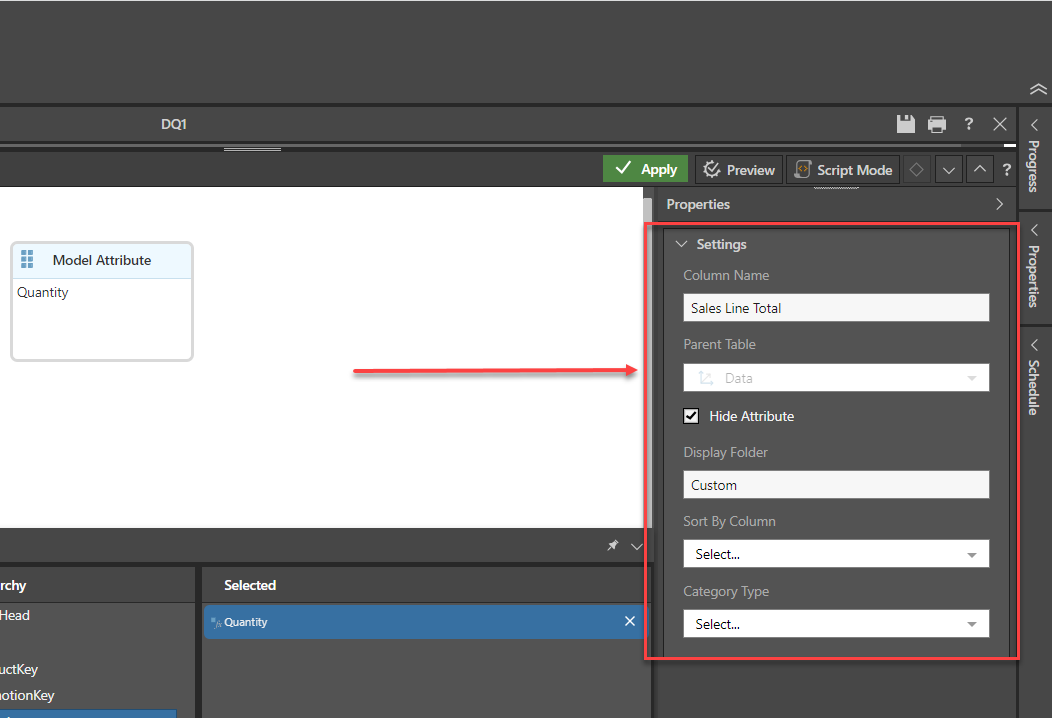
Complete the details in the Settings Panel to reflect the properties required
Step 5
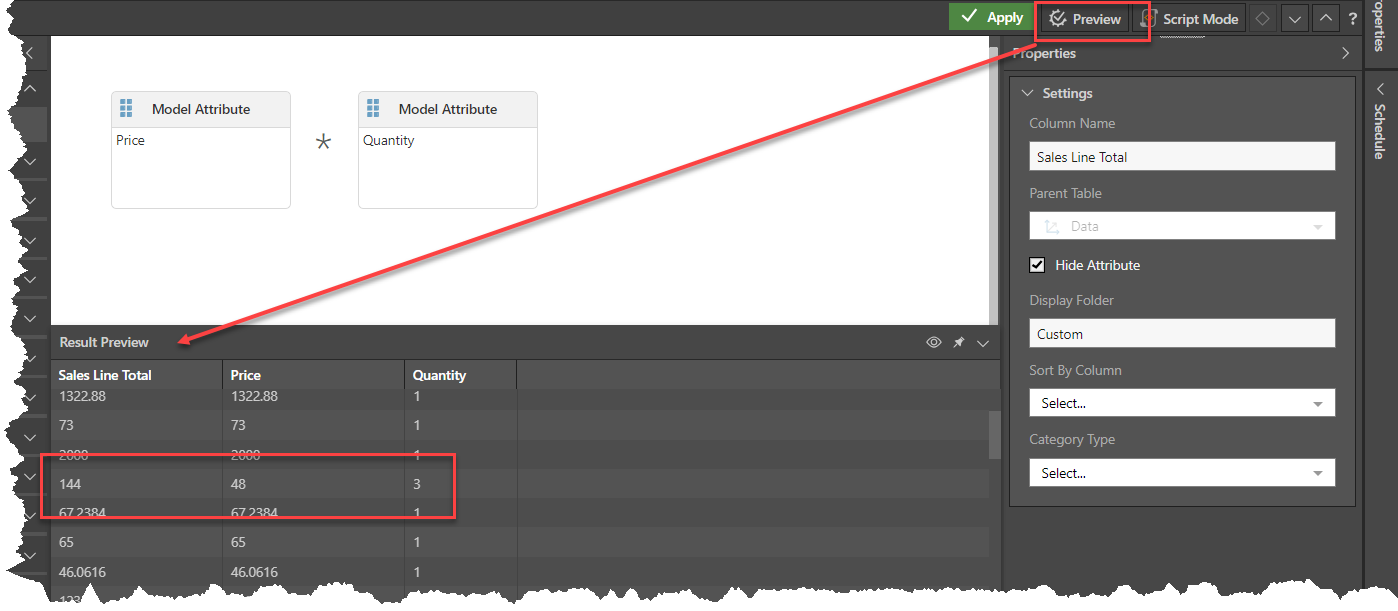
Click on the Preview button to inspect the calculated column results. The calculation appears correct.
Step 6
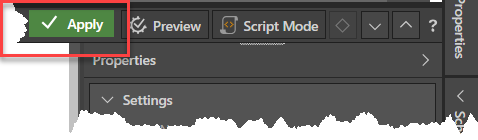
To save the new Calculated Column into the Model, click Apply.
Step 7
The new Calculated Column will appear in the list of columns for the table concerned. It can be configured using the same tools as any other column in the table.