Agents allow autonomous AI functions to run as part of Decision Flows. Agents operate as if they are a user making decisions and performing tasks to achieve specific goals. The Agent designer in Formulate lets Pro users define an agent persona, give it a set of instructions, assign MCP services and "tools" and provide external knowledge references that can act as an "autonomous entity."
Agents are stored in the Pyramid's analytics catalog, where they can be shared, reused, governed and secured like all other catalog items.
Agents can be deployed by manually incorporating them into decision flows. However, Bot Wizards in Discover and Tabulate can simplify and accelerate this process, by providing a quick mechanism to take a selected agent, attach it to queried result sets (or spreadsheet values) from Pyramid and deploy into a decision model.
Note: This feature requires specific licensing options.
Sharing Private Data
Agents will incorporate the actual data from their attached sources into their calculus. This allows the AI agents to evaluate the results in addition to incorporating feedback from other sources. The Discover queries or Tabulate spreadsheets, like all content, is sourced typically from your organizations internal data and is refreshed each time the agent is run in a decision flow.
Users should ensure that the data in their queries and spreadsheets can be shared with third-party AI services and LLM vendors before using this feature.
Building Agents
Before you begin
- You can only create Agents where an LLM Provider has been enabled for you. For more information, see AI Settings.
Creating a New Agent
In Formulate's New Formulation page:
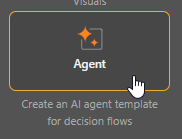
- Select Agent from the available Formulation type options.
- Optionally, choose a built-in template from the Marketplace to get started (blue arrow above).
- From the Instructions tab, specify the instructions for your Agent.
- From the Tools tab, select the MCP services or "tools" that you want your Agent to use.
- From the References tab, upload any documents and related "knowledge" that you want the agent to be aware of.
- From the Settings tab, define the metadata for your Agent.
- Click Save and navigate to a store location.
An empty Agent designer opens:
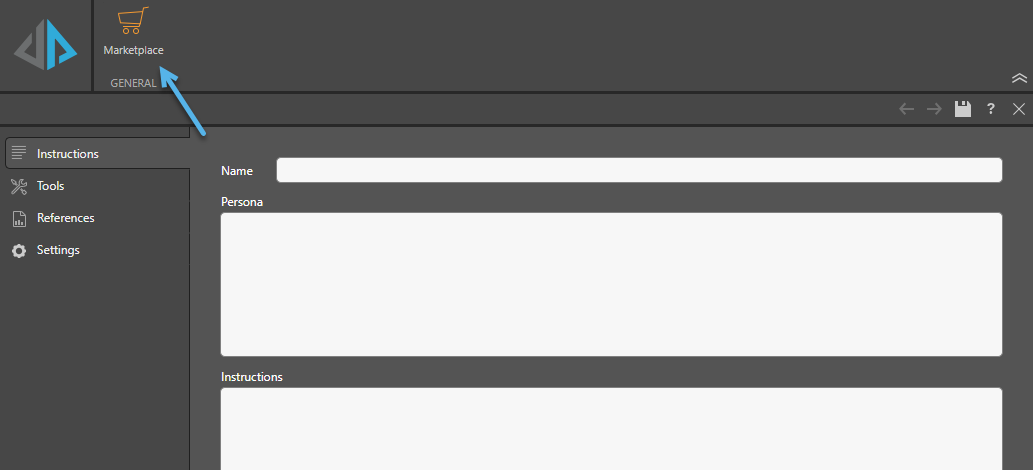
The Agent Marketplace includes many templates that you can use to pre-populate your Agent details in the first instance. If you click Download that selects one of the built-in templates and populates values across the tabs. You can edit any of these values with your own content as per your requirements.
Agent instructions tell the agent how to behave and respond, defining both the agent's persona (what it is like) and its instructions (what it is supposed to do). For more information, see Instructions.
MCP service and tools bring external capabilities to the AI agent. When you add an MCP tool, you incorporate functionality and data from other third technologies, extending your agent's capabilities with services that are specific to your requirements. For more information, see Tools.
References are documents (images, PDFs, spreadsheets, and so on) that the agent can use. When you add a referenced document, you are typically providing the agent with some specific domain or company information. For more information, see References.
This is the same Metadata as is defined for most content items including an Icon, a Description, and the Content tags. For more information, see Settings.
Once your changes are saved, the Agent is created in the content manager.
- Click here for a more in-depth explanation of the elements in the Agent Designer
What next?
Like any other item type, you can access and share the Agent in the content manager, open the Agent in its app (Formulate) for editing, set its Security details, copy it to shared or local folders, and so on.
If you want to make use of the Agent, you will need to either: