The Actions Panel is not a typical function in the content system as it doesn't change or manipulate content. Instead, it provides a broad interface for accessing many of the more in-depth tools and functions for content items and folders. While almost all functions and tools can be accessed through an item's context menu, the Actions Panel provides an alternative (and maybe more convenient) access path with a few additional functions.
Accessing the Actions Panel
To open the Actions Panel from your content item in the CMS, complete one of the following actions:
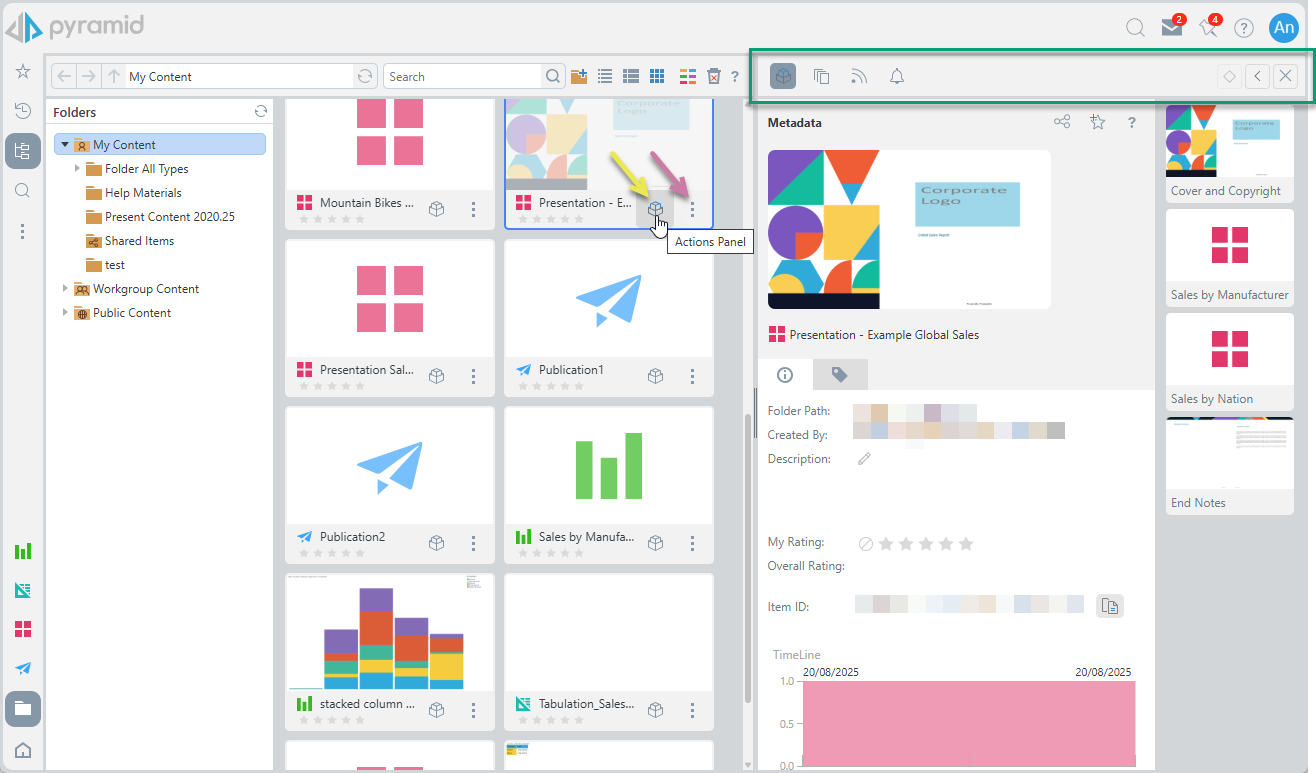
- Click the Metadata icon (yellow arrow below).
- Right-click the Ellipse (purple arrow) and then Actions from the context menu. Note: When you click Actions, a submenu opens that includes a number of clickable options.
The Actions Panel opens to the side of the page. By default, the Metadata information is open in the Actions panel:
Actions Panel Layout
The Actions Panel has various items in its layout.
Actions Panel Header
The top of the Actions Panel includes several content tool panels (green box above) depending on 1) the type of item that is selected and 2) the features that are enabled through licensing or the administration console. This includes the following panels:
- Metadata - This is the main panel for all actions and is opened by default when you open the panel.
- Version - The panel for working with the content versioning tools.
- Subscriptions - The panel for managing any subscriptions that have been built against the content item.
- Alerts - The panel for managing any data alerts that have been built against the content item (Discover and Present only).
Tip: To the right of these options are buttons to close the panel, maximize the panel, and (if the panel has been resized already) to return the panel to its previous size.