Users can create and edit Alerts for both Discover reports and Present dashboards. Alerts for both content items are scheduled events that check if certain data driven conditions are met. If they are, they send the specified users an alert to tell them the outcome of the data driven check.
Once created, Alerts are managed from the Alerts Manager in the Content Management System.
Accessing the Alerts Manager
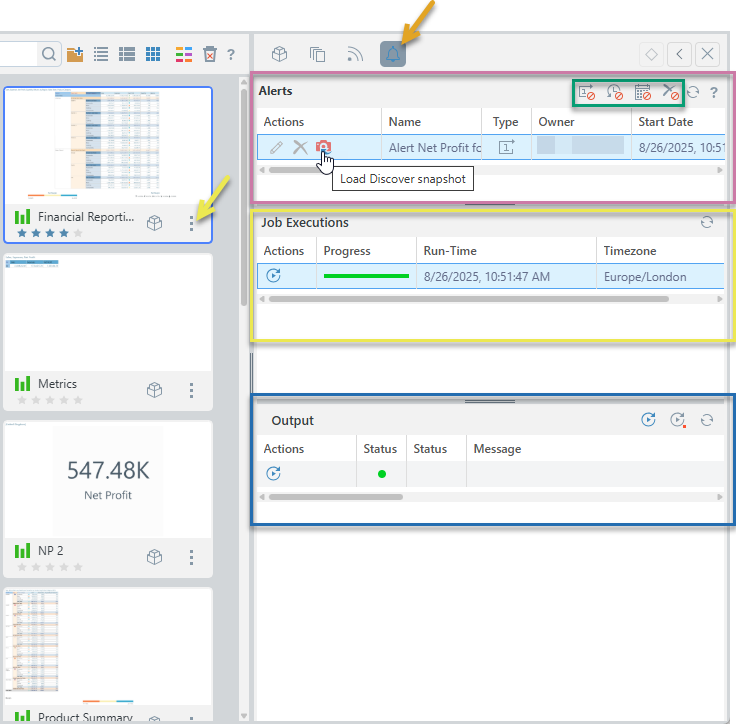
Users can access the Alert's manager by either opening the content item's context menu (yellow arrow below) and choosing Alerts or by opening the Action Panel and clicking the Alerts button (orange arrow).
From the Alerts panel, you can edit or delete an alert schedule or open a specific execution of a previous alert run to view its results.
Alerts panel
Alerts list
Schedule Filters
Toggle the following options (green highlight above) to show and hide schedules based on their current status:
- Expired one offs: Show or hide non-recurring schedules that have expired.
- Inactive recurring: Show or hide recurring schedules that are no longer active.
- Inactive on demand: Show or hide on demand schedules that are no longer active.
- Deleted: Show or hide deleted schedules.
Note: All of the preceding filters are "hidden" by default.
Refresh
Refresh the list of schedules.
Columns
The alerts panel displays a list of all alerts (and their schedules) configured for the selected content item:
- Actions: You can edit or delete the alert, or open a snapshot of the underlying Discover report or Present panel from the time the alert was created (see below).
- Name: The name given to this specific the alert when it was saved.
- Type: The icon indicating the schedule type. Can be one of: One-off (with a "1" icon), recurring (with a clock icon), or on demand (with a calendar icon).
- Owner: The user who created the alert.
- Start Date: The date when the first alert job was run.
- End Date: The date the last alert job will run or was run (if an end date was defined).
- Creation Date: The date the alert was created.
Report Snapshots
When an alert is created, the underlying content (query) structure is snapshotted, so the alert logic continues to work, even if the report itself changes. To see the snapshot driving the alert logic, click the Load Discover snapshot Action button.
Editing Alerts
If you clicked Edit from the Actions column, the Advanced Alert panel opens. You can edit the alert, its schedule, configure the triggering logic, and set the distribution from here:
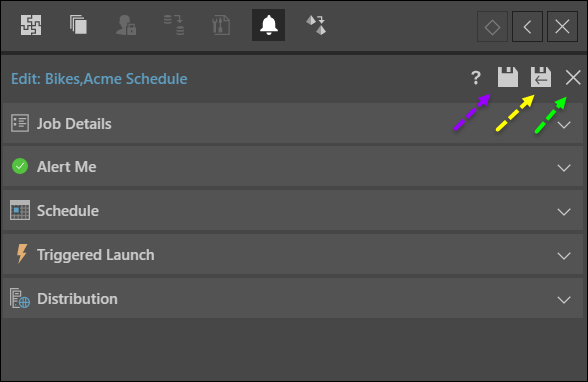
Toggle the Advanced View option (purple arrow above) to view the advanced or basic options.
Once you are done, you can either:
- Click Save and Run (yellow arrow) to save changes and run the alert job immediately.
- Click Cancel (green arrow) to discard changes and return to the Alerts panel.
Job Executions
The Job Executions panel displays a list of all previous or current alert executions (yellow highlight above):
- Actions: Option to re-run the entire job.
- Progress: Shows the job's progress, including the percentage and status of individual tasks:
- Blue: Tasks waiting in the queue. You may want to refresh the view when you see this status.
- Red: Tasks that have failed.
- Orange: Tasks currently processing.
- Green: Tasks completed successfully.
- Run-Time: The date and time the job was executed.
- Timezone: The timezone that the job was executed in.
Click Refresh in this panel to refresh the list of job executions.
Output
The Output panel displays the output for the selected alert execution (blue highlight above).
Output Header
Above the Output list are buttons to:
- Rerun All: This reruns all tasks, which is the same as rerunning the entire job.
- Rerun All Failed: This reruns only those tasks that failed.
- Refresh: Refreshes the current list.
Output List
- Actions: Re-run the alert job.
- Status: Indicates whether the alert job was successfully executed or not.
- Status: The specific outcome of the alert (see alert outcomes for more).
- Message: The generated message in the alert output.
- Start Date: Date time when the alert job started.
- End Date: Date time when the alert job ended.