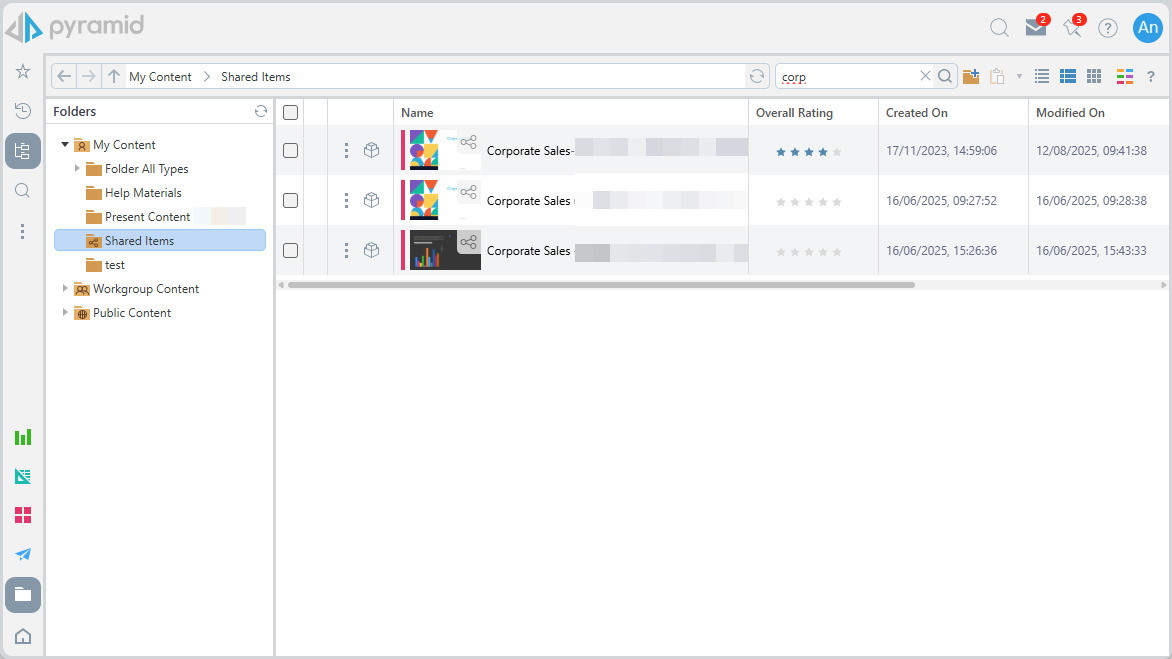
When opening presentations from the Content Manager, the default action is to open the presentation at runtime. This effectively opens the dashboard content in "show mode" for immediate viewing and consumption, rather than editing. You can configure the view function to either open the presentation directly on the first slide or let the user see a preview of all the slides first and allow them to pick their own starting point using the Presentation Launcher.
Default Mode
The default launch mode is set from the User Defaults, where you can choose:
- Direct: Click the presentation to "view" it; that is, to open it at runtime.
- Slides View Mode: Click the presentation to preview the presentation's slides so that you can open it at a specified slide.
Direct Mode
Direct mode enables users to open an existing presentation from the content explorer via a single click. Simply click the presentation to open it in edit mode.
Slides View Mode
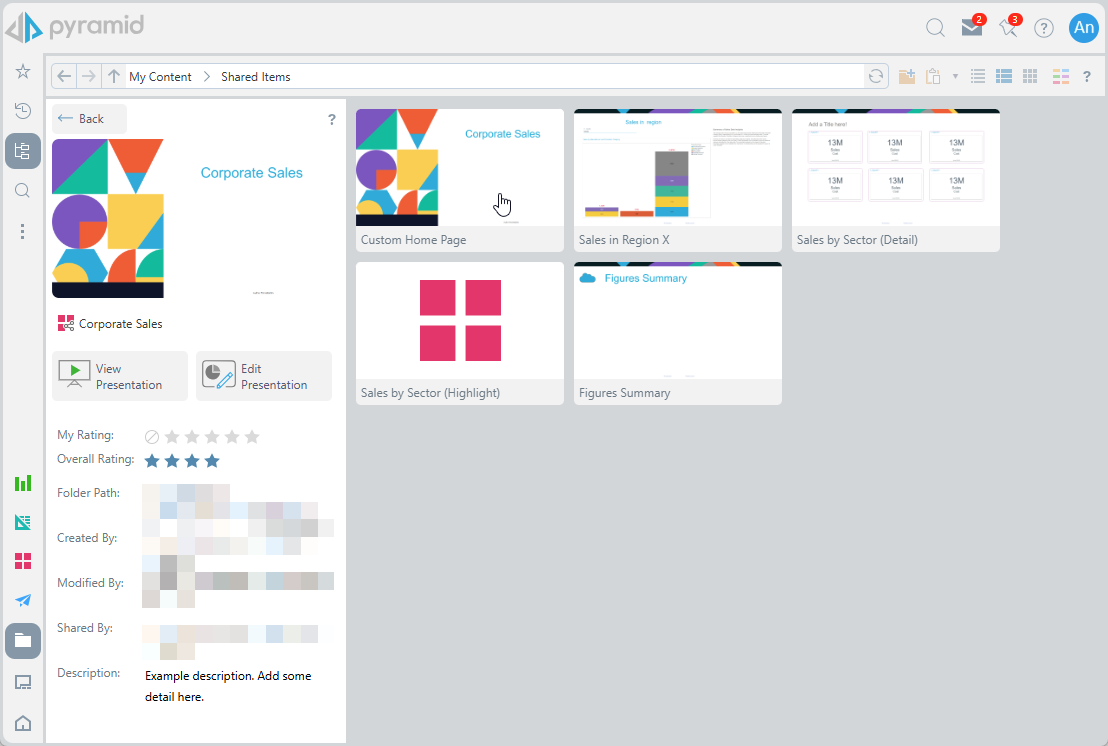
Slides View Mode lets users preview a presentation and then open it either in Edit Mode or from a specific slide in view mode. When this mode is enabled in your User Defaults, clicking a presentation shows a slide-by-slide preview.
Opening the presentation in Edit mode
To open the presentation at the first slide, in Edit mode (in Present Lite):
- Click the main preview image thumbnail.
- Click Edit Presentation beneath the thumbnail.
Opening the presentation in View mode
To open the presentation in View mode (at runtime):
- Click View Presentation to launch the runtime presentation at slide 1.
- Click any slide to launch the presentation in view mode at your selected slide.
Back
- Click Back to exit the Launcher and return to the previous page.