Users can orchestrate the automated delivery of selected Discover reports, Present dashboards, and Publish publications using Subscriptions - which effectively export or print the content in a selected document format and distribute it to the subscriber on a scheduled basis. For example you might want to subscribe to a Sales publication, which you can receive on a quarterly basis to your email in-box and distribute to other recipients in your team through the Bulletin Board.
For more information about subscriptions, watch the following video:
Adding Subscriptions
In the Discover, Publish, and Tabulate apps, the Subscribe button appears on the Status Bar alongside the Print button:

- Discover: Exports the current report and distributes it to the subscriber on a scheduled basis.
- Publish: Exports the current publication and distributes it to the subscriber on a scheduled basis.
- Tabulate: Exports the current spreadsheet or one or more visual areas and distributes them to the subscriber on a scheduled basis.
In Present and in the Viewer Client, subscriptions can be triggered when the presentation is running (from the Present Runtime Menu and Dashboard Menu, respectively).
- Present: Exports the current presentation and distributes it to the subscriber on a scheduled basis.
- Viewer Client: Exports the current report and distributes it to the subscriber on a scheduled basis.
User Subscription Modes
When subscribing to content and distributing it to other users, the functionality available to you is sensitive to the subscription mode selected in the Admin Console. There are three modes: normal, personal and strict.
The mode affects:
- Whether you can distribute your artifacts to other users.
- Which channels are available for distribution of your artifact.
- Which user the subscription runs as, and therefore the data security used when running the subscription.
Normal Subscriptions (Default)
Where the User Subscription mode is Normal, users can subscribe to discoveries, presentations, and tabulations for themselves and also on behalf of any other recipients using the Distribution options. In this case, the reports are built as the initiating subscriber (that is, the user creating the subscription) and distributed through the Bulletin Board, by Email, by Mobile, or using webhook Channels.
Warning: When subscribing to content in NORMAL mode and distributing it to other users, the subscription will run with the initiating subscribers data security. When Strict mode is chosen, the subscription runs as the recipient (the target user) so the recipient will only ever see data they have permission to see.
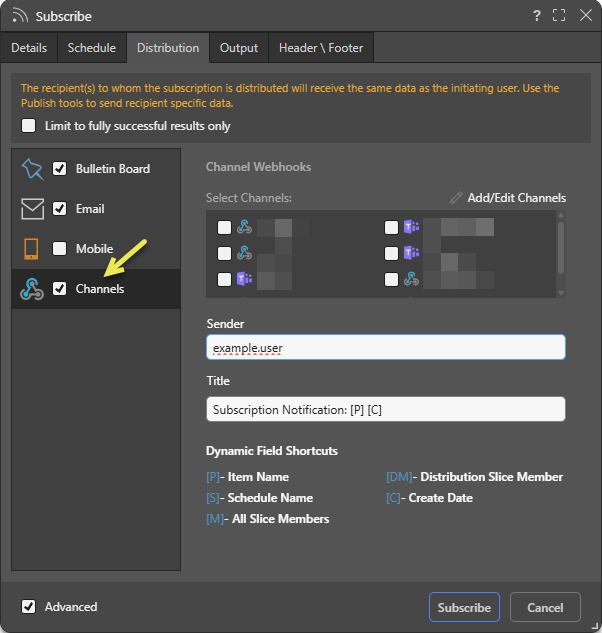
Where this mode is in place, the Distribution tab typically contains the following options when the Advanced checkbox (bottom left hand corner) is selected.
- Each of the options represents a distribution target that is available in your environment. In Normal mode, this can include Bulletin Board, Email, Mobile, and Channels (yellow arrow above).
- For each target, configure the distribution by selecting the distribution mechanism to use and, where applicable, the recipients. Which options are available depends on the selected target.
Strict Subscriptions
Where the User Subscription mode is Strict, users can subscribe to discoveries, presentations, and tabulations as themselves and on behalf of other users (recipients) using the Distribution options like the normal mode. However, the subscription is run with the data security of each recipient using their own data security; ensuring that they only ever see data that is relevant to them.
Where this mode is in place, the Distribution tab contains the following options when the Advanced checkbox is selected (bottom left):
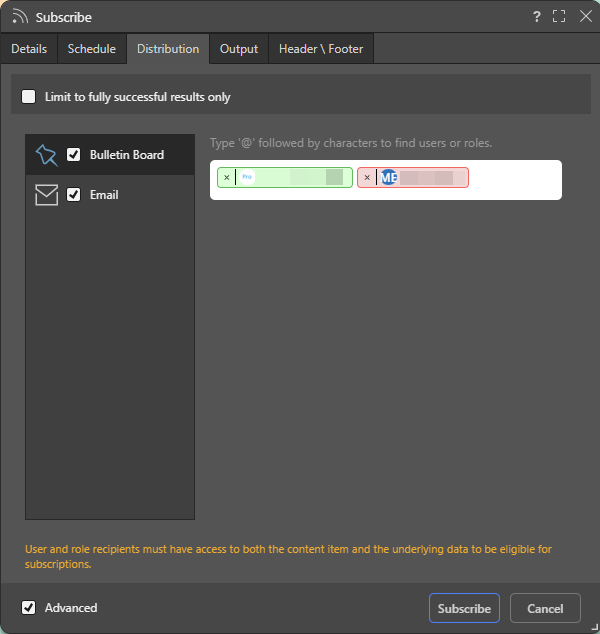
Unlike normal mode, that allows for a simple delimited list of recipients, the strict mode only allows existing system users to be added as recipients.
- Recipients are selected by typing their username or role into the selection box. If the user or role has access to the content item, has access to the underlying data source and is part of the same tenant, they will appear green and can be added to the recipient listing. Otherwise they will appear red, and will be rejected.
- The target destination (email or bulletin board only) can then be selected using the checkboxes below the user list.
Note: The recipients need access to the content item so the subscription mechanism is only available where the item is shared in a workgroup or public folder, and where the security and data access to the item and model have been set. Since data security by user needs to be resolved, the security on data source must also function via Pyramid's data security mechanics only.
- Click here for details on setting up security for Strict Subscriptions and roles.
Personal Subscriptions
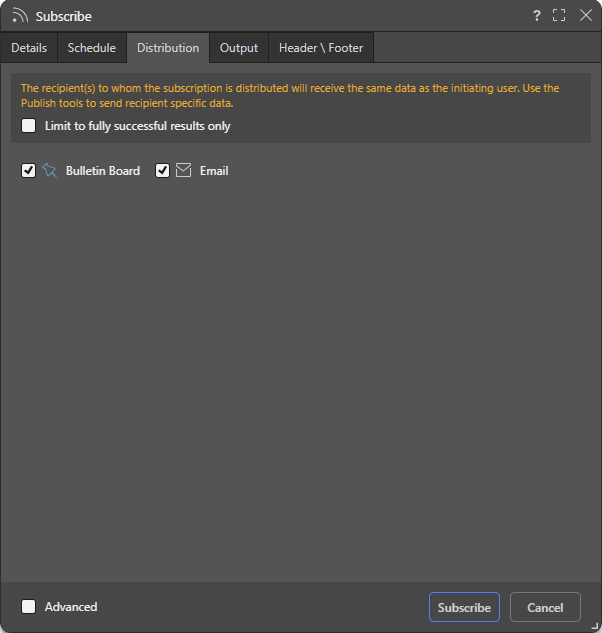
In Personal Mode users are only offered the Basic options when setting up their subscriptions and can subscribe to content for themselves only.
Configuring Subscriptions
You can work through the tabs in the Subscribe dialog to configure the subscription. This includes naming and describing your subscription, configuring the schedule for the subscription job, and configuring the list of recipients and method of distribution.
- Click here to configure Subscriptions from the Subscribe dialog.
- Click here to view and configure Subscriptions from the Content Manager.
Accessing Subscription Content
Users can choose to distribute subscription output through the Bulletin Board, by email, by SMS, or using channel Webhooks.
Distribution Targets
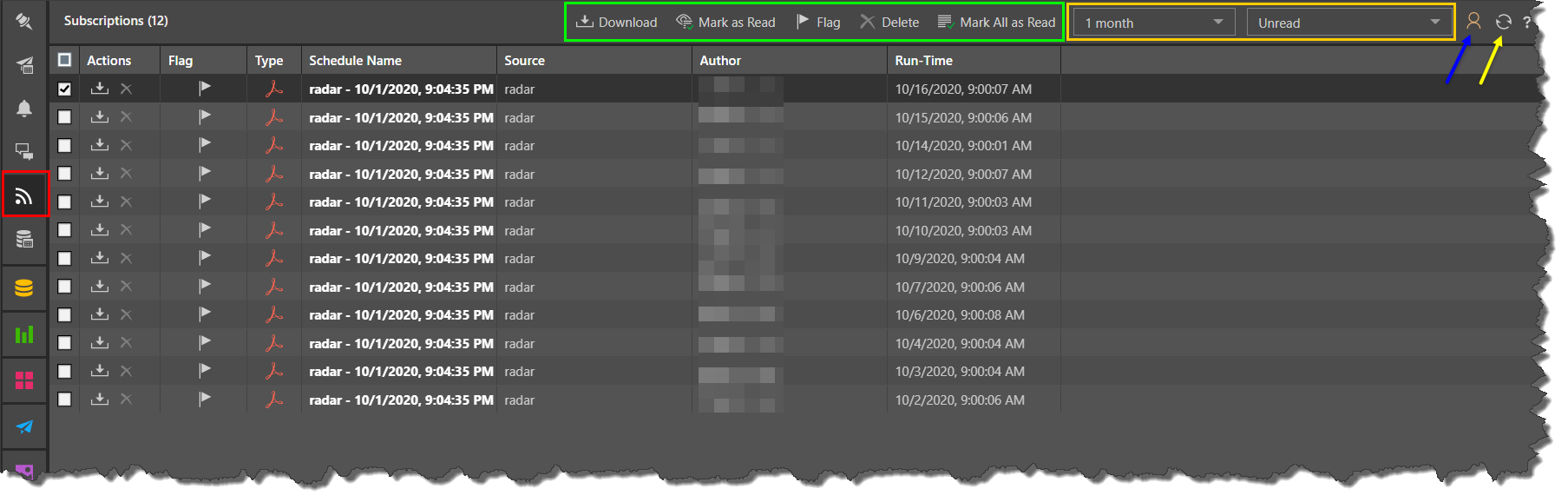
When subscriptions are distributed through the Bulletin Board, recipients can access them from their own Subscriptions Board where they can download the content.
When subscriptions are distributed by email, recipients receive an email based on the template in the schedule. This email may include the content as an attachment, as a link to the content in Pyramid, or containing both an attachment and a link.
Phone
Recipients of subscriptions distributed using SMS will receive a templated message configured by the user who created the subscription.
Channel
Recipients of subscriptions distributed via a channel Webhook will receive a templated message in the given channel.
- Click here to learn more about scheduled distribution.
Dynamic Interactions
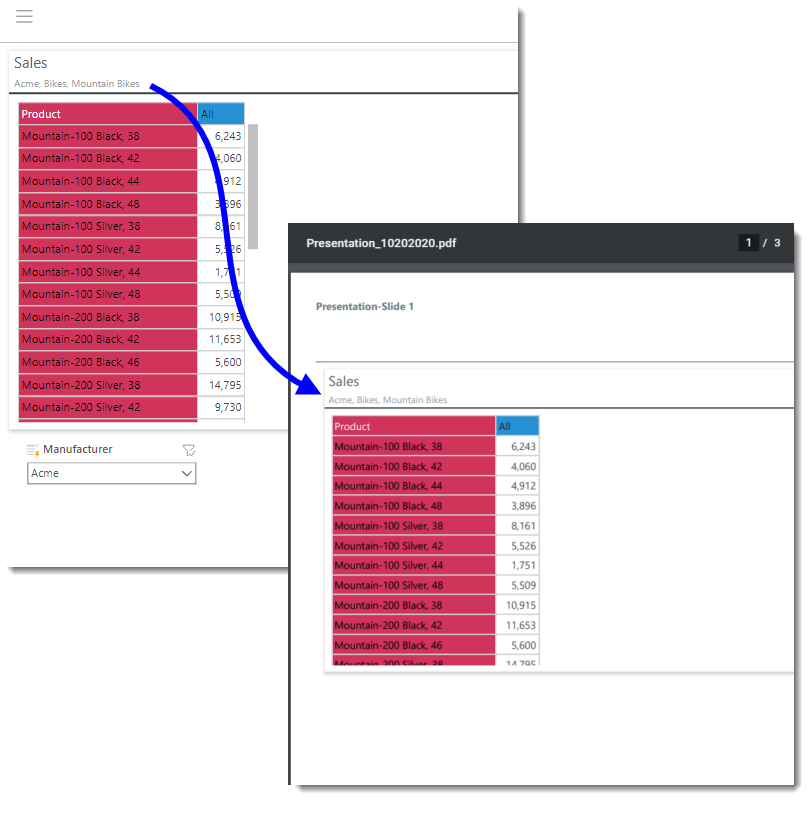
The exported discovery reflects any dynamic interactions made with the query at the time the subscription job ran. For instance, if you filtered by a product, the exported discovery will be filtered accordingly. If you drill down, this action will be rendered in the exported discovery.
In the example below, we see the slicer and drill-down selections from the discovery shown in the presentation PDF:
Managing Subscriptions
Subscriptions can be managed from the following locations:
- Pros can edit and delete subscriptions from the Content Manager or the Subscription Manager.
- Analysts can edit and delete subscriptions from the Content Manager or the Subscription Manager.
- Admins can also edit, remove, and rerun subscriptions from the Admin console.