When working with Tree Maps and Hierarchical Tree Maps, you can change the background color from the Formatting panel. You can also adjust the headers for Hierarchical Tree Maps.
Common Tree Map Formatting
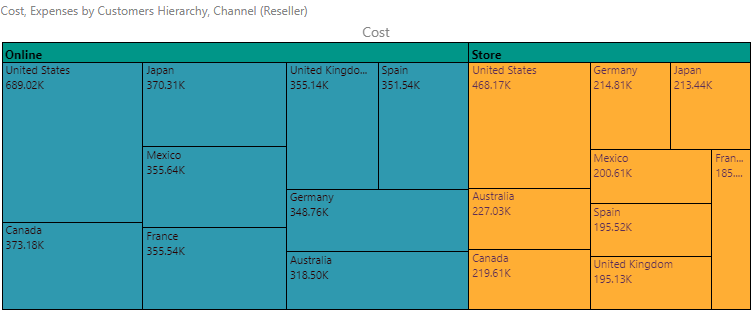
In this example, the chart was grouped by color, the headers were made bold, and the header background color was changed to green:
The following are available for both Tree maps and Hierarchical Tree maps:
Fill

- Background Color: Change the color of the Report Background using the Color Picker tool. This change does not affect the chart background. This function is available for both tree maps and hierarchical tree maps.
Miniature
 Miniature Color 1, 2, and 3 set the text colors for miniature visuals, which appear automatically when a visual is scaled down due to legibility limits. These miniatures show measure values and labels for quick reading in limited space. Use the Color Picker to set the color for each miniature tile.
 Example: Miniature Colors
Miniature visuals are created automatically when you scale a visual down to a size that makes its content illegible. These tiles typically display the measure as a number with its name underneath:
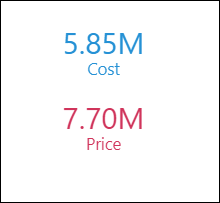
Note: The purpose of a miniature visual is to provide a way to easily view and interpret important data at a glance, even where there is a lot of information and limited space.
Tree Map Settings
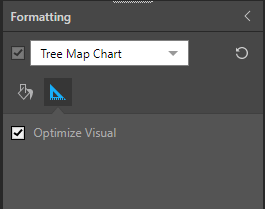
Optimize visual
- Optimize Visual: the visual optimization engine in Pyramid is a heuristic that automatically redacts certain parts of a graphical visualization based on the amount of space provided.
Tiles
- Border Color: change the border color.
- Border Width: change the border width.
- Padding: change the spacing between the tiles in your view.
- Radius: apply a curve to the corners of the tiles used in your Tree Map. Where the radius is 0, the tiles have right-angles for corners. Increasing the radius adds a curve to the corners, making each tile into a rounded rectangle. The larger your Radius is, the more pronounced the curve is.
Recommended: You would typically use Padding and Radius together.
Hierarchical Tree Map Settings
When working with Hierarchical Tree Maps, you can group the map by color and adjust headers. To do this, choose Hierarchical Tree Map Chart from the main dropdown list, and go to the Settings tab:
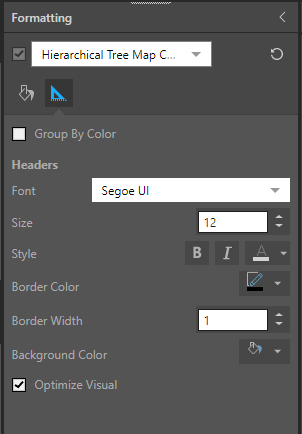
From the Settings tab, you can access the following functions:
- Group by Color: group the tree map by color; the hierarchy in the Color drop zone will then drive the headers, rather than the hierarchy in the Details zone.
Group Headers
- Font: change the header font type.
- Size: change the header size.
- Style: change the header style (bold, italics, or color).
- Border Color: change the border color.
- Border Width: change the border width.
- Background Color: change the header background color.
- Align: reposition the label horizontally, by clicking the left, center, or right button.
- Vertical Padding: change the vertical spacing between the tiles in your view.
Optimize visual
- Optimize Visual: the visual optimization engine in Pyramid is a heuristic that automatically redacts certain parts of a graphical visualization based on the amount of space provided.
Tiles
- Padding: change the spacing between the tiles in your view.
- Radius: apply a curve to the corners of the tiles used in your Hierarchical Tree Map. Where the radius is 0, the tiles have right-angles for corners. Increasing the radius adds a curve to the corners, making each tile into a rounded rectangle. The larger your Radius is, the more pronounced the curve is.