The Workflow and Conversations tools enable users to add actionable annotations to data and reports.
- When using the built-in Conversations tool, comments appear as threaded discussions in a chat-style interface.
- When using a custom workflow, annotations follow a multi-step workflow experience defined by a developer.
Related Topics
- Discover Pro:
- Present Runtime:
- Conversations Feed
Starting a Conversation
Discover
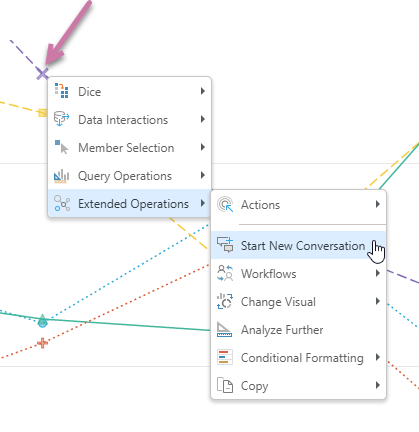
To start a new conversation at the cell level, right-click the relevant data point (cell or chart component), and click Start New Conversation from the context menu:
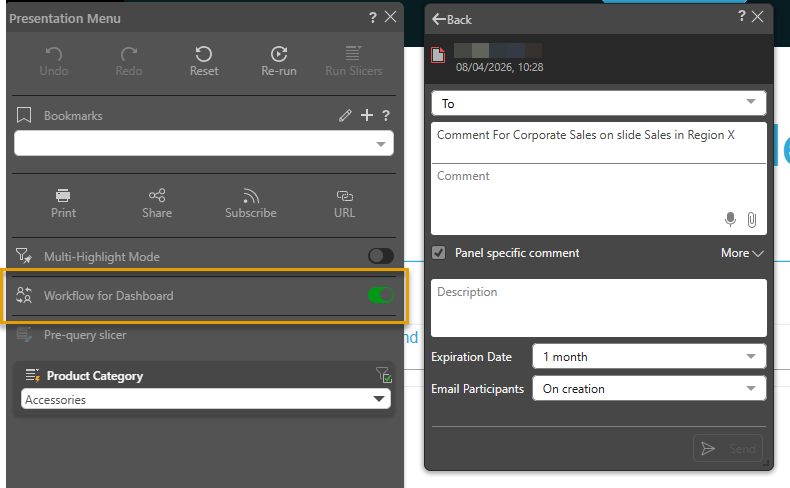
To start a new conversation at the discovery level, click the Workflow for Dashboard icon from the ribbon (orange highlight below) and then click Start New Conversation:

Tip: You can view existing Workflows and Conversations from the Workflows option on the context menu or from the Overhead ribbon.
Presentation
To start a new conversation at the cell level from a presentation, right-click the relevant data point (cell or chart component), and click Start New Conversation from the context menu.
To start a new conversation at the presentation level, click the hamburger menu at the top-left corner of the slide and then select Workflow for Dashboard from the Presentation Menu (orange highlight below):
This will open the Conversations dialog, which will display existing conversations. Click Start New Conversation to create a new conversation.
New Conversation Panel
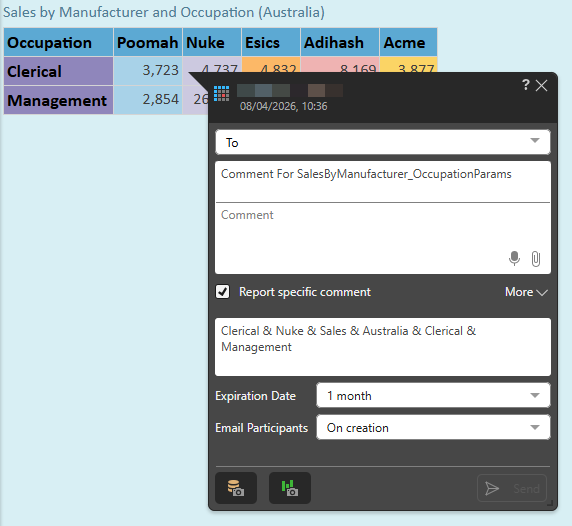
Once you've selected Start New Conversation, you'll be able to create and share your comment. This involves configuring the following fields:
- To: Select the roles or users who will receive your comment.
- Comment For: By default, this is based on the report title.
- Comment: Write your message in this field.
- Report specific comment: Enable to make the comment visible only for the selected member or data cell in the current report. Disable to display the comment for that member or data cell in all reports where it appears.
- Description: By default, this is the member, data cell, or report being commented on.
- Expiration Date: Add an expiration date to the conversation. If you don't want it to expire, select None.
- Email Participants: Enable this option to send your comment not only using the Bulletin Board but also by email:
- Choose None if no email is to be sent to a participant.
- Choose On Creation to send an email alert to participant you've added to the conversation.
- Choose On Creation and Every Comment to send an email alert to participant you've added to the conversation both on creation and for every new comment added.
- Save Data Snapshot: Store the results of the query at the time the conversation comment was submitted. When this option is selected, a discovery snapshot is also saved by default.
- Save Discovery Snapshot: Store the query structure at the time the conversation comment was submitted. It is possible to select this option without also saving a data snapshot.
For all the preceding options, participants will receive a bulletin board alert to notify them of the new conversation.
- Click here to learn more about the New Conversation Panel, including report-specific comments and snapshots.
Viewer Conversations Feed
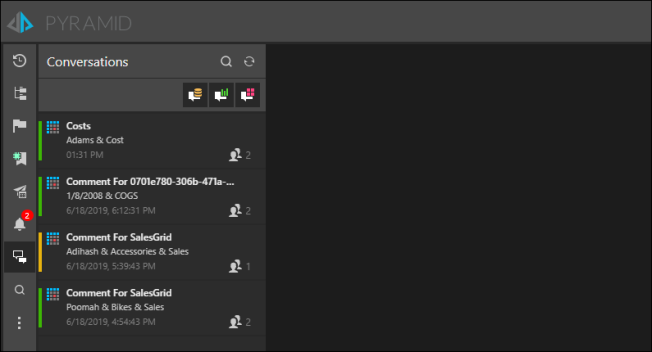
The Conversations Feed lists the conversations in which you're a participant. Simply click on a conversation to open it.
You can filter the Conversations Feed by three types of conversation: model conversations, discover-specific conversations, or present-specific conversations.
Conversation Actions
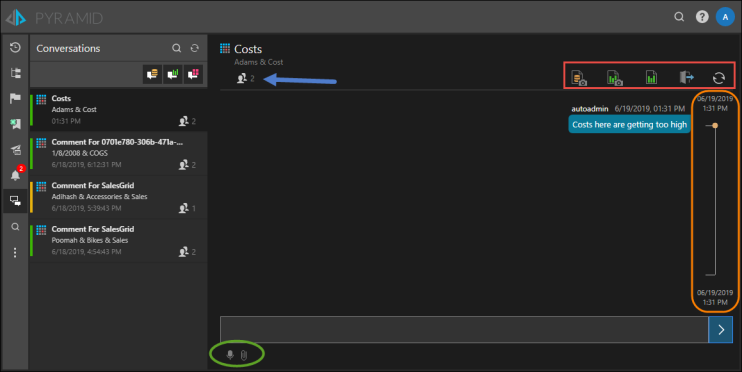
You can perform the following actions from an open conversation:
- Load Data Snapshot: Open the original query results stored at the time the snapshot was taken.
- Load Discover Snapshot: Open the original query (from the time that the conversation was started), with current results.
- Load Current Discover Report or Present Dashboard: Open the current discovery or presentation to see the most recent data.
- Leave Conversation: This option is available only to users that are conversation participants, not roles.
- Refresh: Click to refresh the conversation.
- Users: Click the user icon (blue arrow below) to view conversation participants.
Write your comment in the text box, record a message, or attach a file.
Conversation Timeline
The conversation timeline groups comments in the conversation by time. The position of the circles on the timeline indicates periods with more activity. Comments are grouped depending on the duration of the conversation. For example, an older conversation may be grouped by days or weeks.
Note: Users may be represented by their full name or just their first name in the Chat panel in Conversations. This is controlled using the Conversation Username User Setting. For Viewers, this default setting is configured by the administrator.
Related information
The Viewer offers a range of additional interaction capabilities beyond the Conversations functionality described here. These capabilities include alternative selection, navigation, and exploration options. For more information, see: Viewer Interactions