Once you've built your visual in Discover Lite, you can save it to your own personal content folder, or share it with other Pyramid users. You can also export it to a format of your choice to print it, or share it with others outside of Pyramid.
Once you've saved your visual, you can open it, edit it, save changes, or save a new version of it. Depending on whether or not you share your visual, other users may also be able to open, edit, and export it.
You can also export and print your visual, or create a scheduled subscription.
Save and Share
To save your visual, click Save:

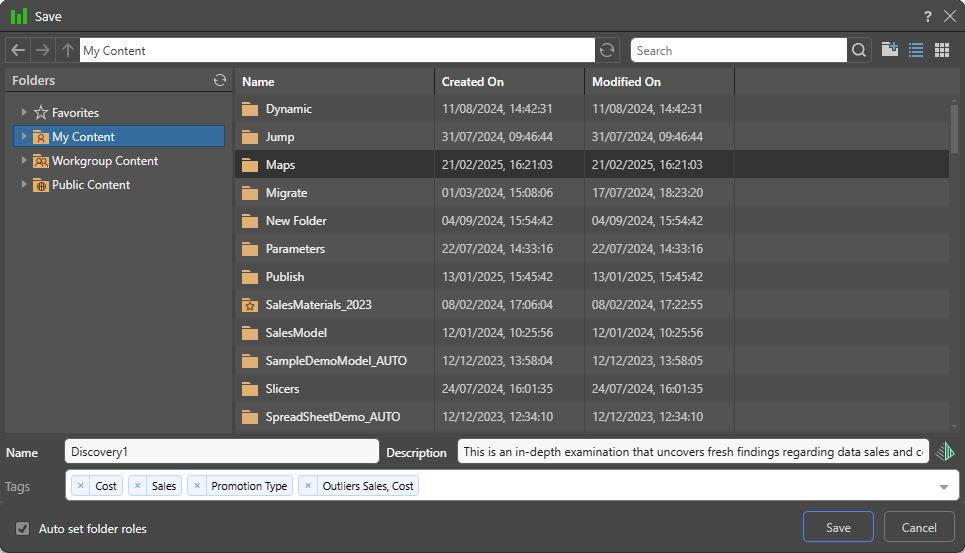
From the Save As dialog, save your visual in one of the content folders:
Folders
The Folders panel contains a Favorites shortcut (yellow arrow) and the folder tree (purple highlight). Navigate through the tree and select the folder that you want to save your item to.
Favorites
Use the Favorites option to access those folders that you have flagged as "Favorites." The Favorites option is not a folder; it is a shortcut that allows you to go to your most used or preferred folders without having to navigate the tree. When you access a Favorite folder in the Save dialog, you are saving the file to the location in the tree that you flagged as a favorite.
- Click here for more information about Favorites in the Content Manager
Folder Tree
You can choose where to save your content to in the folder structure. You are presented with those folders that you have WRITE access to. Once inside the folder tree, you can also access the folder navigation bar (orange arrow above) to more easily move around and add new folders to the tree on the spot (green arrow above).
- My Content: The content in this domain is private. You should save to this folder when you don't want to share your content with others yet. Note that Admins will be able to see this content.
- Workgroup Content: Group content is made READ and WRITE accessible to other users who share your security roles. Note that full write permissions are granted to users with access to the Workgroup folder.
- Public Content: Public content is made accessible to all user roles DEPENDING on the role security of the folder or item.
- Click here for more details about the folder structures
Saving from Analyze Further
If you built your discovery using the Analyze Further tool, you will only be able to save it to your My Content folder.
- Click here for more information about saving and sharing your discoveries.
Overwrite Warning
When you click Save, if you see a message about an existing file, you may be in danger of overwriting a file that's already in that location. In this case, you can use the options to Replace the original, create another version of the file (OK), or Cancel to choose a different name or location.
- Click here for details about Content Versioning for Analysts
Print and Export
Export and print your discoveries. Your discoveries can be exported in a variety of formats (PDF, Excel, and so on), requiring you to set the desired preferences before exporting or printing.

- Click here for more information about Printing and Exporting.
Share

Opens the Share Content dialog. You can share your artifact with other users (recipients), either by attaching the exported content to an email or by sending a Share Link to the recipient for access in Pyramid. For more information, see Share Content.
Subscribe
Users can orchestrate the automated delivery of selected Discover reports using Subscriptions which effectively exports or prints the content in a selected document format and distributes it on a scheduled basis.

Configuring a subscription involves choosing an output, defining the schedule, and setting up distribution via the bulletin board or email. This offers a way to share data discoveries on a scheduled basis, ensuring you can keep an eye on changes to your key metrics.
Note: This feature is available with the Enterprise Edition license only.
Warning: When subscribing to content in NORMAL mode and distributing it to other users, the subscription will run with the initiating subscribers data security. When Strict mode is chosen, the subscription runs as the recipient (the target user) so the recipient will only ever see data they have permission to see.
- Click here to learn how to configure subscriptions for your visual
Open and Edit
There are a few different ways to open saved data discoveries. Once the visual is opened, you can edit as needed, as long as you have the required permissions.
You can open your discoveries from the Content Explorer, the Quick Open menu, the Pyramid home page, and using a direct link. You can also open a visual from a presentation that you are exploring at runtime using Analyze Further.
Once you've edited the visual, you can close it and discard your changes, or click Save (above the canvas) to save your changes.
- Click here for more information about opening and editing existing discoveries