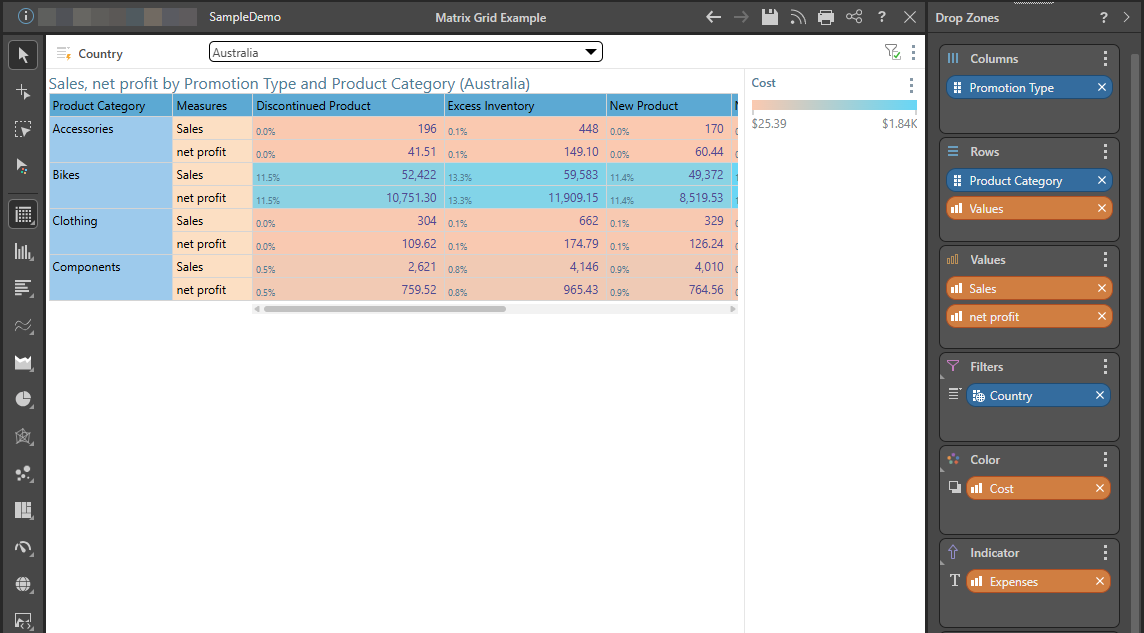
The matrix grid organizes members and measures into columns and rows with headers. Users may determine which members and measures will be displayed as columns or rows. The matrix grid is highly customizable in terms of formatting, enabling users to tailor the grid's look and feel as required.
Understanding Matrix Grids
Unlike tabular grids and raw results grids, each member element in the given hierarchy is displayed as a header in the matrix grid:
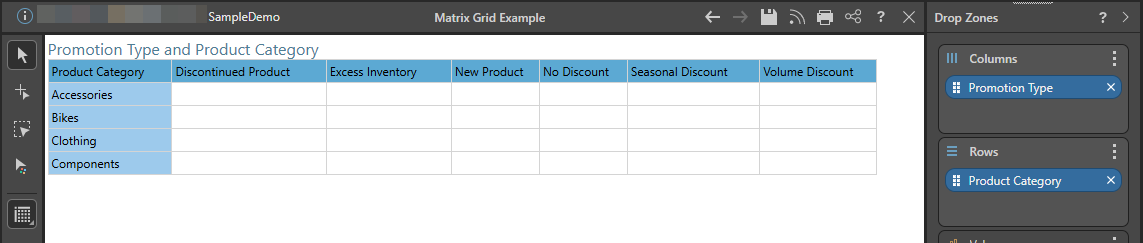
In the preceding example, the Promotion Type hierarchy is added to the Columns drop zone and Promotion Type to Rows. Each member element within the Promotion Type hierarchy is displayed as a column in the grid, while each element under Product Category is displayed as a row.
Tabular Grid Comparison
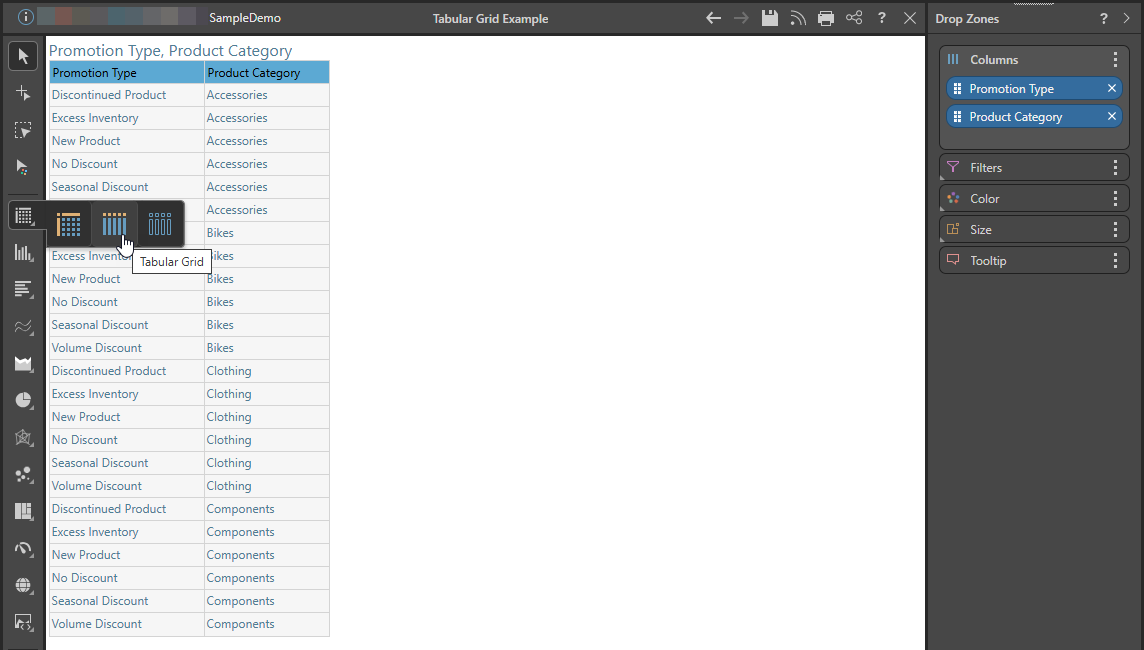
In the tabular grid below, the same two hierarchies are displayed as columns; however, the column headers are named according to the hierarchy name, and each row within the column contains an element from that hierarchy:
- Click here to explore Tabular Grids
Building a Matrix Grid
Step 1: Add Columns and Rows
Add the required hierarchies and elements to columns or rows, depending on your requirements:
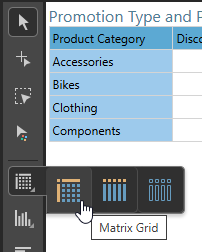
Given the preceding selections, the Matrix Grid visualization type is selected by default in Discover. If the default visual has been changed, you can change it back by selecting the Matrix Grid from the Toolbox:
Step 2: Add Measures
Add the required measures to the Values drop zone. If multiple measures are added, a single Values chip will be generated and automatically added to the Columns drop zone:
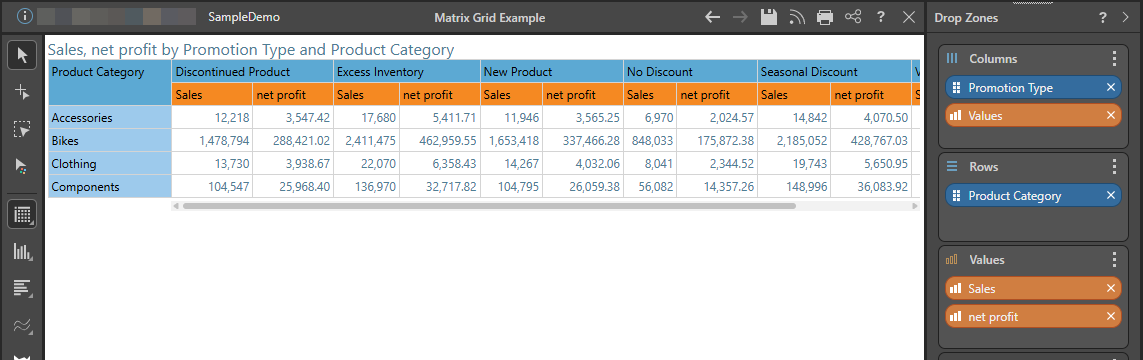
You can drag the Values chip to the top of the Columns drop zone or to the Rows zone. In the latter case, the change appears as follows:
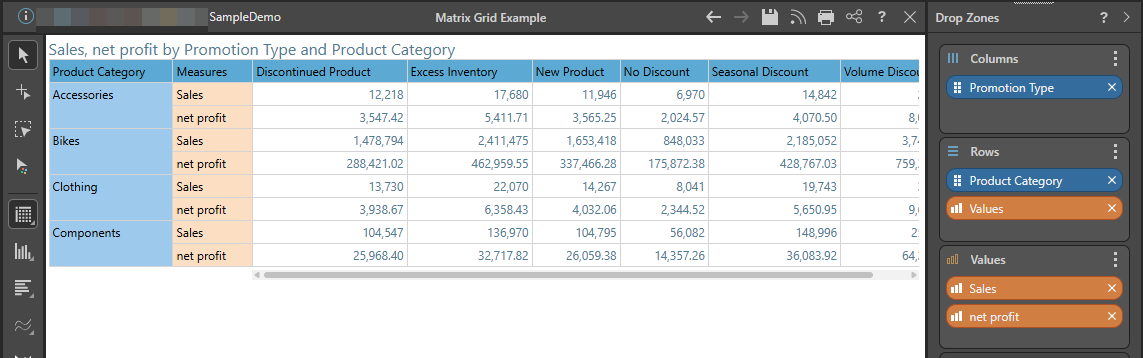
Step 3: Add Metadata
Add metadata to the other drop zones as required.
In the following example:
- The Country hierarchy was added to the Filter drop zone to create the country slicer at the top of the canvas.
- Cost was added to Color to display color-coding based on the cost measure.
- Expenses was added to Indicator to display increases and decreases in expenses.