The formatting tools for the Bullet chart enable you to change the design of the "bullets", including changing the background color, and curving its corners. With Bullet Chart selected from the Formatting panel dropdown list, the Design, Fill, Settings, and Miniature tabs are shown.
Bullet Chart Formatting Panel
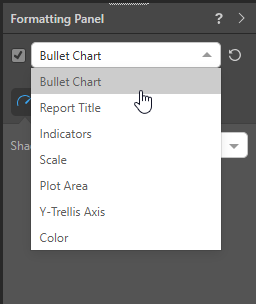
Select Bullet Chart from the dropdown list at the top of the Formatting Panel:
The options on each of the tabs will change some aspect of the Bullet Chart formatting.
Tip: You can move between these options and other formatting options using the dropdown list at the top of the formatting area (see above). For more information, see Related information below.
Design
From the Design tab, adjust the look and feel of the bullets in the chart.
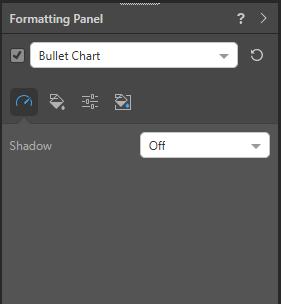
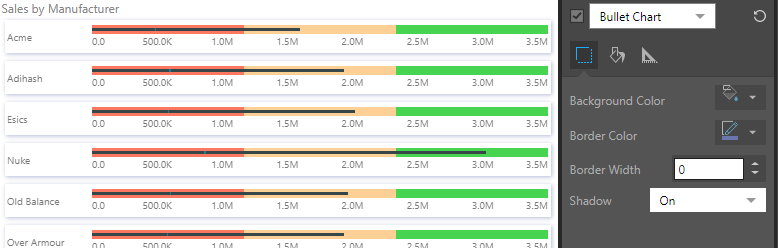
- Shadow: show a shadow around each bullet.
Fill
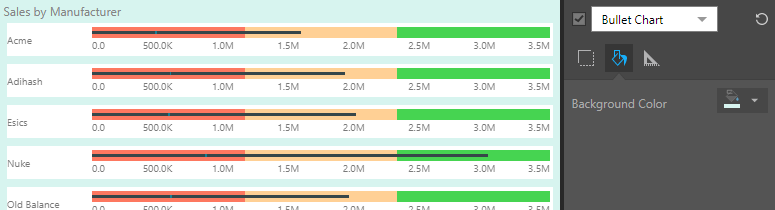
From the Fill tab, change the report background color.
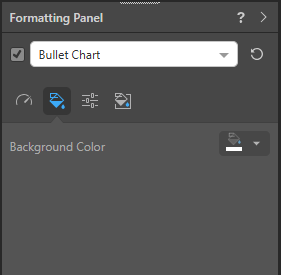
- Background Color: Change the color of the Report Background using the Color Picker tool. This change does not affect the chart background.
Settings
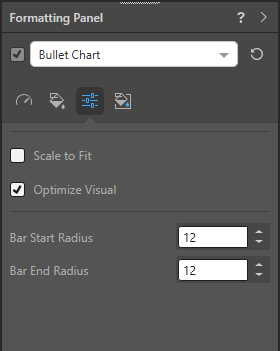
From the Settings tab, scale the visual and, optionally, apply settings relating to curved corners.
Scaling Options
- Scale to Fit: Scale the visualization down to fit on the canvas.
- Optimize Visual: Use the visual optimization engine (a heuristic in Pyramid) to automatically redact certain parts of a graphical visualization based on the amount of space provided.
Radius Settings
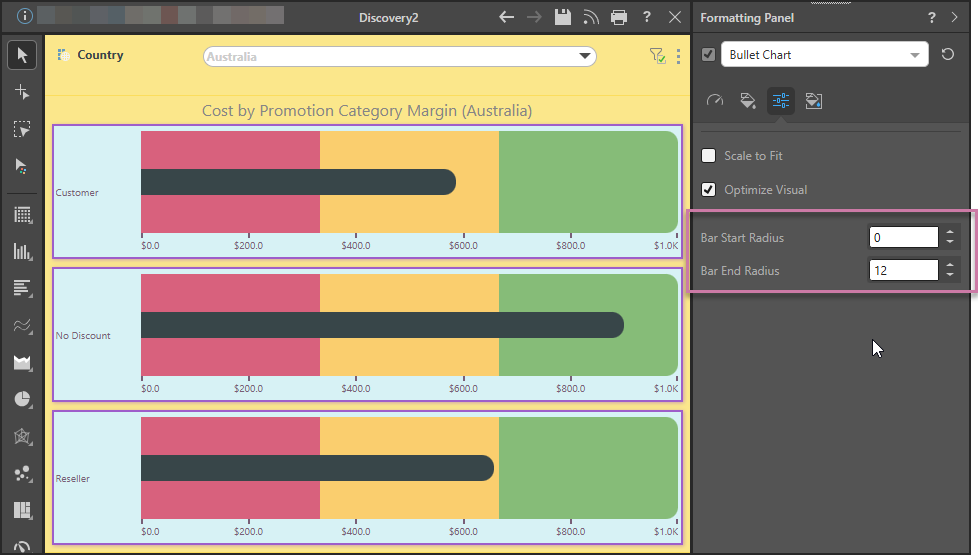
The Radius settings curve the corners of the bullets on your chart to make them appear rounded. Where the Radius is set as zero, the bullets have square corners. For any other radius value, the affected corners are curved to a greater or lesser degree:
- Bar Start Radius: This radius setting affects the corners of the shape at its start point.
- Bar End Radius: This radius setting affects the corners of the shape at its end point.
Miniature
 Miniature Color 1, 2, and 3 set the text colors for miniature visuals, which appear automatically when a visual is scaled down due to legibility limits. These miniatures show measure values and labels for quick reading in limited space. Use the Color Picker to set the color for each miniature tile.
 Example: Miniature Colors
Miniature visuals are created automatically when you scale a visual down to a size that makes its content illegible. These tiles typically display the measure as a number with its name underneath:
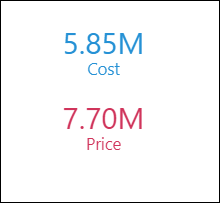
Note: The purpose of a miniature visual is to provide a way to easily view and interpret important data at a glance, even where there is a lot of information and limited space.
Examples
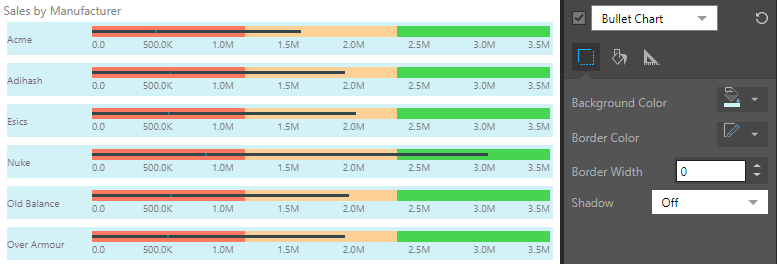
Here, the chart background color was changed to light blue (note that this was done using the Plot Area Formatting options):
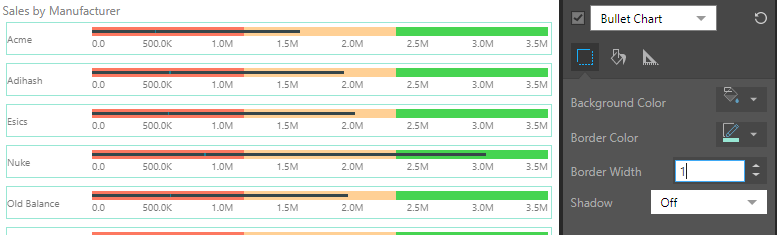
Next, a 2pt purple border was added:
Here, a Shadow was added:
Here, the report Background Color was changed to yellow:
Lastly, the Radius Settings were used to give the bullet a visibly rounded end:
Related information
Other Formatting Options
In addition to editing the Bullet Chart Formatting as described above, you can also edit other formatting options by selecting the other options in the dropdown list at the top of the formatting panel:
- Report Title: Customize the report title.
- Indicators: Change the colors for the bullet chart indicators.
- Scale: Show or hide the scale and adjust the scale font.
- Plot Area: Customize the plot area by changing the background color, adding borders, and, where applicable, changing the axes.
- Y-Trellis Axis: Show or hide trellis labels and edit fonts.
- Color: Customize the fill type and color for Gauge and Bullet shapes.