The Jump to Slide action opens another slide in the current presentation. You can specify which slide using its number or name, go to the next or previous slide in the sequence, or use a PQL function to create your own Advanced jump option. You can also select Inject to Target to pass data selected at runtime to a Target, causing the visuals it has interactions with to be filtered or highlighted.
Slicer Actions are triggered when an end user picks an item from a slicer at runtime. If you want to jump to another slide when an end user picks an item from a visual, see Jump to Slide Action in Present Pro. If you want to add a "button" to your canvas and jump to another slide from there, see Jump to Slide "Jump Action" in Present Pro.
Configure Slicer Actions
Before you begin
To create a Slicer Action that changes which slide is currently shown, your presentation needs to include a Slicer and a few Slides.
- Click here to learn about adding Slicers in Present
Opening the Action Panel
Select a slicer and then right-click Actions on the context menu. The Actions panel opens at the bottom of the page.
Note: When you open the Actions context menu for a slicer, only the Jump to Mini Tab and Jump to Slide options are available.
Configuring the Jump to Slide Action
It is possible to configure a Jump to Slide action using either of the following methods:
- The Simple method, where you select the slide to jump to when a slice is selected.
- The Advanced method, where you write a PQL expression that selects the slide to jump to based on conditions.
When you define a simple Jump To Slide action, you are creating a Slicer Action that can be used to open a particular slide at runtime. The configuration selects the slide to open using its Slide Name.
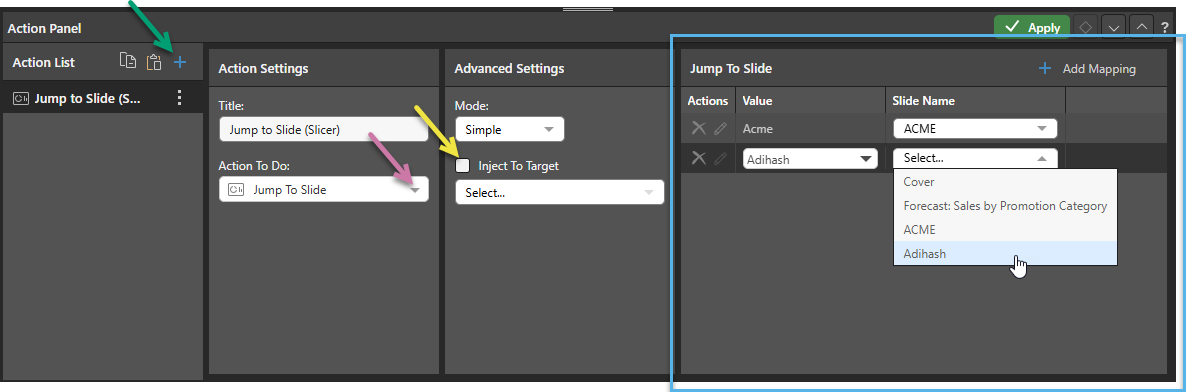
- From the Action List, click Plus (green arrow above) to add an action.
- From the Action To Do dropdown list, select Jump to Slide (purple arrow).
- If you want to create simple mappings define a set of mappings (blue highlight above):
- From the Mode dropdown list, select Simple.
- Create mappings between each slicer Value and a Slide by clicking Add Mapping and selecting a Value and a Slide Name (see below for more information).
- If you want to use PQL Functions to write an expression in the Jump to Slide window when particular values are selected from the slicer:
- From the Mode dropdown list, select Advanced.
- Create a PQL expression that maps the values from your slicers to your Slides (see below for more information). Note: You should use this advanced feature if you want to use the PQL functions to create a switching or conditional effect, or otherwise apply additional logic to your action.
- Click Validate to test your expression.
- Optionally, select the Inject to Target checkbox and choose a Target from the associated dropdown list (yellow arrow).
- Click Apply.
An action is created with the name Action # (where # is the next number available).
The Advanced Settings panel opens. This is where you will configure the Slicer Action.
Selecting this option causes the data selected at runtime to be passed to the Target, which, in turn, causes any visuals the Target has interactions with to be filtered or highlighted. This is typically used to initialize visuals or slicers on the slide being opened to reflect your selections on the page you jumped from. For more information about creating Targets and Target interactions, see Creating Targets using Present Pro.
Action Panel
For details of the other options in the Action List panel, see Creating Visual Actions in Present Pro.
Action Settings
Title
Name your action. If you want to open your action from the right-click Actions context menu (the default option), you will need to know its name later.
Action to Do
From the Action To Do dropdown list, select Jump to Slide.
Advanced Settings
Mode
Select from Simple or Advanced to indicate whether you want to select a set of mappings or create a PQL expression that conditionally selects different targets.
Inject to Target
Selecting this option causes the data selected at runtime to be passed to the Target, which, in turn, causes any visuals the Target has interactions with to be filtered or highlighted. This is typically used to initialize visuals or slicers on the slide being opened to reflect your selections on the page you jumped from. For more information about creating Targets and Target interactions, see Creating Targets using Present Pro.
Jump To Slide
The content of the Jump to Slide panel differs depending on whether you have selected Simple or Advanced from the Mode dropdown list.
Simple Mode
If you are creating a Simple action, the options to open a particular slide using a slice action are presented in the Jump to Tab panel. You need to click Add Mapping, then pair a slicer value with the slide that should open when that value is chosen. This mapping uses the Slide Name as defined in your Slides panel.
You should repeat this for each of the slices where you do not want to show the Default Tab.
Advanced Mode
Where Advanced is selected as your Mode, the Jump to Slide text window opens that you can use to define your PQL expression:
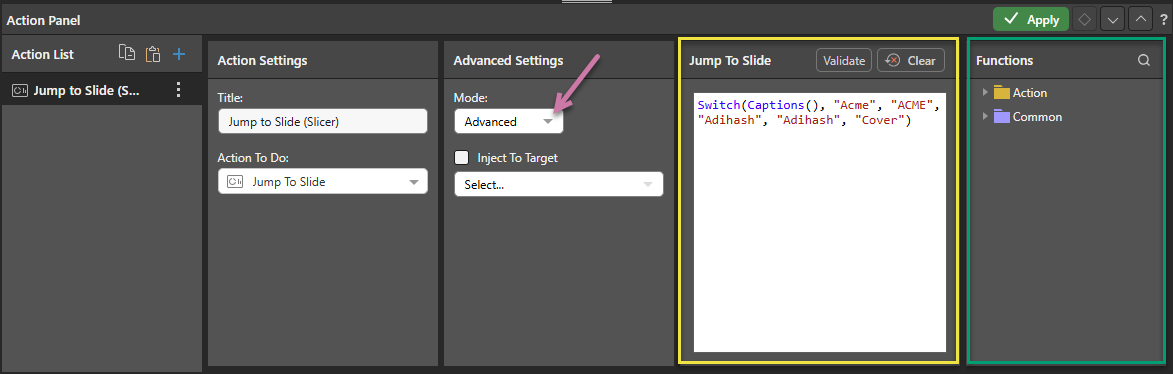
 Example: Advanced Action with Switch Statement
In this example, the Captions function is inserted into a Switch statement. When Acme is selected from the Manufacturers slicer, the slide with the name "ACME" in the presentation is displayed. When Adihash is selected, "Adihash" is displayed. When any other item is selected from the slicer, "Cover" is displayed:
Switch(Captions(), "Acme", "ACME", "Adihash", "Adihash", "Cover")
When launched at runtime, the slicer drives the conditional effect.
Jump To Slide
- Click Validate to test your expression.
- Click Clear to delete all text from the Jump To Slide window.
Functions
You can use the PQL functions in the Functions panel to create your PQL expression:
- The PQL libraries that are available in this panel are Action and Common.
- Search the functions by name using the Search field at the top of the Functions panel.
- Hover your cursor over an item in the Functions tree to show a description of the available function, including its syntax.
- Double-click the functions in the tree to copy them into the Formula window. If you select content in the Formula panel and then double-click a function, anything that is selected is inserted within the parentheses.
Note: The Pyramid Query Language (PQL), pronounced "Prequel," is a language built into Pyramid's PYRANA engine to allow users to construct queries that can run against the many SQL data stacks that Pyramid can query natively. PQL includes a vast array of operations and functions that allow users to query data and build analytical logic.