You can build and analyze your data using a natural language query; either by typing a relevant question directly into Pyramid's Chatbot or by entering it into the Ask a question or Type a question here fields (in Discover only) when you begin a new session. In all of these cases, you are accessing the Chatbot in design time; that is, when you (a Pro or Analyst user) are building your discoveries,
Note: You can only make use of the Chatbot and Natural language querying once your administrator has enabled Natural Language Operations in the Admin console.
Opening the Chatbot
The Chatbot icon (a Pyramid symbol) allows you to access the Chatbot for any supported apps. Once the Chatbot is open, you can either type your natural language query into the text field (green arrow) and click Enter, or click and hold the microphone button and say your query into your microphone.
- For more information about the Chatbot, see Chatbot Functions
System Tray
With discoveries,
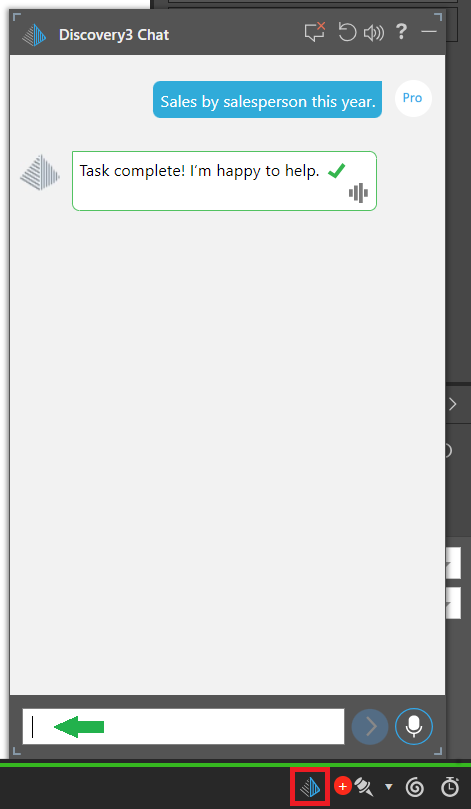
You can usually open the Chatbot in Discover,
Note: If your administrator has chosen to use the internal Portable Language Model (PLM), Pyramid Internal, then the Chatbot is only enabled at Design time in Discover and at Runtime in Discover and Present. For more information, see Multiple LLM Engines.
Note: If you have the Chatbot open and move between the tabs at the bottom of your page, the Chatbot remains open but changes context as you move. The content of the Chatbot reflects the tab that is currently open. When you open a tab for an app that does not support the Chatbot, the Chatbot closes.
Opening the Chatbot in Discover
In Discover, users can either access the Chatbot using the icon in the System Tray (as described above), or they can start a new visualization by asking a question about the data model in one of the "Ask a question" or "Type a question" fields.
- For information about alternative access processes in Discover, see Accessing NLQ in Discover
Tip: If you are learning to use AI in Discover, you could also step through: Example: Build a Visual using the Chatbot.
Discover Lite
In Discover Lite, you may also be able to open the Chatbot from the overhead ribbon. This icon is only shown when Discover Lite has no bottom-right menu, for example, when you select Analyze Further from a presentation at runtime:

- For more information about the Discover Lite ribbon, see Discover Lite Ribbon
Other topics
- To learn more about writing Chatbot questions, see Writing Natural Language Queries
- To learn how to use the Chatbot in Discover, see Example: Build a Visual using the Chatbot
- To learn how to use the Chatbot in Present, see Exercise: Build a Dashboard using Present Chatbot
- To learn how to use the Chatbot in Publish, see Exercise: Build a Publication using Chatbot
- To learn how to use the Chatbot in Formulate, see Creating Calculations using the Chatbot