After your question has been processed, a response will appear in the Chatbot. If audio is enabled, the Chatbot will also read the response aloud.
Chatbot Responses
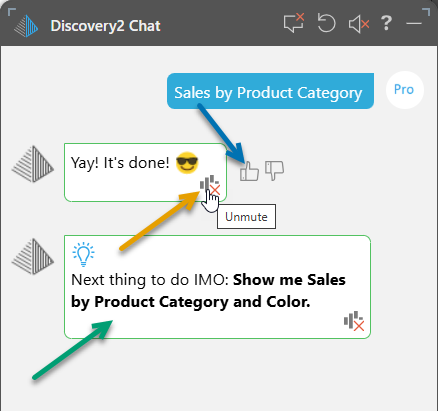
Play or Replay the Audio
You can replay the spoken response by clicking the audio symbol (orange arrow above).
This works even if the audio was muted (as in the preceding example). In this case, selecting this option un-mutes the audio and plays the audio response too.
User Feedback - "Like" the Result
If your prompt was the first question asked in the Chatbot session and it created a visual on an empty canvas, you can use the thumbs up and thumbs down icons to like or dislike the result (blue arrow). Liking a result promotes the associated question up the list of type ahead suggestions the next time you open the same model and influences which questions are recommended in the user community using the current model.
Note: If this comment has likes from different users, it is suggested globally; that is, to other users of the same model.
Next Suggestion
In response to your prompts, the Chatbot may suggest a "next thing to do" to improve your current visual. The underlying LLM analyzes your chat content and suggests options such as:
- Changing the visualization type used.
- Adding filters.
- Expanding the data in your drop zones (as in the example above, green arrow).
- Applying forecasts or other analysis functions.
- Explaining the content.
If you agree that the suggestion is relevant and will improve your visual, you can apply it by clicking the Bold Text in the response. That text is then sent to the Chatbot as the next request in your chat.
Explain the Result
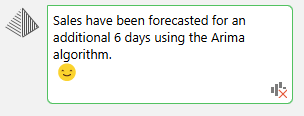
If you use the Chatbot to apply outlier, clustering, regression, forecasting, or fill blanks calculations to the query, Pyramid auto-generates a text explanation in the results panel. This explains how the calculation was evaluated and which algorithm was used:
- Click here for more information about "explaining the result"
Multi-Step Chat Exchanges and Stateful Chat Sessions
Once a chat session has started, the agents will keep track of your entire conversation, allowing you to have a natural on-going "conversation" with the bots to continue your analysis. The ideas and questions you surfaced at the start if a session, for instance, will influence the way a subsequent step is resolved later in that session. Any analytical operations will be remembered and used as context for subsequent operations.
Good examples of multi-step functions that operate beyond the tracking of the question, request or step logic, include:
- Any 'on the fly' synonyms implied in the session will be generally usable downstream in later steps.
- Any advanced ML logic that resolves to functions or calculations will be kept in place
- Any business logic that resolves to newly created metrics, can be referenced downstream without recreating them in the metric store.
- Specified or resolved visualizations at the start of a session will not be auto-reset on follow up questions or steps - to keep the analysis consistent and 'traceable'. If users need to redraw the visual automatically they can ask the AI to suggest a better visualization or manually switch it out.