Pyramid users can directly query SAP BW from Discover; there is no option to build an ETL for SAP BW. Instead, Pyramid connects directly to the BW data source and uses MDX to natively query your SAP BW Infocubes and BEX queries, which has several advantages for the user:
Firstly, users save time and resources as there's no need to configure the data model in Pyramid. Secondly, governance and security are maintained as there's no need to copy any of the data into Pyramid, as is done when building the data model. Thirdly, Pyramid resources are saved, as there is no need for scheduled reprocessing of the model, as is the case when the model is configured in Pyramid. And fourthly, queries are always based on the latest data in the data source, precisely because it is queried directly.
Another significant advantage is Pyramid's use of MDX to natively query the BW data source, meaning that Pyramid can support many BW functions that are not supported by other data analytics tools.
- To review a list of key SAP BW features that are supported in Pyramid, click here.
- To review the SAP SSO 'SNC' Setup Guide, click here.
Opening SAP BW in Discover
To open SAP BW Models after launching Discover Pro, work through the panels on the New Discovery page:
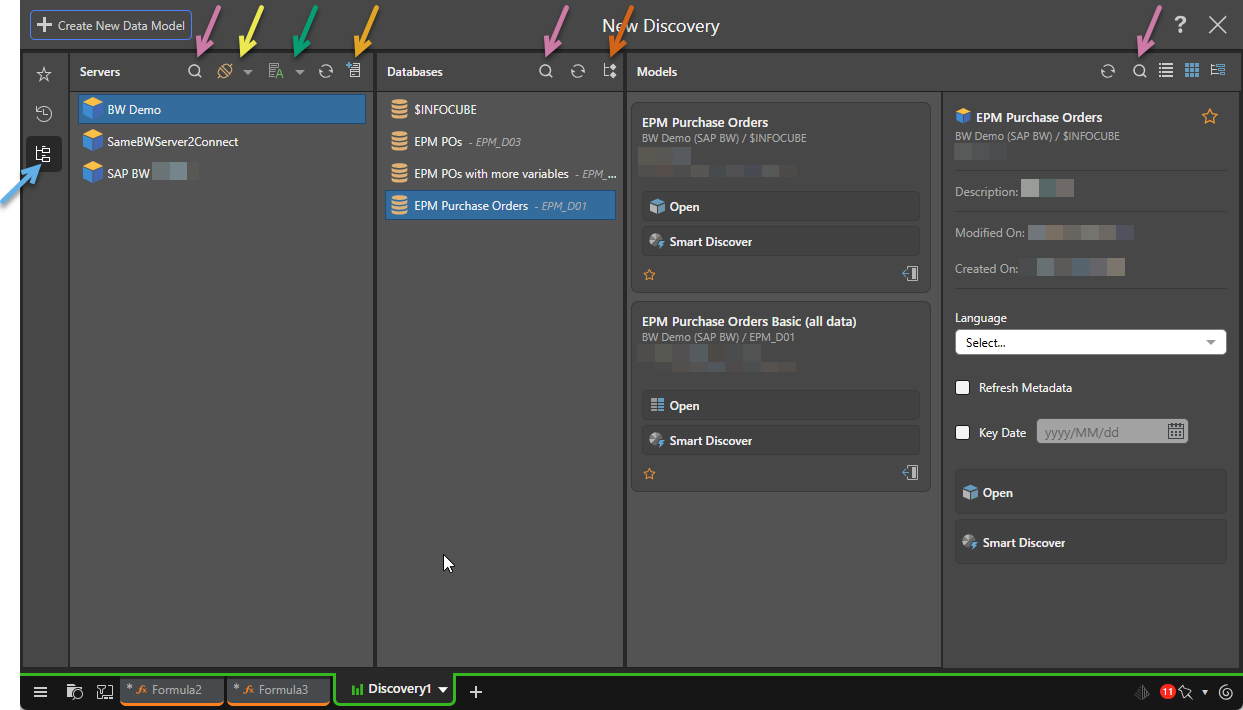
Note: In the preceding example, the Servers list is filtered to show only those Servers with the type "SAP BW."
- Select Explorer (blue arrow above) in the toolbar.
- In the Servers column, find and select the server:
- Use Search (purple arrow, above) to filter servers by name.
- Use the Type dropdown list (yellow arrow) to filter the server list by type.
- Use the Sort dropdown list (green arrow) to arrange the servers by name, type, or to arrange the list by folder. The folder name is created when the data source is created.
- In the Databases column, select the required database within the given server:
- Use Search to filter databases by name.
- In the Models column, select the data model that you want to query:
- Click Refresh to refresh the list of data models.
- Use Search to filter data models by name.
- Use the buttons to view the data models in a List view, Tile view, or Tree View.
- Open the data model.
Tip: You could, alternatively, use the Favorites or Recents options if your Model is marked as a favorite or has been used recently.
Note: The filter and sort selections are saved within the session, so any subsequent visual will default to your sort and filter selections.
Tip: Hover your cursor over the server to see the server name, type, and description as a tooltip.
Add New Servers
In the Servers column, click Add New Server (orange arrow above) to use Quick Model to create a new server on the fly.
Info Areas
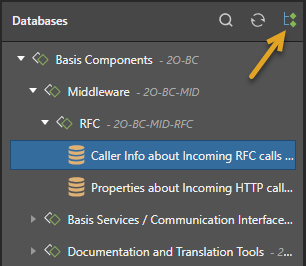
To show BW Info Areas, click the tree view icon from the Databases panel (brown arrow above). You can then navigate the tree structure of the Info Areas to find the required database.
Models panel
Open
Click Open to launch a new discovery for the selected SAP model.
The different SAP BW views are denoted by the following icons:
 - Cube icons for cubes.
 - Grid icons for BEx Queries.
SAP Parameters
When you launch a new discovery for a SAP model that contains parameter configurations, the Define Model Parameters dialog automatically opens. This dialog shows parameters that have been defined in the data source so that you can configure them for Pyramid. Once configured, they appear in the Dimensions panel when the model is opened and can be added to queries.
- Click here to learn more about SAP Parameters
Smart Discover
Click Smart Discover to launch Smart Discover and build a discovery for this model. Smart Discover is an AI-driven tool that helps non-technical users to build analytical content using augmentation engines and heuristics. It offers users the simplest method for building data visualizations in Pyramid through a simple point-and-click wizard.
- Click here for more information about Smart Discover
Ask a question
Create a discovery using a natural language prompt. When working with SAP BW, Ask a Question is only available for Pyramid models.
- Click here for more information about Accessing NLQ
Tip: Where this option is not available, you may still be able to access other Natural Language Querying (NLQ) options (Chatbot and Type a question) within Discover.
Model Views
Selecting a database from the Databases columns exposes any models in that database. These models can be seen in a Tile view, List view, or Tree view.
As normal, the Information Panel displays metadata and actions for the selected view.
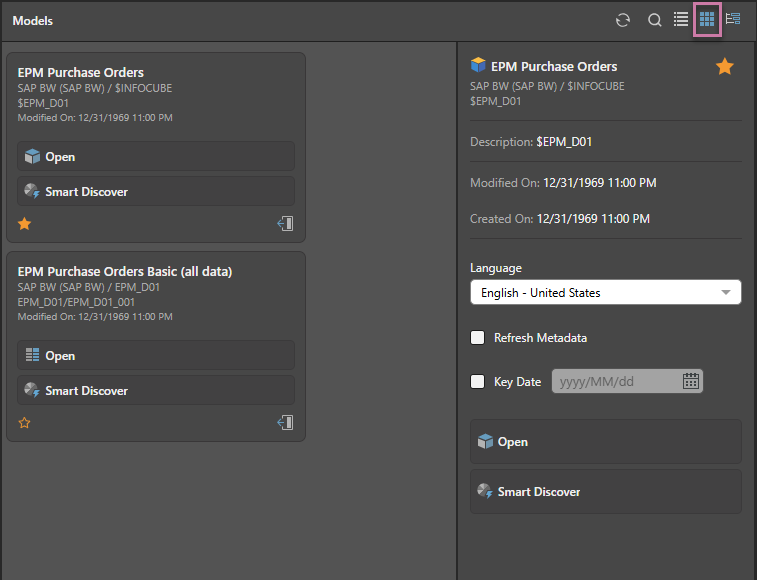
Tile View
The tile view displays the BW views in a tile format, with the option to perform the various actions from the tile itself, or from the information panel.
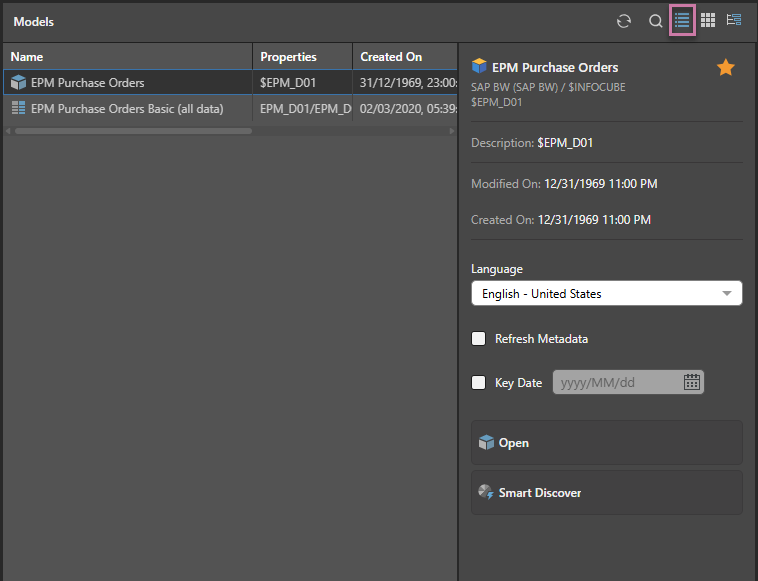
List View
The list view organizes the BW views into a list, with metadata shown in each column: Properties, Created On, Modified On, and Version. Hover over a column header to enable sorting and filtering of the list by column.
Tree View
The tree view organizes the BW views into folders and sub-folders.
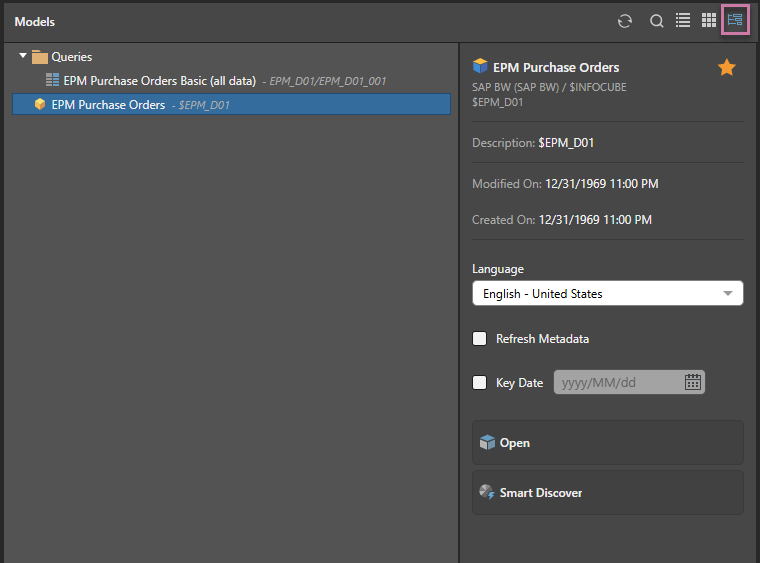
Model Metadata panel
When a model is selected (but not opened) in any of the previous views, an Information Panel displaying the model's metadata automatically appears on the right as the fourth panel. It displays the model name, location, creation date, and description. From this panel you can:
- Click the Star icon to add the model to your favorites or remove it from your favorites, depending on its current state.
- Use the Choose Language dropdown list to choose a language to display hierarchies, members, and models in. The language list has been set in the database.
- Select the Refresh Metadata checkbox to refresh the model.
- Open the selected model in Discover Pro, Smart Discover, or the NLQ (Ask a question).
Time-Dependent Hierarchies (Key Date)
Pyramid supports SAP BW time-dependent hierarchies. Expose support for time-dependent hierarchies by enabling the Key Date option and choosing the relevant date.