The Date Calendar allows your readers to select options from date-key columns. They can filter their discoveries or presentations by selecting date "slices"; that is, particular dates, ranges of dates, or formulas based on dates (such as year to date or last x days to date).
Note: You may also be able to slice by dates using dropdown lists or buttons (say), where your dates are not modeled as date-key columns. The Date Calendar is only available for date-keys.
You can show or hide any of these pickers from the slicer's settings dialog.
Creating a Date Calendar Slicer
Drag the date-time hierarchy (yellow highlight below) onto the Filters drop zone and drop it onto the Date Calendar submenu (purple highlight). Hovering over the Filters menu or the triangle to the bottom-right, opens the submenu options:
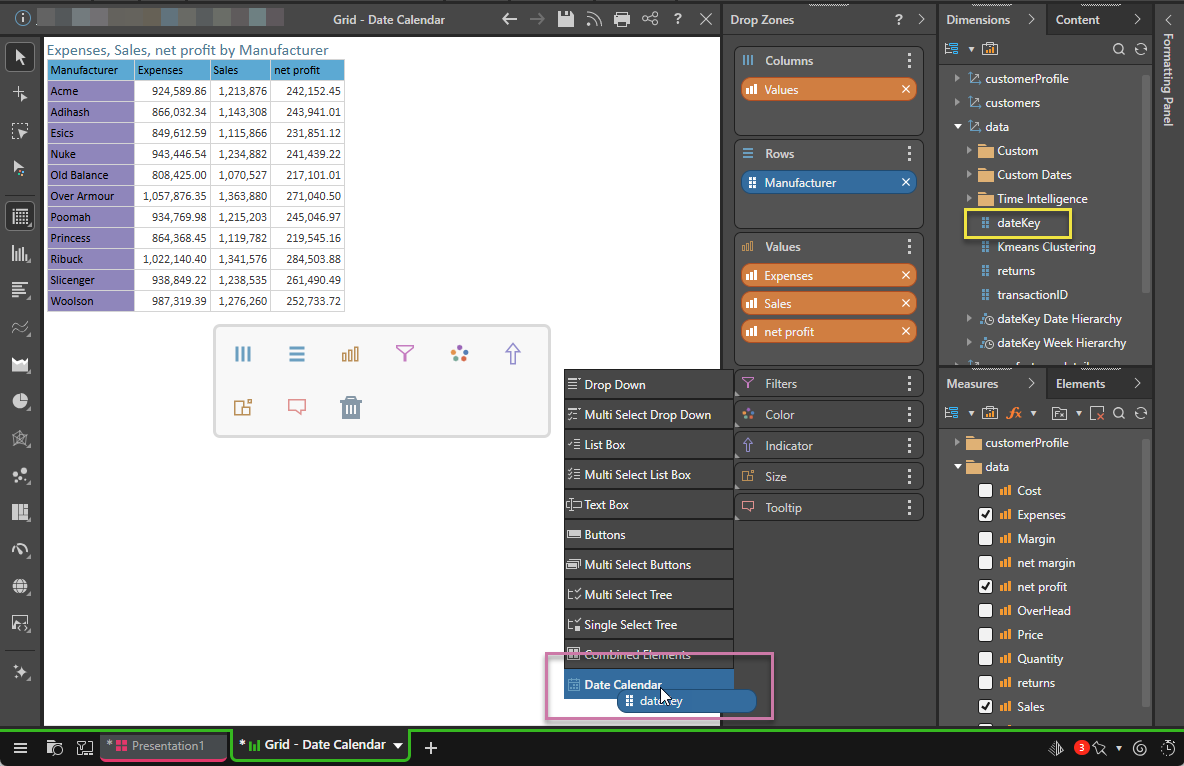
Note: A Date Calendar can only be created using a date-time column.
Using the Date Calendar
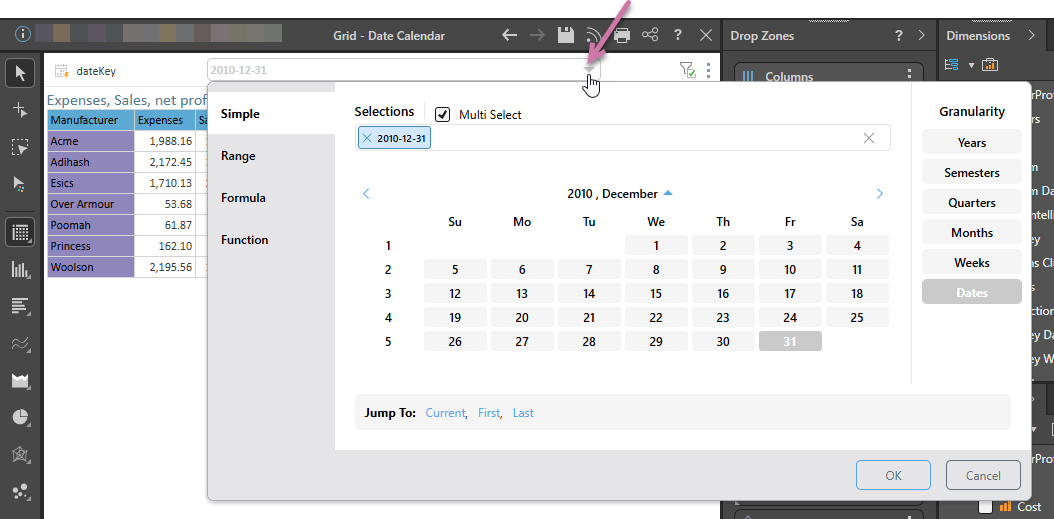
When you drop the date-time hierarchy onto the Data Calendar option (green arrow below), a Date Calendar slicer is created on the canvas. When you click the slicer's dropdown list (purple arrow), the Date Calendar opens instead of a list of dropdown options:
Calendar Types
The Date Calendar features different "Pickers," each of which is designed to meet a different set of user requirements:
Simple Picker
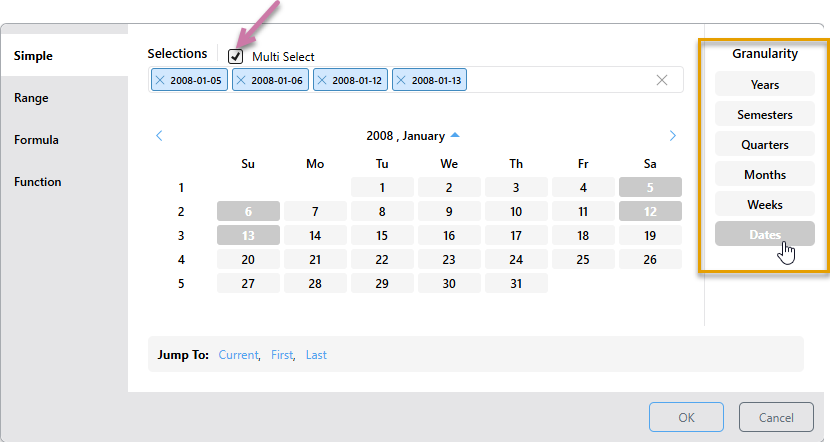
The Simple Picker allows you to select or manually enter dates that should be used to filter the query. To select more than one element, you must select the Multi Select checkbox (purple arrow below) and then choose multiple elements in the picker from any level of granularity (orange highlight).
The example below filters the query by the four dates selected - 5, 6, 12, and 13 January, 2008:
- Click here for more information about Simple Pickers
Range Picker
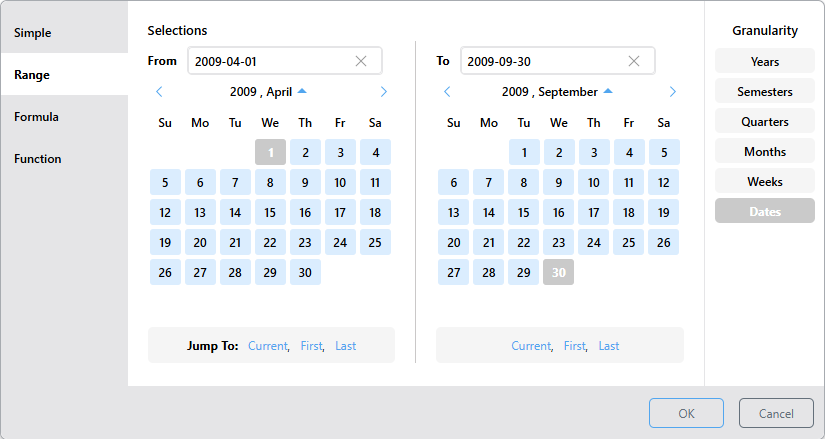
The Range Picker lets you define a date range from the From date to the To date, inclusive. First, choose the required level of granularity. Then either select the start date from the left calendar and the end date from the right calendar, or type the dates directly into the From and To fields.
The example below filters the query by all dates between 1 April 2009 and 30 September 2009, inclusive:
- Click here for more information about Range Pickers
Formula Picker
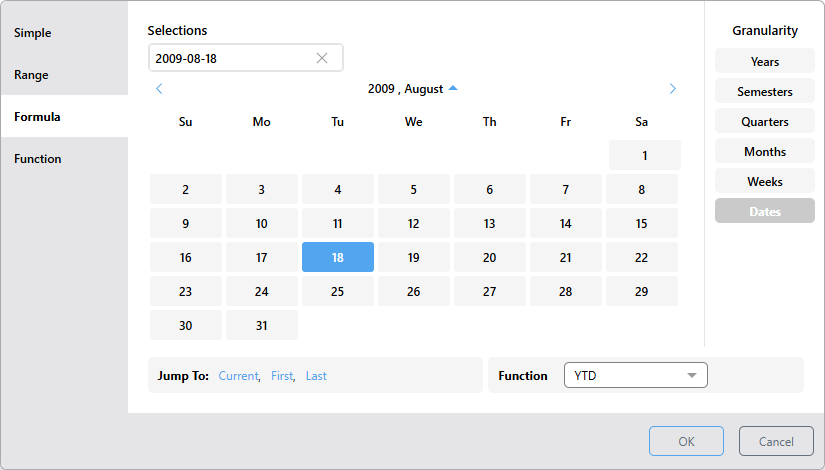
The Formula Picker allows you to filter the query by a formula based on the selected date element. Start by selecting the granularity level, then select or type in the date element, then choose the required function. (Which functions are available depends on the selected level of granularity.)
The example below filters the query by all dates in 2009 (YTD), up to and including 18 August:
- Click here for more information about Formula Pickers
Function Picker
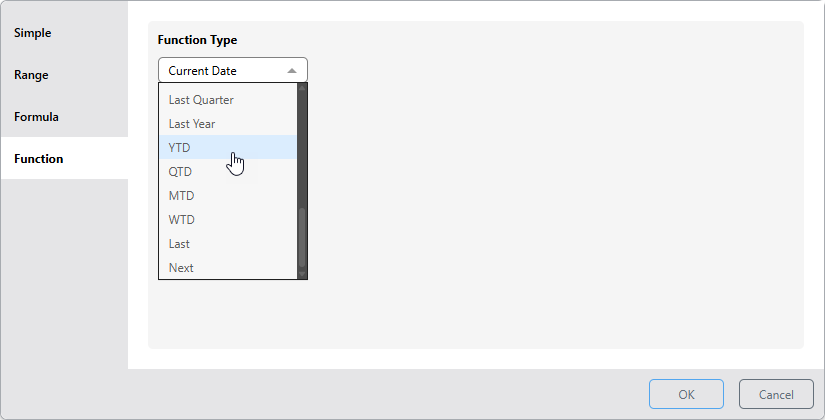
The Function Picker allows you to filter the query dynamically using a date function that references the "latest date." Which date is the latest depends on your model:
- If your model includes dates up to and including the current date, then the latest date is today.
- If your model only includes dates from the past, then the latest date is the latest date that we have data for. If we have data from 2010 only, then the latest date is in 2010.
- If your model includes future dates, then the latest date is the last of the future dates. If we have data to 2050, then the latest date we have data for is in 2050.
For example, if YTD were selected, the query would be filtered by the year to date. This means that, if the latest date you have data for was today, Pyramid would select the data for this year up to and including today.
Important: For subscriptions, the schedule run time acts as the current date when evaluating date-based filters that use functions. This means that, if your report contains a date slicer where the Last Month function has been selected, the slicer selection will be the last month relative to the schedule execution time and not from a fixed date. For more information, see Dynamic Dates.
- Click here for more information about Function Pickers
All Picker Functionality
Granularity
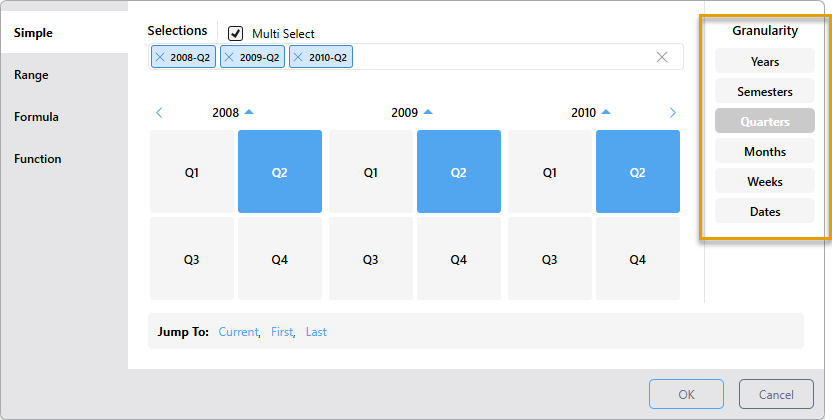
Rather than displaying dates only, the Date Calendar allows you to specify the desired level of Granularity (orange highlight below). This means that you can choose to display any of the date-time groups in the calendar and make your selections accordingly:
- Select Years and then select 2010 to filter the query to display data for 2010.
- Select Semesters and then select 2008 > S2 and 2009 > S2 to filter the query by semester 2 of 2008 and 2009.
- Select Quarters and then select 2008 > Q2, 2009 > Q2, and 2010 > Q2 to filter the query by quarter 2 of 2008, 2009, and 2010. (The example above shows this selection.)
- Select Months and then select 2010 > Jul and Aug to filter the query by July and August, 2010.
- Select Weeks and then select 2009 and 1, 2, and 3 to filter the query by weeks 1, 2, and 3 of 2009.
- Select Dates and then select 2009 and January and then 3, 4, 17, 18, and 31 to filter the query by January 3, 4, 17, 18, and 31, 2009.
Formula Granularity
The Advanced Formulas (Last, Next, Lag, and Lead) include two time period selectors; the Granularity defines the unit to select, while the date in the Selection Formula dropdown list defines the time window that determines the "offset" used by the formula. For example, if a Last formula is defined where the Granularity is Dates and the Selection Formula is Weeks, one day is selected from each of the previous weeks.
- Click here to view worked examples of the Advanced Formulas
Calendar Selection
The Date Calendar only allows selections for dates that exist in the database. Dates and periods for which there is no data are grayed out. To make a selection from the calendar, start by selecting the required level of granularity, then select the required date or time period.
To assist in making a selection, use the back and forward arrows to move to the next or previous period, and use the up and down buttons to jump to a different month or year.
Back and Forward Buttons
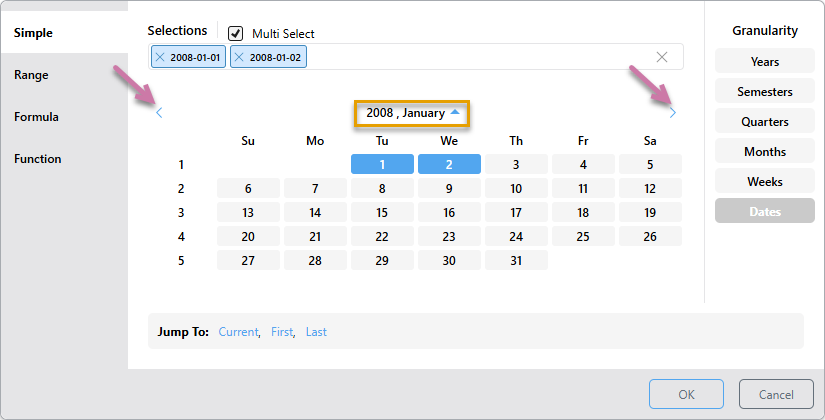
Use the back and forward buttons to navigate through the calendar at the current level of granularity. For example, at the Dates level the calendar displays dates by month (orange highlight below), click the forward arrow to go to the next month, or the back arrow to go to the previous month (purple arrows). Likewise, at the week level, click forward to go to the next year, or back to go to the previous year.
Up and Down Buttons
Use the up and down buttons (orange highlight above) to jump to a different month or year for the current level of granularity. Up buttons indicate that you can go up a level, while down arrows indicate that you can go down a level, without making a filter selection.
Examples
To follow these examples, use the Sample Demo data model.
 Dates Granularity
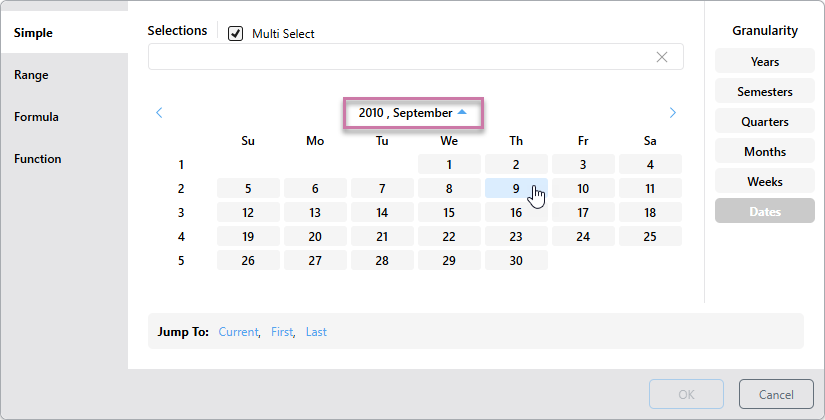
With Dates selected as your Granularity, you will see the currently selected Year and Month above the calendar (purple highlight below):
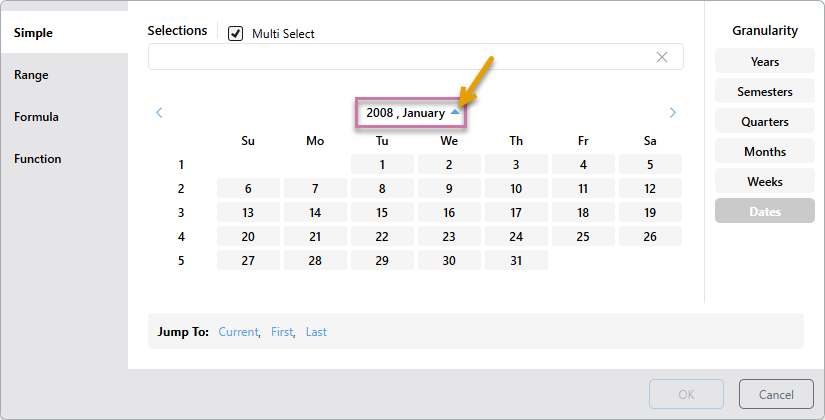
Click the Arrow above (orange arrow) to show the Months in the currently selected year that include data:
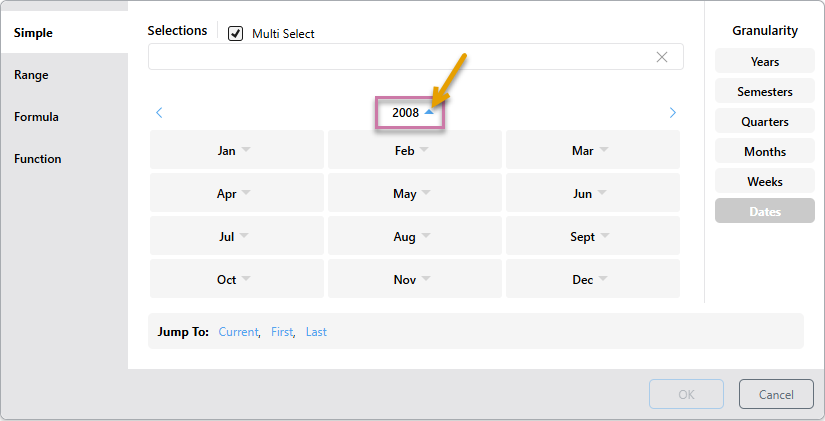
Note: Each month in the preceding panel displays its own arrow. This indicates that if you click on a month, you will go to the date level.
Click the Arrow above (orange arrow) to see the years, and then select 2010:
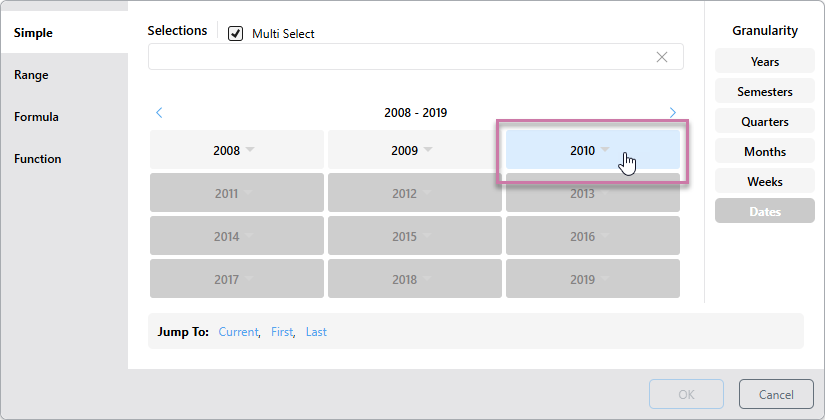
You will now see the months in 2010. Select September:
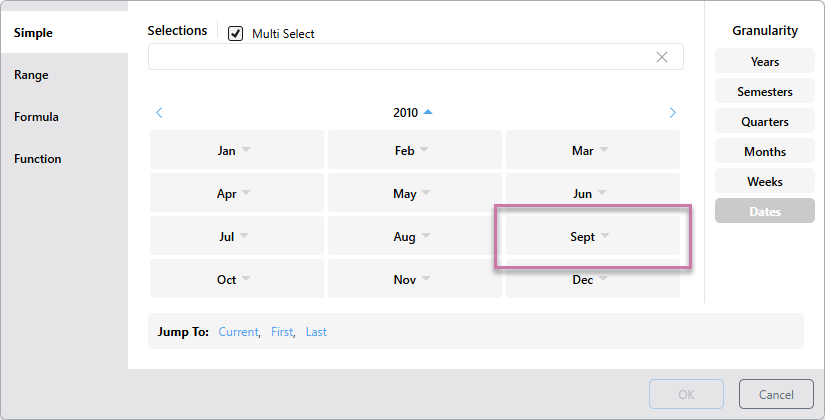
You will now see the dates for 2010, September and you can make a filter selection of dates:
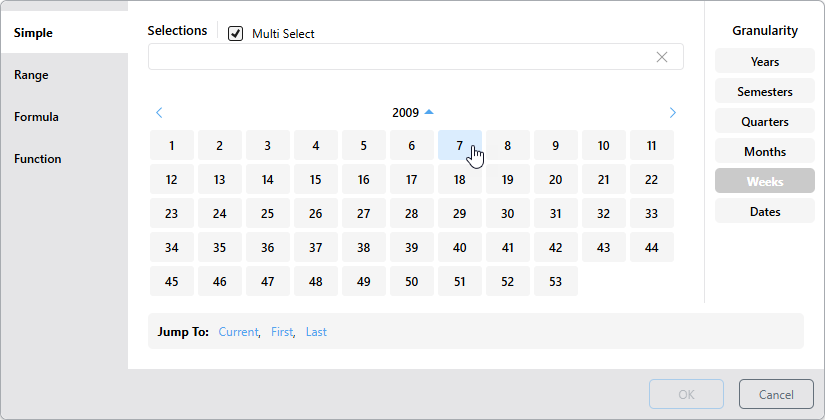
Weeks Granularity
From the weeks, months, quarters, and semesters levels, the Arrow button will show you the years (purple highlight below). Set the granularity to Weeks and click the Up button.
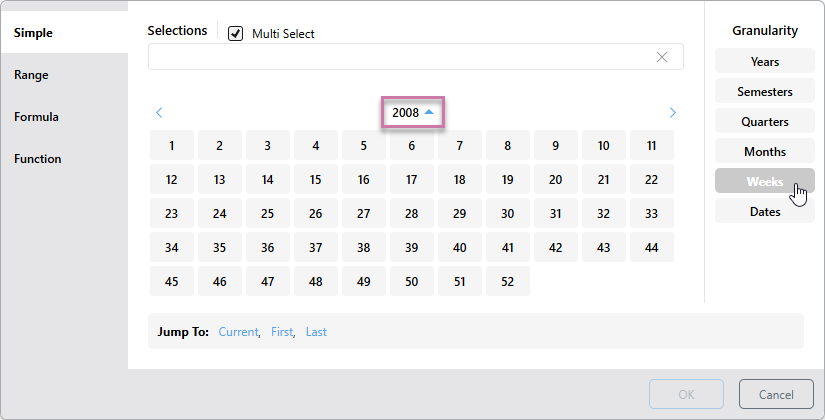
You will see the list of years, accompanied by a down arrow. Select 2009:
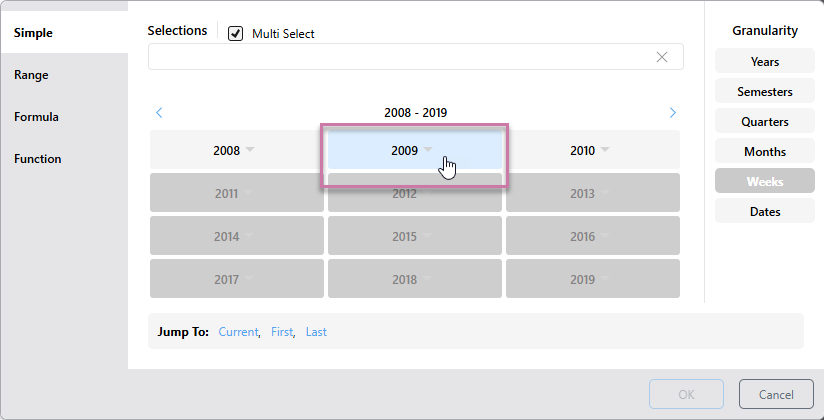
You will now see all the weeks in 2009, and can select one or more weeks:
Quick Selection
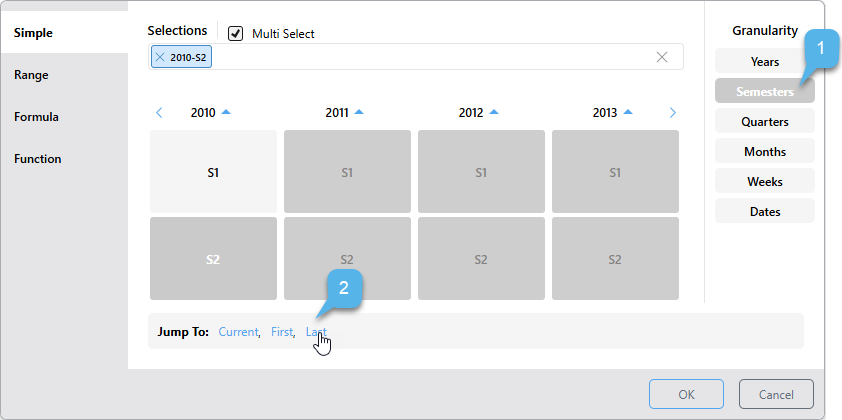
The quick selection options provide a shortcut selection for filtering by the current, first, or last date-time period at the current level of granularity.
To make a quick selection:
- Start by choosing the granularity level as usual.
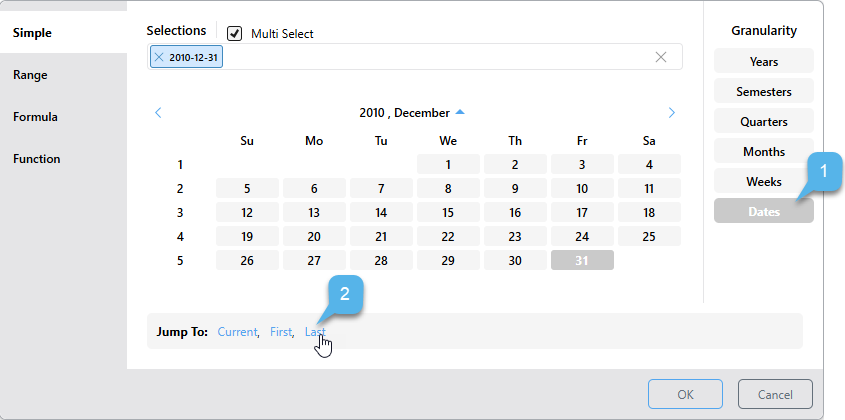
- Then, instead of making a selection from the calendar, choose one of the Jump To options below.
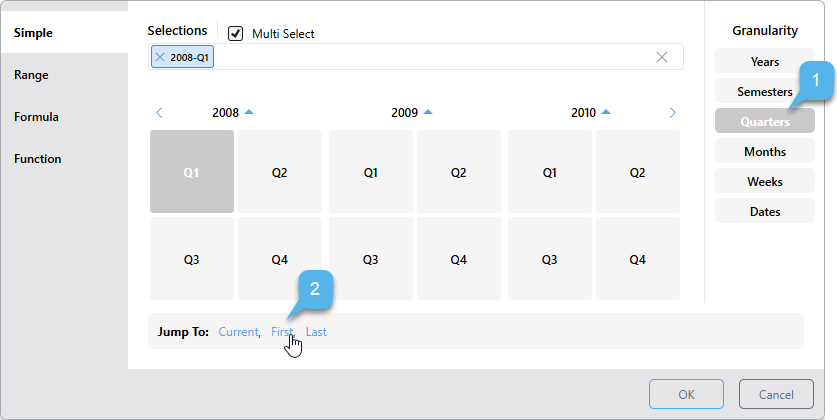
- Current: Depending on the given level of granularity, selects today's date (if it exists in the system) or the current year, semester, quarter, month, or week. If the current date-time period doesn't exist in the system, the last date-time period will be selected instead.
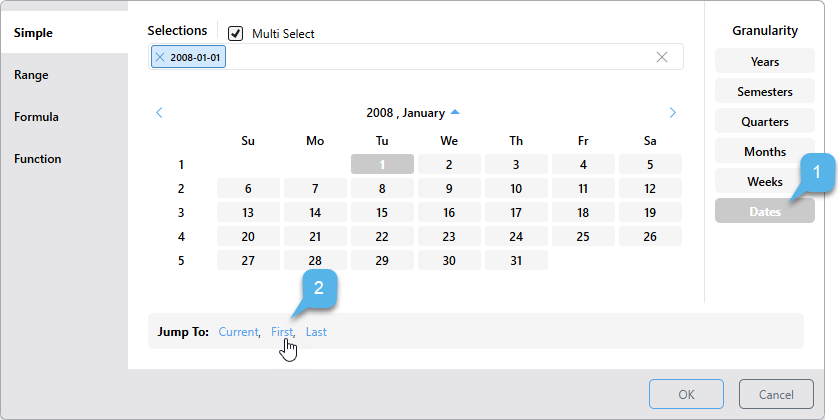
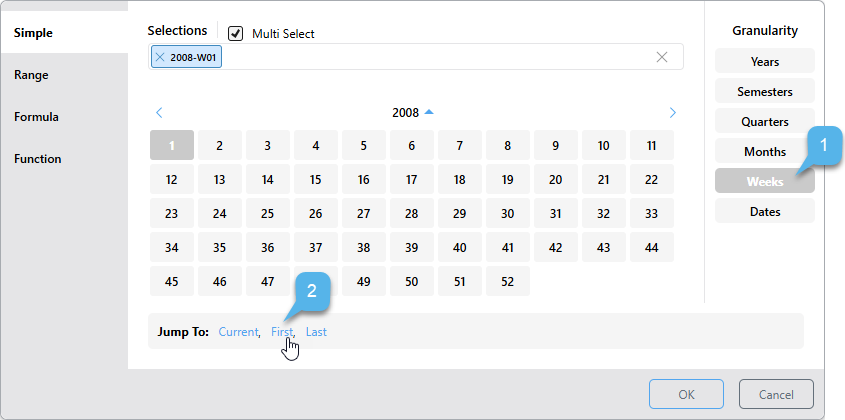
- First: Selects the first date-time period in the system according to the selected level of granularity. If the granularity is set to Dates, the first date in the system will be selected; if the granularity is set to months, the first month in the system will be selected; and so on.
- Last: Selects the last date-time period in the system according to the selected level of granularity. If the granularity is set to Dates, the last date in the system is selected. If the granularity is set to years, the last year in the system is selected.
First Date Examples
Here, the first date in the system was selected:
Here, the granularity is set to Weeks, so the first week was selected:
Last Date Examples
Here, the last date in the system was selected:
Now the last semester in the system was selected: